| Block Cursor (optional) | AutoWrap On |
| VT200 7-bit Mode | Normal Video |
| User Keys Unlocked | No Margin Bell |
| Numeric Keypad | No New Line |
| Standard Cursor Keys |
It is recommended that you select a baud rate of 9600 or higher to achieve quick screen painting. Remember to "save" your selections so that you don't have to repeat the process everytime you power-up the terminal.
2.2 Sample Forms
Once your terminal is properly set up, you can run the SAMPLE forms delivered with the system. To do this, invoke the following:
D ^TKFORME
This is the TK-FORM editor. The first thing the editor does is to check to see whether TK-FORM has ever been initiated. If TK-FORM has not been initiated this prompt will appear:
Create the TK-FORM Sampler?
If you do not want the sampler created, answer "NO". The default is "YES". The Sampler will build, compile, and then run a number of SAMPLE forms.
The SAMPLE forms introduce you to the powerful capabilities of TK-FORM, and help provide a frame of reference for features discussed later in this manual. We recommend that you use the SAMPLE forms to familiarize yourself with TK-FORM:
A. Print the attributes of the SAMPLE forms onto paper;
B. Study the attributes while operating the forms;
C. Systematically modify the SAMPLE form attributes, exercising each of the attributes described in this manual.
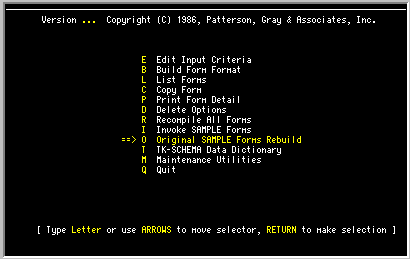
After making a number of changes to the SAMPLE forms, you may decide to return to the original forms we gave you. Should this happen, invoke the TK-FORM editor and select the following option:
This option may be run an unlimited number of times and will not affect any other forms in the system.
Note: The SAMPLE forms are not intended to be real, live applications. We state this so that you concentrate on the features of TK-FORM, and not on the application selected for our simple demonstration.
SECTION 3 - DATA ENTRY GUIDE
An overview of the TK-FORM user interface is provided here. This section can also serve as a separate reference guide for end users. Section 3 has been designed so that this entire portion of the TK-FORM documentation may serve as a "pull-out" end user manual of TK-FORM. This should save a significant amount of time in communicating the features of TK-FORM to users. Section 3 has been prepared with user productivity in mind: all users should have a standard reference document of basic TK-FORM features that enable them to make the best use of this powerful software tool.
3.1 Function Key Index
This section is a map of the TK-FORM functions to the appropriate keys on terminals implemented for TK-FORM. These key assignments can be remapped via the TK device editor (^TKDEV). See Appendix A for a description of how to remap the keys.
TK-FORM is delivered with a number of function key assignments already built in for a number of device types. The following table lists the default assignments for the VT220 terminal and the IBM PC (DataTree and CCSM versions). Keyboard templates for these and other terminal types that list the function key assignments are available from PG&A.
| Function | VT220 Function Key | IBM PC Keys
|
| Next Screen | Next Screen | Page Down |
| Previous Screen | Prev Screen | Page Up |
| First Screen | F12 | Ctl Home |
| Scroll Up 1 Line | F13 | F5 |
| Scroll Down 1 Line | F14 | Shift F5 |
| Insert Line | F7 | F3 |
| Delete Line | F6 | Shift F3 |
| Clear to End/Line | F20 | F7 |
| Help | Help | F1 |
| Top of Screen | PF3 | Home |
| Insert Character | Insert Here | INS |
| Remove Character | Remove | DEL |
| Ditto Key | F8 | F4 |
| Go to End of Field | PF2 | Ctrl E |
| Next Tab Stop | TAB | TAB |
| Other | F17 | Shift F1 |
| Group Insert | F18 | F8 |
| Group Delete | F19 | Shift F8 |
| Exit | F11 | F10 |
3.2 Form Behavior
TK-FORM first paints a form on the screen along with its associated data. The form in Figure 1 below is a copy of Sample Screen 2 of the TK-FORM sampler.
The sample screen is a registration form for a patient. The shaded areas are the data fields and you can see that some data has already been entered.Fig. 1 TK-FORM SAMPLE SCREEN 2
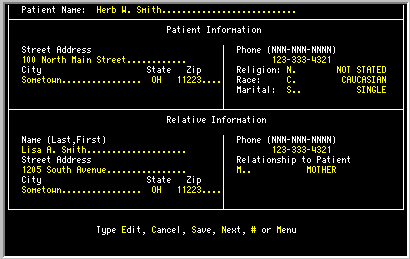
Let us look more closely at the form and see how it works.
3.2.1 The Edit Control Question
The edit control question enables the user to control the process of entering and leaving the edit mode and jumping from form to form. A particular form series does not have to use the edit control question so you may or may not see it. Also, the particular words used within the edit control line may be changed from site to site, so what you may see may be different from what is shown in this manual. The process is still the same.
The edit control question is found on the last line of the screen and will be in one of the following forms:
| Type Quit | no edit possible |
| Type Edit or Quit | if there is only one form in this series. |
| Type Edit, Quit, Next, # or Menu | if this is a form within a form series. |
| Type Edit, Cancel or Save | if editing has taken place |
|
3.2.2 TK-FORM Editing Functionality
Once the user is placed into the "edit" mode, a number of features and functions become available.
Message Area
The bottom two rows of the screen are reserved for messages. This message appears at the bottom of the screen during most standard editing processes:
( Edit fields - TAB to bottom when done )This message will change to reflect the actions required to edit each type of data entry fields such as multiples, and groups. Errors may also appear here or they may appear in a pop-up box elsewhere on the screen.
Flags
Flags identify certain attributes of the field where the cursor is positioned. The flag is displayed in the bottom right corner of the terminal screen in reverse video type. Multiple flag characters may be displayed when more than one of the following attributes apply to a particular field:
| M = Mandatory | A non-nil answer must be entered for this field.
|
| D = Ditto | This field may be duplicated from another on the form. If a field is identical to another on the form, pressing the ditto key will copy the originating field's display into the current field. (Example: home and work phone number.) |
| T = Table | A table reference has been established for this coded data field.
Press the HELP key for a pop-up window display of the table of data and
associated codes which apply to this field.
|
If an Edit Attribute exists for a particular field, the data currently filling the field, as well as any available remaining characters in the field are displayed for the user.
The location of the cursor within a field prior to editing is referred to as the Edit Position. This may be defined as being either to the right or to the left of the value in the field.
Replace Mode Typing
Typing over characters previously entered replaces old data with new; it does not result in an automatic insert of those characters in a field. Once you reach the position which is the farthest to the right within a field any further typing replaces the last character.
Erase to End of Field
When this function key is pressed, the characters from and including the cursor position to the end of the field are removed.
HELP Key
If no HELP text exists for this field, the following message appears at the bottom of the screen:
Sorry, no help available. Press RETURN to continue.
If the field has a table reference associated with it, a pop-up window is displayed, as discussed in FLAGS. Use the cursor or leading characters to make the selection, and press RETURN.
HELP text may also be programmed from the application making use of TK-FORM. Three possible HELP formats may then apply:
1. A message may appear in the bottom two rows of the screen.
2. A pop-up window message may appear on the screen.
3. The format may be specific to that application.
Moving Around the Form
Movement from field to field on the form is the most often used action performed by the user. The following list of keys will help to make the process efficient and timely.
| Cursor Left Cursor Right |
The left and right cursor keys move the cursor accordingly only within the field. Cursor movement stops when you are at the farthest right or left position within a field. |
| Cursor Down Return |
The RETURN and CURSOR DOWN keys move the cursor to the next field in the sequence. Note that the order of the sequence is described by the designer of the screen and may not necessarily be the next field to the right or on the next line. |
| Cursor Up | The CURSOR UP key moves the cursor to the previous field in the sequence. |
| Tab | The TAB key will cause the cursor to move to the next tab stop in the screen. Tab stops are fields that the screen designer designated as important and convenient to jump to. If the cursor is in a group, the cursor will move to any tab stops within the group or jump to the next group. |
| Exit | The EXIT function ends the editing session. |
Functions Which Apply to Multiple Items and Grouped Data
| Next Screen Previous Screen |
TK-FORM proceeds to the screen prior or subsequent to the current screen if one exists. When one does not exist, TK-FORM continues to display the current screen. |
| Scroll Up Scroll Down |
TK-FORM scrolls in the desired direction when data exists below or above, respectively. If not, TK-FORM remains at the current position. |
| Insert Line Insert Group |
TK-FORM performs the insert and then prompts for the new line or group. |
| Delete Line Delete Group |
TK-FORM removes the current line or group, repacks the data, and then continues to the subsequent line or group. TK-FORM does not perform the edit checks. |