S SCR="SAMPLE" D ^TKFORM
Your application program should also define key variables that are used as subscripts to the database and any other variables that might be necessary for the screen series such as display only fields and data used in the operators and validation code.
The operations of TK-FORM may be altered by passing control information in the variable "tkform" (lower case). The variable "tkform" has the following format:
parameter 1;parameter 2;...parameter n-1;parameter n~ ~Breturn control
You currently may define parameters 1 through 3 and TK-FORM will set the return control parameter at the completion of the form. Note that the return control is appended on the end with a "~ ~B" as a delimiter.
Parameter 1: EDIT CONTROL
Domain: 0, 1, 2Only one value is allowed. TK-FORM does not validate. This parameter controls the edit/control question prompt that appears on the bottom of the screen as follows:
0 = NO EDIT/CONTROL QUESTION. TK-FORM will paint the form and prompt for the data requested on the form. The edit/control question is not asked.1 = EDIT/CONTROL QUESTION LAST. TK-FORM will paint the screen, prompt for data requested on the form, and then ask the edit/control question. If this parameter is not defined in tkform, this value is assumed by default.
2 = EDIT/CONTROL QUESTION FIRST AND LAST. TK-FORM will ask the edit/control question both before and after editing.
Parameter 2: PROCESS CONTROL
Domain: D, Q, S, NParameter 3: EDIT/CONTROL QUESTION OPTIONS^TKFORM does not validate. This parameter allows partial form processing.
D = DATA MODE. Does not write the static portions of a screen (the Form Drawing). Only the data is displayed. Proceeds to data editing.Q = QUIT MODE. The form is painted and the data is displayed but no editing occurs. Control is immediately returned to the calling routine.
S = STATIC MODE. Only the static portions of a form get painted. Editing does not occur.
N = NO EDIT MODE. Form is painted and the data is displayed, but no editing is allowed. May be combined with "D" prevent edit and static options.
Last Parameter: RETURN CONTROLIf you would like to add your own options to the edit/control question, they must be listed in the third piece of the tkform variable. TK-FORM will add these items to the edit/control question and will force a quit operation if the first letter of the option is entered by the user. Any data edited will be stored in the database first.
Domain: any word whose first letter does not conflict with the words used in the
Edit/Control QuestionFormat: two or more options must be separated by a comma For an example, suppose that you wanted the capability of printing a report of the displayed data of TK-FORM while the user is at the edit control question. The application program would first set the tkform variable and execute ^TKFORM as follows:
The second line deciphers the return code to see if the user pressed a "P" for print (see next page). Note that the "Print" option will be displayed on every screen of the series. If it is only to appear on one screen, you will need alter "tkform" within that screen using the Pre-Edit Code.S SCR="MYFORM",tkform="2;;Print" D ^TKFORM
S X=$P(tkform," ~B~",2),X=$P(X,"-",3) I X["P"!(X["p") G ^PRINTThis parameter is returned by TK-FORM. It indicates the form series termination method chosen by the user, i.e., the most recent answer to the edit control question.
Domain: C, Q, or nil Format: form series-screen number-final edit control answer other letters are possible if the third parameter of the tkform variable is definedC = CancelQ = Quit
nil = Screen was invoked with tkform parameter 1 set at 0.
If you have more than one screen in series, you may want to alter the order of screens or only use a subset. The "SNL" variable is used by TK-FORM to alter the screen order. The format of this parameter is screen numbers delimited by commas. For example, if a form series has seven screens, but an application requires only a subset of those screens, that application would specify the subset in SNL in the order it wants the screen, e.g., 4,2,5 would ask the fourth screen, then the second, and finally the fifth out of the original seven.
For example,
S SCR="SAMPLE",SNL=1 D ^TKFORMwould only invoke form SAMPLE-1.
If you need to process the data between screens, invoke ^TKFORM with SNL assigned to a single form number.
TK-FORM provides the following "verbs" as part of the edit/control question:
EDIT QUIT SAVE CANCEL NEXT # MENUYou may assign alternate wording for these verbs by using the Edit/Control Question Wording option on the Maintenance Menu. You may change one or all of the words. Keep in mind that the options should each start with a different letter. Options left blank will not be available to the user.
You are also given the option of using a single line selector to select the Edit/Control option. The user then has the option of pointing to the option desired as in TKPOP and then selecting it by pressing RETURN.
A temporary change of wording may be accomplished by defining the variable "ECTL". It must be in the following format but you may change the words as are required:
Edit`Quit`Cancel`Save`Next`#`Menu`EQCSN#Mwhere the delimiter is an ASCII 96 and the last piece is the first letter of each option.
TK-FORM has an escape facility that allows the user to press a function key to temporarily escape the form series and call another MUMPS process and then later return to the form at the same place. This can accomplished at both the Edit/Control question or within a field. It currently is not supported while in a pop-up or when TK-FORM branches to the users own routines.
The Escape allows the system designer flexibility in creating an application that is responsive to the users needs. The uses are left to your imagination and it requires the following simple steps and precautions:
a) To turn the Escape Mode on, you must either define a local variable called ESCAPE before you call TK-FORM or define ^TKDISP(0,"ESCAPE"). The latter will turn Escape on for all forms, although the local form will take precedent over the global if they are both defined. b) TK-FORM will execute the content of the Escape variable and then refresh the form and return to where it left off. It is up to you to worry about protecting the TK-FORM variables and it will probably be necessary to use the NEW command. You may pass variables back to TK-FORM if you don't include them in the NEW statement. c) The screen is not cleared before executing ESCAPE so you can overlay information on top of the form if you would like. TK-FORM will refresh the original screen from line tt for td number of lines. The defaults for these variables are tt=1 and td=22 so that the entire screen will refreshed. You may alter these variables within the execution of the ESCAPE to change the amount refreshed. d) If the Escape variables are not defined, then TK-FORM will execute a Pop-Up Calculator if it available on the system. Some examples of ESCAPE contents:
N D ^TKGU(New environment, call to TK-GUARDIAN)N (X) D ^ROUT(New environment, but ^ROUT passes back a value of X for TK-FORM to insert into the field)N (tt,td) X ^TKNOTE S tt=12,td=10(New environment, call to pop-up notepad, adjust tt & td so that only bottom of screen refreshed)
Tables; Nested Records; Simple Segments
Grouped data is a number of fields which occur together to compose an entity. For simplicity, grouped data will hereafter be referred to as "groups". Groups are sometimes referred to as segmented records. (For a detailed discussion of grouped data, see Gio Wiederhold's discussion of segmented records in Database Design, 1983, 2nd edition, McGraw.) Three data structures are commonly implemented as grouped data: nested records, tables, and simple segments.
A nested record is a multiply occurring group implemented in a hierarchical manner. The archetype of a nested record is found in a medical application: associated with each patient visit to a health care provider are one or more procedures. At least two procedures are performed when a patient visits a dental office and has his teeth cleaned by the dental hygienist and a cavity filled by the dentist. Each of these procedures is more than one piece of data; they are each a record in their own right, and register not only a medical procedure code, but also the date, provider(s), and often much more. These procedures are nested records. Depending on the design of the group (schema), "visits" might be a nested record under "patient" since each visit has at least a date, diagnoses (another nested record), and procedures. With this latter schema, "procedures" are a group within a nested record. This example demonstrates the hierarchical nature of a group of data referred to as a nested record.
Data arranged in a defined table or matrix is termed "tabled data". A listing of service rates is one example of data that is appropriately structured in a table format; in this instance the rows represent the types of services, the columns are the service units, and the cells are prices of the services at the corresponding units.
Simple segments are single occurances of grouped data. For example, an address is composed of one or more lines, a city, state and zip code. This is an entity and may be implemented in TK-FORM as a group. The advantage of implementing an address as a group is one of programming only: the programmer can deactivate/activate the group if the address does not have to be asked. If the programmer does not implement address as a group but needs to deactivate/activate this data, the programmer must deactivate/activate each field. If the deactivation of the group is not of any particular need, it would be simpler and faster if the fields were left as simple fields without the overhead associated with groups.
The third sample form (SAMPLE-3) distributed with TK-FORM provides two examples of groups. The form is named Discharge Abstract. The diagnoses and procedure boxes on the screen contain nested records; each is, however, set up differently:
| - | Diagnoses are set up so that empty records are not allowed as trailers. Entering an empty trailer record or pressing TAB in an empty trailer record will cause the user to exit from the diagnoses fields. Procedures are set up to allow empty trailer records. TAB will always cause TK-FORM to prompt for the next record in procedures. |
| - | Each diagnosis is a multiple line nested record. Each procedure is a single line nested record. |
The procedures for creating a group are relatively simple and require two steps:
Like regular fields, groups are created and edited through the Build Screen menu option. TK-FORM distinguishes a group name from a field name by using a """ prefix (ASCII decimal 62). Valid group names might be:
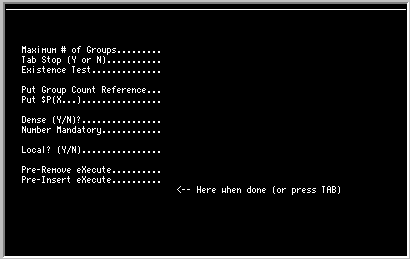
Step 1 - You must define the group attributes. This tells TK-FORM where the group is to be displayed on the screen and how it is to executed. Step 2 - You must define the fields within the group. Only the first occurance of the fields should be defined, since TK-FORM will automatically replicate the fields to fill out the group. Each field is defined exactly the same as non-grouped fields with exception of the reference (see 6.3.1).
"ADDRESS "RX "VISITS "PRODUCTSThe attributes of a group are listed in the following figure. Section 6.3.2 defines the use of each of the attributes.
To illustrate how to create a simple group you can follow the step by step example listed below:
1. D ^TKFORMETo edit the group, position the cursor at the top row and left column coordinate specified in the group, and press Control F. This is the same process as editing a normal field. If you do not remember these coordinates, move the cursor to any blank spot on the screen. Press Control F and enter the group identifier. TK-FORM will move the cursor to the top left coordinate and allow you to edit the group.2. Delect the Build Screen option and create a screen.
3. Notice in the second to the last row on the screen that SCOPE is the screen identifier.
4. Press Control F to enter a field.
5. TK-FORM then requests the field identifier. Enter ""PROC" for the identifier of the group called PROCEDURES. The """ indicates to TK-FORM that this field is a group.
6. TK-FORM now asks for the data required to construct a group. Enter the values found below. The tab in the last prompt will cause the remainder of prompts to be skipped (left blank).
7. TK-FORM returns to the screen being built. Notice that the SCOPE on the second to the last row of the screen has changed from the screen identifier to the group identifier. Until TK-FORM is instructed to unnest, or until a deeper nesting occurs, the SCOPE description will remain that of the current group.
Prompt: Value: 1. Top Row 18 2. Bottom Row 18 3. First Column 2 4. Last Column 79 5. # of Groups to Display 4 6. Maximum # of Groups 6 7. TAB Stop (Y or N),/TD> Y 8. Existence Test (TAB) 8. Move the cursor around the screen with the cursor step keys. Notice that the perimeter is now defined by the group. In the group that we just created, one record requires only one row.
9. Create at least two simple fields with a reference
^PATIENT(ID,"VISIT",n(1)), piece 1 or 2, and length of 10 characters each.10. Press Control F and unnest by entering """.11. Notice that TK-FORM has replicated the group and all of its graphics so that four records are displayed, as specified in field #5 for the group.
12. Notice that the SCOPE has returned to the entire screen.
As was mentioned, fields within the group are defined and function similarly to other fields, except for the reference.
The basic format of the reference for a field in a group is:
REF(...,n(1),...,n(2),...,n(3),......,n(n-1),...,n(n),...)where ... represents any legal MUMPS subscript or syntax to be entered. Continuing to use the nested record example described here, the reference for procedures is:
^PATIENT(ID,"PROCEDURES",n(1))This would be entered for procedure code, date, and provider. While this method is admittedly difficult, it allows the maximum degree of flexibility for the programmer.
If we had defined "visit" to be the first nested data element, and then nested "procedures" under "visits", the field references might be:
If the database designer wanted visits tied to diagnoses and procedures, but preferred a shorter access method than that described above, then the designer could use the following:
^PATIENT(ID,"VISIT",n(1)) for visit data; ^PATIENT(ID,"VISIT",n(1),"PROCEDURES",n(2)) for each procedure in a visit.
It is unlikely that the there will be 100 diagnoses. Defining the ranges of the potential number of nested data elements promotes good design, since this can reduce the access path to the data.
^PATIENT(ID,"VISIT",n(1)) for visit data; ^PATIENT(ID,"VISIT",n(1),n(2)) for diagnoses; ^PATIENT(ID,"VISIT",n(1),n(2)+100) for procedures.
The following rules must be observed in creating the field references in groups:
A. The basic format of the reference for a field in a group is: REF(...,n(1),...,n(2),...,n(3),......,n(g-1),...,n(g),...)
where g is the current group level, starting at 1, and n(g) is the occurrence counter for that level, starting at one.
B. g is incremented by one for each new nested scope, i.e., if you have a group within a group, you must reference the second group with n(2). You cannot skip to n(3) or higher. C. TK-FORM increments n(g) by one for each new group. If there are six possible groups and they are all defined, then n(g) will be defined from 1 to 6.
| Attribute | Description | |||||
| Top Row | Mandatory. Enter the top row of the first group. | |||||
| Bottom Row | Mandatory. Enter the bottom row of the first group. Remember this is the bottom of the first occurrence of this group even though other occurrences may be displayed below the first. For a single line group the value of the bottom is the same as the top. | |||||
| First Column | Mandatory. Enter the left most column position of the group. | |||||
| Last Column | Mandatory. Enter the right most column position of the group. This must be an absolute reference. | |||||
| # of Groups to Display |
Mandatory. Enter the number of groups you want to display
simultaneously on the screen. NOTE: The five attributes just described are only defined and edited using the BUILD FORM FORMAT. Since they effect the screen display, they cannot be edited using the EDIT INPUT CRITERIA. The remainder of the attributes can be edit by either option.
| |||||
| Maximum # of | Mandatory. Enter the maximum number of allowable groups. (Enter a variable name if it is computed at run-time). | |||||
| TAB Stop (Y or N) | Enter Y for yes if you want TAB to stop on this group. | |||||
| Existence Test | TK-FORM may opt to PUT only completed groups, i.e., it does not have
to PUT the maximum number of empty records. To perform this PUT
efficiently on preexisting groups, TK-FORM must be able to count the
number of groups which exist. Enter eXecutable MUMPS code which will set
$Truth to TRUE if the group exists, e.g.: I $D(^PATIENT(ID,"PROCEDURES",n(1)))would test each n(1) procedure group for existence, setting $Truth to TRUE if the group exists. Note the side effects documented in the next section of this manual. | |||||
| Put Group Count Reference |
The total number of groups will usually be less than the maximum
quantity allowed. To PUT the count of the groups, enter the destination
MUMPS reference, e.g.: ^PATIENT(ID,"PROCEDURES")would be the reference which stores the number of diagnoses for a patient. NOTE: the Existence Test is ignored if this attribute is completed. | |||||
| Put Group Count $Piece |
If the group count is a $Piece of the reference named in the PUT GROUP
COUNT REFERENCE, then enter the $PIECE in the TK-FORM format
$P(X,delimiter,piece #). For example, if the group count is the fifth
piece of the count reference, and the delimiter is a ";", then enter:
$P(X,";",5)This attribute is optional. | |||||
| Dense (Y/N) | If PUT GROUP COUNT is utilized, then DENSE will remove any empty
records during group entry. For example, if DENSE is answered YES and the
INSERT GROUP key is pressed, and then the user presses TAB, TK-FORM will
remove the blank inserted group before allowing the user to continue to
the next record in the group. See SAMPLE-3, Group "DX. | |||||
| Number Mandatory | Optional. Enter the number of records which must be entered, or
enter a variable name that contains the number at run-time. See SAMPLE-3, Group "DX. | |||||
| Local? (Y/N) | Default: Yes. Answering NO will cause intermediate values to be saved in a scratch global to save local symbol space. | |||||
| Pre-Remove eXecute |
This optional MUMPS code is invoked when the user is in a group and
the user presses the REMOVE GROUP function key. If this code returns
$T=0, the removal is cancelled. If this code returns $T=TRUE, the removal
continues. The purpose of the code is to give the programmer control over allowing the removal and/or the insertions of records in a group. It is also useful for adjusting a running balance of a batch should a the user remove a group, e.g., the pre-delete code can subtract out the record's amount before deleting the record, so the running total will to correct. NOTES:
| |||||
| Pre-Insert eXecute |
Same as Pre-Remove eXecute, except for that it controls insertions. |
To adjust the MUMPS reference accordingly, record the count of all groups in a form before editing begins. This may be done easily in the USER DISPLAY CODE or PRE-EDIT CODE. Once the form is edited and its data filed, compare the new counts to the old. If the new counts are less than the old counts, then trim the remainder with your own MUMPS code. See SOLUTION 1 below.
A simpler but sometimes less appropriate method exists. TK-FORM has a PRE-FILE eXecute which may be used to KILL the data before the form is filed. This method might be the fastest and easiest solution, although not always appropriate. See SOLUTION 2 below.
PROBLEM DEFINITIONTK-FORM GROUP RECORD REMOVAL PROBLEM
Let the following schema represent a database:
^PATIENT(PID,"RX")=countBefore editing:
^PATIENT(PID,"RX",n(1))=rx code;rx date;rx physician
^PATIENT(1,"RX") =3During editing, the second group is removed. Without any application code intervention, the database will look like this:
^PATIENT(1,"RX",1)=50.1;53001;123^(2)=53.5;53001;123
^(3)=90.3;53010;345
^PATIENT(1,"RX") =2Note that the count and the first two records are correct, the problem is that the third record is a remainder.
^PATIENT(1,"RX",1)=50.1;53001;123^(2)=90.3;53010;345
^(3)=90.3;53010;345
SOLUTION 1:
Let the PRE-EDIT CODE be:
S RXCOUNT=^PATIENT(PID,"RX")Let the POST-FILING CODE be:
I RXCOUNT"^PATIENT(PID,"RX") F A=^("RX")+1:1:RXCOUNT . .SOLUTION 2:
. . K ^PATIENT(PID,"RX",A)
Let the PRE-FILING CODE be:
K ^PATIENT(PID,"RX")
TK-FORM Operators are discussed in section 4.7. These instructions take on a special syntax for a field which is in a group. The syntax for an instruction for a field in a group is as follows:
operator;field.n(1).n(2).n(3) ... n(g-1).n(g);referenceIf the field is a multiple, and the operator is a PUT or FETCH operator, then the syntax is as follows:
operator;field.n(1).n(2).n(3) ... n(g-1).n(g).multiple;referenceIf TK-FORM is currently within a group and needs to issue an instruction for a field in the current group, then the following short hand format may be used:
operator;field.;referencePlease note that this syntax would not work with a PUT or FETCH to a multiple since the instruction does not specify the multiple.
Instructions which are not PUT or FETCH and which apply to all records in a group use the following syntax:
operator;fieldFor example, from SAMPLE-3, the following instruction would DEACTIVATE the field PROCEDURE DATE for all procedure records:
D;PDATEInstructions which apply to the entire group are not applied to individual records which have had unique instructions performed on them. For example, if the following instructions are invoked:
S opi=2,opi(1)="M;PDATE.2",opi(2)="N;PDATE" X opthe PDATE in the second record is still mandatory. However,
S opi=3,opi(1)="M;PDATE.2",opi(2)="N;PDATE",opi(3)="N;PDATE.2" X opmakes the status of the second procedure group no different than the other procedure groups, provided no other unique instructions were performed on the second procedure group. More exactly, once a unique instruction is evaluated by TK-FORM on an individual group, a unique status is create for that group. The unique status is created so that the status is not lost once the record is finished being edited. Therefore, during the edit session, if the user returns to re-edit the group with a unique status, the status is recalled. But, if the status is changed so that it is the same as the basic status for the entire group, then the unique status is terminated and the basic status of the entire group is assumed by the record with the previously unique status.
When you start getting into some more complex forms you will discover that you are confronted with new issues some of which are worth mentioning in this manual.
The natural inclination for most people is to cram as much data on the screen as possible. Some of the considerations to keep in mind are:
| 1. | Eye strain. Too much in too little space can make it difficult for the user to find information on the screen. Line drawing, different video attributes, and careful attention to field placement can help make the data presentation clear. The eye should be able to follow the data path easily. |
| 2. | Quick editing. Use the TAB STOPS sparingly and place them at logical section beginnings or at often-used fields. It is nice for the user to get to these fields with one or two key strokes. |
| 3. | Quick display. The more you have on the screen, the longer the display and refresh time. Moving unimportant data fields to other screens may make the often used screens quicker. |
| 4. | Effective use of space. Have you taken advantage of space
saving field attributes such as multiples and groups. These features
allow for a subset to be displayed on the screen at one time and the
remainder can be scrolled through using the cursor keys or the NEXT PAGE
and PREVIOUS PAGE function keys. If you have used groups or multiples, are you displaying the optimum number of items. It is preferable that most of the data be seen on the first display. This prevents the user from having to jump to the field and scrolling through it to review all entries. If, in fact, most of the items in the multiple are left blank, then you may want to consider displaying a smaller number of entries and free up some real estate on the screen. |
There is a physical limit on the screen, and at some point the form designer must choose to go to continuation screens. Some of the things that you might keep in mind are:
| 1. | Separate data into categories. You want to make it easy for the user to remember where data items are found. For an example, if you place all ofthe demographic information on one screen, all the test findings on another, and insurance information on a third, then it is fairly easy for the user to remember where to find something. |
| 2. | Watch for "ditto" information. If your database contains a number of data items that are repeated, you may want to take advantage of the COPY function key to copy from field to field using the ditto attributes. TK-FORM currently limits the "ditto" capability to only fields within the current screen, so you may want to place these fields together. |
| 3. | Separate out unnecessary data. In some situations you may not need to show the user certain data since it is not relevent. For an example, there maybe some data items that pertain to males and others to females. You could group all of these data items together creating one screen for males, and another for females, and select only the appropriate screen by using the SNL control variable. |
There are number of different situations that might arise while you are implementing table-lookup fields. Some of the common ones are:
| 1. | How to remove items from the table? Since TK-FORM uses the table reference to display table fields, you will get an "undefined" error in MUMPS if you remove a table item that is referenced by some record in the database. To prevent this you will need to include a "D" in the table parameters and TK-FORM will execute a $DEFINE before attempting to display the table item. This does however cause a little extra overhead and it is not recommended unless it is really needed. |
| 2. | How to create alphabetical order in the pop-up help? Type 0 tables will always list the entries in the help window in collating sequence, but type 1 through 5 tables will list them in the order of the TABLE REFERENCE file rather than the TABLE LOOKUP file. The TABLE REFERENCE is in internal number order. Adding an "A" to TABLE PARAMETERS will cause them to be listed in TABLE LOOKUP order. |
| 3. | What is displayed in the table-lookup fields? You will notice that the data displayed will change depending upon how you set up the table attributes in the particular field. Depending upon the table type, the attributes TABLE TEXT LENGTH, TABLE TEXT REFERENCE, and TABLE MNEMONIC REFERENCE may be used to modify the display. Use the chart on the next page to help understand the relationship between these parameters. |
The following tables lists each of the parameters that may be entered in TK-FORM and their use. Note that some parameters are combined with others and are delimited with a "\". None of the parameters will have any value to TK-FORM unless the LOOKUP-REFERENCE parameter is specified. You may turn off the table options by simply removing this parameter.
| FIELD IN TK-FORM | MEANING | REQUIRED? | EXAMPLE |
| Table Para. | Specifies table type and
modifier (0,1,2,5,A,D,F,H,K,L,V) | No (type 0 assumed) | 0K |
| Mnemonic Ref | Alters the mnemonic before display (type 1 & 2 only) |
No | $P(^TEXT("CODE",X),"\",2) |
| Lookup-Reference | The global from which the user's entry is checked |
Yes | ^TABLE(100,X) |
| Reference | An inverted form of the Lookup-Reference used in type 1,2 & 5 tables for Text Display |
Only for Type >0 | ^INVERT(100,X) |
| Text Length | Specifies the length of the field for the expanded table entry (data). | No | 20 |
| Ref | Modifies the text display with MUMPS code | No | $E(^TEXT(100,X),1,5) |
| Menu Parameters | Turns on the HELP window to list table | No | 10\RHY\2 |
There are six main issues that need to be dealt with when using tables:
1. What does the user enter? (the entire code or a perhaps only part of the code)The following table illustrates how each of these six issues are effected by the various table parameters:
2. What is displayed in the field after the user's entry?
3. Should the expanded form of the code be displayed next to it? (this is called Table Text)
4. What form of the table does the user see when a HELP pop-up is requested?
5. What is the global structure of the table? (Table Type)
6. What is finally stored in the database? (Either the entered code, or the internal pointer)
| Table Type | Table Parameters Entered | User Enters | Displayed in Field | Table Text (adjacent to field) | Help Pop-up Display | Stored in Database |
| 0 | (none) | X | X | (none) | X | X |
| 0 | text length | X | X | ^LOOKUP(X) | X + ^LOOKUP(X) | X |
| 0 | text length & ref | X | X | ^TEXTREF(X) | X + ^TEXTREF(X) | X |
| 0 | K | partial X | X | (none) | X | X |
| >0 | (none) | X | X | (none) | ^LOOKUP(X) | ptr |
| >0 | text length & ref | X | X | ^TEXTREF(ptr) | ^LOOKUP(X) + ^TEXTREF(ptr) | ptr |
| >0 | mnemonic ref | X | X | ^MNEMONIC(ptr) | ^MNEMONIC(ptr) | ptr |
| >0 | K | partial X | X | (none) | ^LOOKUP(X) | ptr |
Type 0 tables are the single global tables with the form ^TABLE(code)=data. The user enters the code. Type 1 and higher tables are two global tables with one global being an inverted form of the other. In these tables, the user enters an external code but the internal code (pointer) is what is actually stored in the database.
TABLE MODIFIERS
| H | Suppresses the Table Text Display and uses the Text Length, Text Reference or Mnemonic for Help Pop-up only |
| D | Peforms a $DEFINE on ^LOOKUP(X) for Type 0 or ^TABLEREF(X) for Type > 0 before displaying text. Use this if there is a possibility that the database may contain entries not currently found in the table. |
| F | Allows Free Text entry. If the SDF parameter is defined, then the SDF character is appended to the text as it is put to the database. |
| L | Left justifies text if the Table Text Display option is on. Text will start one space to the right of the end of the data entry field and will extend to the right until to the text length has been satisfied. |
| V | Causes any validation code to be performed after table lookup operations rather than before. |
TK-FORM provides a great deal of flexibility for the system designer. The benefits are numerous but the disadvantage is that it may be difficult to fully understand the processes that take place during the execution of a form. The following two flow charts on the next four pages are included to graphically represent the order of events and help you understand when particular data is executed:
~EC S LN=-300 (O] FPAT 255,255,255,255,255,255,255,255; FONT 5; SPD .015; TEXT "TK-FORM"; MRP 0,.3; TEXT "FLOW"; MRP 0,.3; TEXT "DIAGRAM"; MRP 3.5,-1.15; CALL REN," Start";DRP 0,.1; CALL TRG1," Data"," Mode"," ?"; CALL BOX,"Execute Any User"," Display Code"," --"," Display Static", " Part of Screen"; CALL TRG1," Static"," Mode"," ?"; CALL BOX,"Execute KEY inputs"," (if any)"," --"," Load and", " Display Data"; CALL TRG1,"Edit Control=2","or Process Control"," = N"; CALL BOX,""," Execute Any"," Pre-Edit Code"; MRP 0,-.12; DRP .04,.02,0,-.04,-.04,.02,1.7,0; MRP .2,0; CIR .2; MRP -.08,.05;FONT 5; TEXT "B";FONT 7;MRP -1.82,.12; CALL BOX," Enter or"," Edit Data","","(See EDIT diagram)"; DRP 1.7,0; DRP -.04,.02,0,-.04,.04,.02; MRP .2,0; CIR .2;MRP -.08,.05;FONT 5; TEXT "A"; FONT 7; RPP; CALL TRG1," Process"," Control ="," Q or S"; DRP 0,.25,-.02,-.04,.04,0,-.02,.04; MRP 0,.2; CIR .2; MRP -.08,.05; FONT 5; TEXT "A";FONT 7; RPP; CALL REA," Exit"; RPP; CALL REA," Exit"; RPP; DRP 0,1,1.7,0; DRP -.04,.02,0,-.04,.04,.02; EXIT;
(O] FPAT 255,255,255,255,255,255,255,255; FONT 7; SPD .015;MRP 3.2,-.3; MRP 0,.2; CIR .2; MRP -.08,.05; FONT 5; TEXT "A";FONT 7;MRP .08,.15; DRP 0,.1; CALL BOX,""," Edit"," Control"," Question"; SCP; DRP -2.5,0,0,.2; MRP -.12,.12; TEXT "Cancel"; MRP .12,.04; CALL REA," Exit"; RPP; SCP; DRP 2.5,0,0,.2; MRP -.105,.12; TEXT "Edit"; MRP .105,.04; DRP 0,.25; MRP 0,.2; CIR .2; MRP -.08,.05; FONT 5; TEXT "B"; FONT 7; RPP; DRP 0,.2; MRP -.8,.12; TEXT "Quit, Save, Next, Menu or #"; MRP .7,.04;DRP 0,.2; CALL TRG2," Pre-Filing"," Code"," Available"; DRP 0,1.2; CALL BOX,""," File Data"," In Database"; CALL BOX,""," Execute Any"," Post-Filing"," Code"; CALL TRG1,""," Quit ?"; CALL REL,"Next Screen"; RPP; CALL REA," Exit"; RPP; CALL BOX,""," Execute"," Pre-Filing"," Code"; CALL TRG5," $T = False"," ?"; DRP .5,0,0,-1.2,1.70,0,-.04,.02,0,-.04, .04,.02; RPP; CALL BOX,""," Report Error","","(passed in 'er')"; DRP 0,.25,-.02,-.04,.04,0,-.02,.04; MRP 0,.2; CIR .2; MRP -.08,.05; FONT 5; TEXT "B";FONT 7; EXIT;
(O] FPAT 255,255,255,255,255,255,255,255; FONT 5;TEXT "TK-FORM"; MRP 0,.3;TEXT "EDIT MODE"; MRP 0,.3;TEXT "FLOW";MRP 0,.3;TEXT "DIAGRAM";MRP 3.2,-.7; CALL REN," Start";DRP 0,.2; SCP; MRP 0,-.1; DRP .04,.02,0,-.04,-.04,.02,1.7,0; MRP .2,0; CIR .2; MRP -.08,.05;FONT 5; TEXT "C";FONT 7; RPP; CALL BOX,""," Position"," Cursor In"," Field"; SCP; MRP 0,-.15; DRP .04,.02,0,-.04,-.04,.02,1.7,0; MRP .2,0; CIR .2; MRP -.08,.05;FONT 5; TEXT "B";FONT 7; RPP; CALL BOX,""," Allow"," Field"," Input"; CALL TRG3," Any"," Input ?"; CALL TRG1," Process"," Acknowledge"," On ?"; DRP 0,.25,-.02,-.04,.04,0,-.02,.04; MRP 0,.2; CIR .2; MRP -.08,.05; FONT 5; TEXT "D";FONT 7; RPP; CALL BOX,""," Remove"," Trailing Blanks"; DRP 0,.25,-.02,-.04,.04,0,-.02,.04; MRP 0,.2; CIR .2; MRP -.08,.05; FONT 5; TEXT "E";FONT 7; RPP; DRP 0,.50,.04,.02,0,-.04,-.04,.02; MRP -2,-2; MRP 0,.2; CIR .2; MRP -.08,.05; FONT 5; TEXT "A";FONT 7;MRP .08,.15; DRP 0,.3; CALL BOX,""," Display"," Error"," Message"; DRP 0,.15,-.02,-.04,.04,0,-.02,.04; MRP 0,.2; CIR .2; MRP -.08,.05; FONT 5; TEXT "B";FONT 7; EXIT;
(O] FPAT 255,255,255,255,255,255,255,255; MRP 3.2,-.15; CIR .2; MRP -.08,.05; FONT 5; TEXT "E";FONT 7;MRP .08,.15; DRP 0,.1; CALL TRG1,""," Empty ?"; CALL TRG6," Pattern"," Match"," ?"; CALL TRG7," Match"," Ok ?"; DRP -.04,.02,0,-.04,.04,.02; MRP .2,0; CIR .2;MRP -.08,.05;FONT 5; TEXT "A"; FONT 7; RPP; CALL TRG6," Validation"," Code"," ?"; CALL TRG7," Validation"," True"," ?"; DRP -.04,.02,0,-.04,.04,.02; MRP .2,0; CIR .2;MRP -.08,.05;FONT 5; TEXT "A"; FONT 7; RPP; CALL BOX,""," Execute"," Put Transform"; SCP; MRP 0,-.1; DRP .04,.02,0,-.04,-.04,.02,1.7,0; MRP .2,0; CIR .2; MRP -.08,.05;FONT 5; TEXT "D";FONT 7; RPP; CALL TRG8," More"," Fields"," ?"; DRP -.04,.02,0,-.04,.04,.02; MRP .5,-.2; CALL REN," Exit"; RPP; DRP .04,.02,0,-.04,-.04,.02; MRP -.2,0; CIR .2;MRP -.08,.05;FONT 5; TEXT "C"; FONT 7; RPP; DRP 0,.50,.04,.02,0,-.04,-.04,.02; RPP; DRP 0,.50,.04,.02,0,-.04,-.04,.02; RPP; CALL TRG1," Real-Time"," Manditory ?"; DRP 0,1.1,1.7,0; DRP -.04,.02,0,-.04,.04,.02; RPP; DRP 0,.25,-.02,-.04,.04,0,-.02,.04; MRP 0,.2; CIR .2; MRP -.08,.05; FONT 5; TEXT "A";FONT 7; EXIT;
APPENDIX A ~"INCLUDE DU,30
APPENDIX B ~"INCLUDE DU,2
This appendix describes how to use the TK-SCHEMA database dictionary management system with TK-FORM.
TK-SCHEMA allows the user to predefine data items outside the scope of an individual form. Some of the benefits that TK-SCHEMA provides the TK-FORM user are:
Single DefinitionA TK-SCHEMA data item is referenced by TK-FORM in the BUILD FORMS option. In order to indicate that the field attributes are to be copied from the TK-SCHEMA file, you need to enter the TK-SCHEMA dictionary code preceded by a "^" character. TK-FORM will then copy in any attributes that you had predefined and then will only let you define the field attributes that are unique to TK-FORM.Quick Changes If a change to field attribute for a data item is required, TK-SCHEMA will automatically recompile all of the forms that reference that data item.Convenient UtilitiesTK-SCHEMA allows the you to copy, delete and print the items with convenient utilities. This is particularly useful in maintaining and documenting large database systems.Additional PG&A Software SupportTK-SCHEMA is used by other PG&A toolkits and therefore your definitions will automatically be available to these tools also.
When you later edit the form with the EDIT INPUT CRITERIA option, you will see that your TK-SCHEMA data elements are listed with a "^" before the code.
TK-SCHEMA Field Attributes
TK-SCHEMA allows you to define twelve individual attributes for each data item. Some of these attributes are required, some are optional, and others are not used by TK-FORM but may be used by other PG&A toolkits. The TK-SCHEMA attribute data entry screen is as follows:
"SCREEN TKSCHEMA,FIELD,1,.8,B
The following attributes are required for TK-FORM:
Description, Reference, and LengthThese attributes will be used by TK-FORM if they are entered in TkSchema:
Multiple parameters, Pattern Match, Additional Validation, Fetch Transform, Put Transform, and Table Parameters.Section 4.5 of this manual describes most of the attributes that are found in TK-SCHEMA. Those that are not used by TK-FORM are described below:
| TKSCHEMA FIELD ATTRIBUTES | |
| Attribute | Description |
| DESCRIPTION | MANDATORY. The description is used internally for documention purposes. This text should uniquely describe the data item to distinguish it from the others. |
| TITLE | An abbreviated form of the description and is used by some of the PG&A software in the form of headings and field labels. It is not used in TK-FORM. |
| TYPE | T,N or D. Data type of data item. This is not used by TK-FORM. |
| ALIAS CODES | Other TK-SCHEMA codes may share the same attributes but have a different reference. In order to link these codes together, they must be listed as aliases in the corresponding dictionaries. |