CHAPTER 7
REFERENCE - SYSTEM OPTIONS
The following chapter provides more detailed information on miscellaneous functions that are found on the System Options Menu. These operations provide additional support to the edit and print operations as well as provide assistance to the system manager.
ADD A DIRECTORY
Enables the creation of a new document directory.
Menu Item
Select <A> on the Directory Options menu.
Adding a new directory to the TK-WRITER system simply requires the letter designator, directory description and an optional password to be entered on the Add a New Directory input screen.
The single or double letter designator can not be already in use. All 52 upper and lower case characters can be used.
Provide the directory with a description that will identify it on the Directory Selection screen. This description may include name, department or type of documents that will be stored in it.
The password is optional. The password will lock out users who are unable to provide the password which can be up to eight characters in length. Make sure you remember the password yourself, or you may be locked out of your own directory. Note: Your system manager can assist you if you forget your password.
Leaving the password blank will enable free access to the directory by TK-WRITER users. Of course it is also possible to protect individual documents through the use of document specific passwords.
Use the Change Directory Description option to make changes to the description or password of any directory. (It is necessary to know the current password of a locked directory, before a new password can be assigned).
COPY A DOCUMENT
Permits the entire document to be copied to another document without changing the first.
Menu Item
Select the Copy Document option on the Special Options menu.
The Copy Document option will request the document number of the document to be copied. The directory from which the document is to be copied is already displayed.
NOTE: To copy a document, the user must first have made the directory to be copied from, current. It is not possible to copy from any other directory other than the directory which is current.
The description of the source document is shown so that you can verify the correct document.
You will then be asked to enter the document that you want to copy to. The letter of your current directory will be presented to you but you may type over it to change to another directory if you would like. In this way you may copy from one directory to another.
The document description of the document you are going to copy into will be shown if it already exists or else it will say "new document" indicating that you will be creating a new document with the copy.
You will then be requested to enter a <Y> for YES if you want to proceed with the copy. Verify that the source and target documents are correct before proceeding. If there is a mistake enter a <N> for NO and the copy will be aborted.
If the target document already exists, the copied text will be added to the end.
DELETE A DIRECTORY
Enables an empty directory to be removed from the directory selection screen.
Menu Item
Type <D> on the Directory Options menu.
You may delete a directory from TK-WRITER only when it is empty. If you want to delete it and there are documents present, they will first need to be removed.
Select the directory to be deleted. You will be prompted to enter a <Y> for YES if you want the selected directory deleted.
DELETE A DOCUMENT
Enables a document to be removed from a directory.
Menu Item
Enter <D> from the Special Options menu.
Be sure that the proper directory is current before beginning. Select the Delete a Document option on the Special Options menu and select the document to be deleted. If the document contains a password, you will be required to enter the password.
Enter <Y> for YES if the selected document is the document you want to delete. Should you select the wrong document or you have a change of heart, type a <N> for NO and the document will be left intact.
EDIT DIRECTORY DESCRIPTION
Enables modifications to the directory description and/or password.
Menu Item
Type <C> on the Directory Options menu.
Select the Change Directory Description option. The current directory will be shown on the screen. Press <RETURN> to accept it, or change it to another directory code and press <RETURN>.
The current description will be displayed on the screen. If there is a password associated with the directory, then you will be requested to enter it before you can make any further changes. You can then change the description and/or password. Press <RETURN> to return to the menu.
EDIT DOCUMENT DESCRIPTION
Enables the document description, password and default word wrap mode to be changed.
Menu Item
Enter <E> on the Special Options menu.
Select the Edit Document Description and Password option. Select the appropriate document. You will then be shown the document description. If there is a password associated with the document, you will be required to enter the password before changes can be made.
Change the description, password and word wrap mode as needed; then, press <RETURN> until you are returned to the menu.
MAINTENANCE OF DICTIONARY
Permits the user to add, subtract or correct words in the spelling dictionary.
Menu Item
Type <M> on Special Options menu.
You will first be prompted for the beginning letter or letters. This allows you to start anywhere in the dictionary and display the contents on the screen. If, for an example, you type <lam>, then you will be shown the words in the dictionary that start at "lam" and so on, just as if you were looking them up in a book. You have to press <RETURN> after you type the letters.
You will be shown three columns of words that are currently in the dictionary. You now have four options:
| A | Permits you to add a word that is not in the list. Type in the new word. It does not need to be within the range of the words displayed. Press RETURN when you are finished and you will see the new word listed in the dictionary. |
| C | Continues the listing of the words in alphabetical order. |
| E | Places you in the edit mode. First you will be required to point
to the word to be edited. Move the arrow up and down as needed with the
cursor keys or the space bar and press <RETURN>. The word selected
will be highlighted on the screen. Correct the word as needed using the cursor keys, insert and delete character keys or any of the alphabetic keys. Press RETURN when the correction is made. If you would like to delete the word from the dictionary, delete all of the characters and then press <RETURN>. |
| R | Returns you to the menu. |
Words are added to the dictionary by either adding words in this option or by "learning" words in the Spelling Check function.
PAGINATION PREVIEW
Allows for modification to the page breaks before the document is printed.
Menu Item
Type <P> on the Special Options menu.
Pagination Preview allows you to look at the document page by page to verify that all of the page breaks are in order. You are first required to select the document to be checked.
Then you will be required to make any necessary modifications to the Printer Parameters screen. Make sure that you set the top and bottom margins and the lines per inch correctly as these values will affect the number of lines that will be included on the page.
You will then be asked whether or not you want to remove any previous pagination. To understand this question, you will first have to know a little of what is happening in the Pagination Preview process...
TK-WRITER is going to walk through the document page by page just as if it were printing it. When it recognizes that there are enough lines to fill a page, or if a ~P print control character is encountered, it will stop and request a response from you. You will be able to see the last few lines of the page plus one or two lines that will be printed on the next page.
You are now able to go ahead and accept the page break that it computed or you may move the break up one or more lines so that it will end sooner. You cannot change it to break after the computed page break. If you make a change to the normal page break, TK-WRITER will insert a new line of text containing a ~ PC to tell the printer that the page break has been overridden.
If at a later time, you add or delete text from the document or perhaps change the Print Parameters so that the page breaks are changed, the computer generated ~ PC will most likely be in the wrong place. So, that is why you are asked if you want to remove any previous pagination. If you answer <Y> for YES, TK-WRITER will first remove any ~ PC lines that exist in the document before it will go any further.
Now you are ready to preview the document (if you haven't fallen asleep reading this explanation). First enter the page number that you want to start on. Generally you will start on page 1.
You will be shown the text of the page with an indicator for the end of the page. If you prefer that the page be broken at a different line, move the pointer with the up and down arrows. Press a <C> when you are satisfied and want to continue with the next page. Press <R> to return to the menu.
Once you have finished with the preview, any of the ~ PC that have been inserted in the document are a direct result of your moving the last line pointer and pressing a <C> to continue. Accepting the page break as shown will not result in the insertion of ~ PC.
Printing the document should result in exactly the same paging as you previewed.
REPAIR DOCUMENT
Permits the user to repair a document that has become corrupted.
Menu Item (also found in OTHER OPTIONS menu)
The Repair Document option (or Fix Document option in the OTHER OPTIONS menu) scans the document for problems associated with imbalanced pairs of video attributes, line drawing, invalid backward pointers and other structures that may be corrupted because of failures in the software, operating system or hardware.
Use this option if you experience a program error or unusual underlining, bolding or line drawing activity within the document. The Repair Document option requires that you first select the directory and document. It will then scan through the document and report the number of corrections (if any) at the end.
If you still experience a program problem it is most likely attributed to a database degradation of some sort and you should have the ^TKWP file checked for errors.
SYSTEM MANAGER'S MENU
Permits the system manager to configure and maintain the TK-WRITER environment.
Menu Item
The System Manager's Menu provides seven options that help control TK-WRITER. Since some of these options are irreversible, it is recommended that the access of this menu be restricted. The first option listed below allows for this restriction.
| Change Manager's Password |
You can give the System Manager's Menu restricted access by defining a password with this option. There is no default password, and once one is defined it may be changed or deleted by only personnel with access to the password. |
| Delete Entire Directory |
All documents of a particular directory can be erased in one operation. Make certain that you have the correct directory as there is no simple recovery. |
| Edit Function Keys |
This option calls on the TK configuration programs to allow you to modify the use of the function keys. Note that this modification will take place on all TK software that uses the same device name. See Appendix A for more information concerning the function keys. |
| Font Download File |
A download file can be defined that contains text and/or executable MUMPS code that is written and/or executed in response to an entry in the Font Download field of the Print Parameters screen. Each section should be separated by two blank lines, and the first line of each section should contain only the download code. |
| Import/ Export |
The import/export option of the OTHER OPTIONS menu may be restricted by defining a password here. |
| Setup Printer |
Each printer must be defined to TK-WRITER before it can be used in the print menus. This setup defines the type of printer, the type of paper handling, the size of paper, additional initialization parameters, etc. |
| View User Passwords |
Occasionally a user forgets the passwords that were defined for either a directory or a document. This option provides a means of recalling these passwords. |
FONT FILE DEFINITION
In order to conveniently use the printer's special features such as fonts, page orientation, etc., you need to define the these features in the Font File. Sample files may be ordered from PG&A for a number of the popular printers to which you can add other features, or you can define it all yourself.
Here is how:
| 1) | Select the Font Tables Option in the System Manager's Menu. Now it is assumed that there can be other features in this file other than fonts, but for the sake of this description we shall use the word "fonts" to mean all printer features. |
| 2) | A brief set of instructions will be at the top of the table. Enter either the internal font number, N for a new font number, or press the ? for a listing of the currently defined fonts. |
| 3) | Enter the font information (as explained below) and then press EXIT. The font definition will be stored away under the internal font code. It is now ready to be used. |
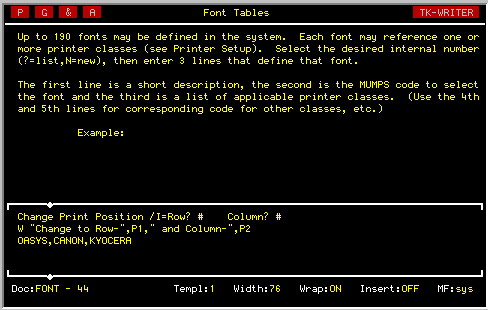
1st line - descriptionThe MUMPS code on line 2 applies to the printer classes listed on line 3, the code on the 4th for the classes listed on line 5, and if necessary you can have lines 6 & 7, etc.
2nd line - MUMPS code
3rd line - printer classes
4th line - other MUMPS code
5th line - other printer classes
Two switches can be included on line 1 after the description. The first is a /I switch which indicates that additional "Input" is required for the font definition. The /I switch is followed by one or more input statements such as:
/I=Enter Row-# Column-#The "#" indicates where the user may enter a number. Now these inputs are assigned a a temporary variable that can be used in your MUMPS code. The first input is P1, the second is P2, and the third is P3.
The second switch is a /D and indicates that a font download is needed to activate this font.
The sample printer function in following figure gives you an idea how you can define other printer features. Note that the MUMPS code illustrated doesn't really do anything useful. It will just write some useless text on the printer, but it should serve to show how the P1 and P2 inputs can be tied to the /I flag.
CHAPTER 8
INTEGRATION NOTES
Although most of this manual addresses the use of TK-WRITER as a general purpose word processor, there are in fact many other important ways to use TK-WRITER in an integrated environment.
If you are old enough, you might remember a time when computers only accepted numbers or perhaps a limited amount of alphanumeric input with a preponderance of numbers. At that time computers were not designed to easily accept, store, manipulate and output free text.
But with the advent of inexpensive memory and disk storage, new computer languages, efficient input and output devices, and faster computers we have seen the "number machines" changed into "database machines". The importance of being able to easily enter and edit free text is becoming much more important.
Perhaps one of the most suitable tools for processing free text is the word processor. TK-WRITER provides the system integrator just such a tool to aid in the creation, editing, and printing of free text data. It offers the following possibilities:
| 1. | A flexible edit window which may be popped up from any application software. |
| 2. | A similiar printer interface that allows foreign text to be queued and printed using TK-WRITER's print drivers. |
| 3. | A simple List Processing interface that allows the user's database to be integrated to TK-WRITER. |
The remainder of this chapter explains in more detail how to use TK-WRITER to accomplish each of these integration methods. There are as many ways to use TK-WRITER as there are applications. It is only when the systems integrator is familiar with the options that he or she will be best able to fit the software to the particular needs of the users. If the following information is not clear or not adequate, please feel free to call us for more help.
Incidently, the following material requires some knowledge of MUMPS programming.
TK-WRITER
AS AN
EDITOR
| o | full text editing support on a wide range of hardware platforms, i.e., CRTs and operating systems |
| o | simple user interface with a full complement of word processing functions |
| o | flexible control that allows the system designer to tailor the interface to the needs of the application |
| TKWPD | This is the global reference to be edited. All text will be stored under the reference specified such that if the reference specified is ^XYZ, then the text will exist at ^XYZ(10), ^XYZ(20) . . . to the end. If the reference is ^ABC("SMITH") then all data will be found at ^ABC("SMITH",10), ^ABC("SMITH",20) and so on. | |||||||||||
| TL | The top line of the edit window. Should be a value between 2 and 20. The screen above the window (lines 1 through TL-2) belong to the user and you may display whatever you like in that area. It will not be cleared by TK-WRITER. The default value of TL is 2. | |||||||||||
| BL | The bottom line of the edit window. This value should be at least 1 greater than TL in order for the window to be big enough for data entry. If the Help Screens or a full size Other Options menu is desired, then BL must be at least 8 greater than TL. The default value for BL is 22. | |||||||||||
| MG | The width of the edit line in characters. Should be from 30 to 126 although CRTs that don't support 132 column mode are limited to 76. | |||||||||||
| WO | Initial Word Wrap mode where -
WO = "" is ON (default) | |||||||||||
| NM | A 1-15 character description that appears on the bottom line of the screen. Set it to a null if you want to leave it blank. | |||||||||||
| TKWPOPT | Parameter string controlling the operation of TK-WRITER. Use
a comma between multiple parameters. The parameters are:
|
| @TKWPD@(begin) | = back pointer | $C(1) $C(1) | $C(1) first line of text | | @TKWPD@(next) |
= back pointer |
$C(1) $C(1) $C(1) |
next line of text |
- |
- |
- |
- |
-
| - |
- |
- |
- |
-
| @TKWPD@(end) = |
back pointer |
$C(1) $C(1) $C(1) |
last line of text |
|
where each line of text is delimited with three ASCII 01 characters ($C(1)) separating the back pointer from the text. The back pointer is the value of the subscript of the preceding entry. The subscripts start their numbering at .04 and on up. All subscripts between 0 and .03 are used by the editor for storing tabs and other control information. (You may have the control items between 0 and .03 and the delimiters in the text removed by TK-WRITER if you include the "ST" parameter in TKWPOPT.)
(Notice that the subscripts of the global are all numeric, but do not necessarily have even spacing. Insertions, deletions, and general editing will cause various spacing. You must use an $ORDER to traverse the global.)
Here is an example of a simple interface:
S TL=10,MG=60,NM="",TKWPD="^TEXT"
D ENTRY^TKWPV6
Another example with a full screen editor, limited options and stripped control at the end would look like:
S TL=4,WO="",MG=76,TKWPD="^TEXT(12)"
S NM="JUST A SAMPLE",TKWPOPT="ST,NC"
D ENTRY^TKWPV6
An example where the text is to be entered directly into a patient file, a limited number of items in the OTHER OPTIONS menu are selectable and bolding and underlining is available would look like:
S TL=9,BL=18,WO="",MG=70,TKWPD="^PAT(PN)"
S NM=PNAME,TKWPOPT="AT,OT1,2,5,8"
D ENTRY^TKWPV6
If your application requires multiple edits of the same information over and over again, you may choose not to remove the control information but leave it intact for the next edit. If so, you may access the text with a $PIECE function as follows:
$P(@TKWPD@(X),$C(1),4)
PRINTER
INTERFACE
Using the print interface is very easy to implement. Basically all that is required is to define the printer and the global and call the print routines at the appropriate entry point. (TK-WRITER will print whether or not the backward pointers are still intact at the beginning of each line. You can print plane ASCII files.)
There are two entry point depending upon the type of interface that you require:
| 1. | Queued Interface - The global is inserted into the normal print
queue of TK-WRITER for the device selected. If the device selected
supports background printing, then a background job will be started (if
not already running) and the job will be added at the end. If only
forground is available, then this option acts the very same as the Direct
Interface below. You need to define the the device # in DV and the global reference in DOC. Then call TKWPP8 at entry point QUEUE. Example:
S DV=2,DOC="^TEXT"
|
| 2. | Direct Interface - The global is printed in direct mode.
TK-WRITER provides all of the printing control although the user is
responsible for insuring that the device is available and can be selected.
Example:
S DV="laser12",DOC="^PF(ID,1)"
|
| PG | Page numbers to print - uses the same format as in the print screen. Default is "ALL". |
| FT | Font download options - used to "Include" text before the printing. Default is no download. |
| CP | Number of copies. Default is 1. |
| PT | Bin number to select on a multi-bin printer. Default is no selection. |
| Y(x) | Data to be inserted into the document at the stops or glossary words. This array contains Y(1), Y(2) . . . Y(n) for each stop in the text. Enter glossary information by defining Y(name1), Y(name2), etc., where name1 and name2 are the glossary names. |
| TKSTAT | TKSTAT is returned from the print routines. A null value indicates no error. Other values that may be returned are DEVICE BUSY, DEVICE NOT DEFINED and error messages generated by the operating system. Your program should check TKSTAT to determine the outcome of the interface. (Note that queued jobs will not report all errors immediately. Errors generated in the started job will be reported in the print queue.) |
LIST
PROCESSING
INTERFACE
TK-WRITER incorporates two forms of list processing, the first being patterned after the familiar "Mail Merge" concept which is entirely self-contained within TK-WRITER, and the other which is called "List Processing" and which uses the user's database as a source of the list. The "Mail Merge" does not require any interfacing and is explained in the Printing Reference chapter.
List processing in TK-WRITER works very similiar to "Mail Merge" except that the data is provided from the user's database rather than another document. As in "Mail Merge" the data can be inserted into the document by either using "stops" or glossary text or both.
In order for TK-WRITER to be able to fetch the data from the user's database, there needs to be some rules spelling out how the database is to be traversed and how the data is to be extracted. To accomplish this TK-WRITER requires a MUMPS global be defined in the following format:
^TKWPLIST(LIST)Top level of the global for LIST contains a description of the list. Should be less than 45 characters.
Note that the subscript LIST can be any unique value. It is used to distinguish different lists.
^TKWPLIST(LIST,"START")
Optional. If this node is defined, then it is executed in place of the normal code to determine the starting place in the list. The results are passed back in the variable X. If the list is to be cancelled, then X=0. Any other value will represent the starting pointing for the NEXT code explained below.
^TKWPLIST(LIST,"NEXT")
MUMPS code used to determine the next data set in the user's database. The NEXT code is executed once for each document printed. There are two variables that must be passed back to TK-WRITER-
STRT this is the main subscript of the database and is passed to the FETCH code to reference the next data item. If a null value is returned, then the list is finished. X used as a "skip" flag. If X=0 theN the data will be skipped and the NEXT code will be repeated.
^TKWPLIST(LIST,"FETCH")
Once a valid STRT is returned from NEXT and the value of X is not equal zero, then TK-WRITER executes the FETCH code. The FETCH code defines the data for the "stops" and or glossary text.
If the data is to be inserted into "stops" within the document, then the FETCH code needs to define D(1), D(2) . . . D(n) for as many items as are needed. If the item is be left blank, set D(X) to a null. If the stop is alone on the line and the D(X) is set to a single space ( D(X)=" " ) then the line will be skipped altogether and the remainder of the document will be moved up one line.
Glossary text needs to be passed in the GLOSS variable with the subscript defined as the name of the glossary item, i.e., if the document references ~ $NAME then a variable GLOSS("NAME") should be defined. Glossary items that are not defined are left blank, but you should watch that GLOSS is not defined from the previous data set. If there is a chance of some items not being defined in some of the data sets, it may be a good idea to kill the GLOSS variable at the beginning of the FETCH code.
An example of these variables and of list processing in general can be shown by executing:
D DEMO^TKWPP7This code will create a TKWPLIST(1) node with both a FETCH and a NEXT node defined. You may use this demo as a start and modify it to your particular needs.