CHAPTER 4
PRINTING TECHNIQUES
In most cases the whole purpose for this 'Word Processing' exercise is to produce a printed page. The creating and editing of the documents are just a necessary evil, but what you really want is to have the words on a piece of paper. This section covers a few of the more often used techniques used in printing a document. See the Printing Reference section for more description on these and other printing functions.
DOUBLE SPACE PRINTING
To double space your document select 3 lines per inch on the Print Format screen. 6 lines per inch is the standard spacing for the default PICA font for most printers, so 3 lines per inch will double the space between each line.
The thesis format option provides a variant on the double spacing. To use the thesis format, leave the line spacing at 6 lines per inch. Enter a 'T' in the Other option (#13 in the Print Format Screen).
PAGINATION
Lines per Inch of the fonts selectedBecause some of these parameters are determined at print time and because they may vary from printer to printer, TK-WRITER works best if the pagination is left automatic and calculated each time it is printed.
Top Margin
Bottom Margin
Paper Size
Widow and Orphan paragraphs
Length of header and/or footer
Length of footnote text
Hard page breaks
But there are certain documents or certain pages of documents where you may find that you need more control over the page breaks. Here are your options:
     ~P    normal hard page break

     ~PC   break inserted by pagination preview

     ~PE   break to even page number

     ~PO   break to odd page number

     ~Pxx  break if closer than xx lines from normal page break
Note that once the document has been printed or you have cycled through pagination preview, you will then be able to jump directly to a particular page. While editing a document, press the FIND function key and enter a "P" followed with the page number (no spaces).
PAGE NUMBERS
There are four ways to insert page numbers into your document:
Numbers directly in the text.By default the page numbering starts with the number one for the first page. You can override this beginning value by entering the starting number in the page numbering field of the PRINT FORMAT screen. Also if you don't want the actual page numbers to be printed until a page other than the first, follow the starting number with a comma and the first page to start the numbering.You can place a number directly in the document just as you would in any other text. Although this method will work, it is not recommended because the page number will have to fall withing the top and bottom margins and because they will have to be repositioned every time you make changes to the length of the text, margins, fonts, printer types etc.
Page number reference in the text.
You can use a special Printer Control string to print the current page number. This string (~B# ) will be replaced with the current page number at print time.
Number references in headers and footers.
Use the ~B# in the header or footer text to insert the page number in the body of the header or footer on the printed page. Remember that the headers and footers by default start 1/2 inch from the selected top or bottom margins so they are outside of the normal text region of the document.
TK-WRITER supplied page numbers.
If you are not using headers or footers, you can have TK-WRITER automatically insert the numbers at the same place the header or footer would normally print. See PAGE NUMBER in the reference section.
FOOTERS & HEADER
There are two methods of adding header and footer information:
PRINT FORMAT screenThere is an option on the PRINT FORMAT screen (option 12) where you can either enter a H or F for header and/or footer. You will then be given the opportunity to create or edit a single header or footer line. For editing purposes this single line is broken into 3 parts, the left, center and right portions of the header or footer.
Although this may be the easiest way to create headers and footers, it does have a couple of limitations. First, it only allows single lines to be defined. Secondly, this header or footer will be used for the entire document, from the first to the last page.
Embedded Header and Footer Definition You can inserted header and footer information directly in your document by including a line with ~B<START HEADER or a ~B<START FOOTER just before the text to be printed. Then follow this START command with one or more lines of text, and then follow it with a ~B<STOP command. It would look something like this:
~B<START HEADER
This is the header text.....
Second line of the header....
Last line of the header....
~B<STOPYou can restrict the headers or footers to be used only on odd numbered pages with a START HEADER-ODD command or only on the even numbered pages with START HEADER-EVEN. This allows you to define two different formats at the same time.
FONTS
Although this may seem obvious and unimportant, the technology of printing has changed so much in the last five years that it is now a concern for even the casual word processing user. Changing the type style, size, printing format, paper orientation, lines per inch, character attributes and so on is something that we do all the time to add interest, clarity and special design.
We use the word font to indicate a group of symbols that have similiar characteristics. A font is described by its height (point size), pitch, style, stroke weight and typeface. A typical document is printed using a number of fonts.
Also keep in mind whether the document you create will be used by others and whether they have the same printing capabilities that you have. You may have to settle for a simpler format just so that it can be printed on various printer types.
Once this font file has been defined, you are then able to select entries in the file to be referenced by your documents. A visual marker is stored in your document at each font selection, but no other changes will be seen on the screen. When you print the document these font change markers will cause the changes you selected to take place.
NOTE: Only a pointer to this font file is actually inserted in your document. Typically this pointer takes 8 to 10 characters of space in your document, but on most terminals it only takes one position on the screen. TK-WRITER assumes one space for every marker.To select a font, first make sure that your cursor is at the point in the document where you want the change to begin. Then press the SELECT function key followed by the letter "F" for font. If there are any font definitions defined in your font file you will see a listing such as is displayed in the following figure:
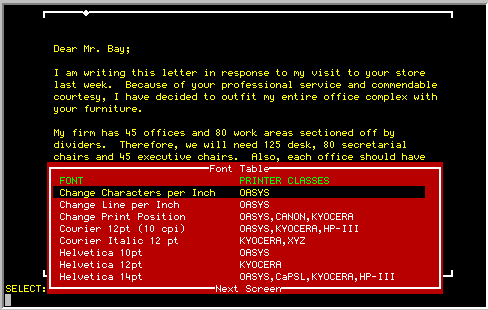
The listing of the font file is in alphabetical order and you may have to page through a few pages to find the desired entry. Use the NEXT PAGE and PREVIOUS PAGE function keys to page through the selections. Select the correct entry by pointing using the cursor keys, or press EXIT if you change your mind and decide not to make a change.
NOTE: The printer classes that each particular entry will support are listed in the right hand column. Make sure you know the printer class of the printers that you plan to use since the font code will be ignored if it isn't supported on that particular class.
At the time you select each font change, TK-WRITER remembers which fonts are of the download type and keeps a little list. When you then print that document, the Font Setup field on the printer selection screen will contain a default entry of "YES" if there are downloadable fonts, or it will be blank if there are none. The example below shows that the document to be printed contains downloadable fonts (by the YES in Font Setup):
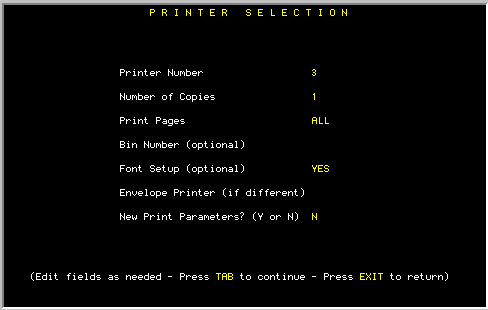
If you press TAB or RETURN through the screen without changing the YES, then TK-WRITER will perform the download code before the document is printed. If you know that the download had already taken place since the time the printer was turned on, you may erase the YES and the download will be skipped.