CHAPTER 3
DIRECTORIES, MACROS,TEXT BUFFERS
It will probably not take you long before you will start to accumulate quite a number of documents. Ten or twenty documents may be easy to deal with, but a hundred or so starts to get harder to manage. The first thing we will discuss in this section is how to better manage your directories.
At the same time you may also have become aware of patterns of typing and may have identified words, phrases, and paragraphs that are repeatedly entered over and over during the creation and editing of documents. We will look at how TK-WRITER uses text buffers, macros and glossaries to help you organize small bits of typing which can be called upon when needed.
DIRECTORIES
| User directories | each user is assigned his/her directory |
| Topical Directories | segregate documents by topic |
| Client directories | create a directory for each client |
| Monthly directories | open a new directory for each new month |
From time to time it may be necessary to create a new directory and move some documents over from a crowded directory, or perhaps consolidate documents from two or more sparsely populated directories. These decisions are left to you as you manage your directories. Since TK-WRITER doesn't have a move document command you will have to copy each document over and then delete the moved documents afterwards.
What this means is that your oldest documents have a way of staying around at the beginning of the directory and if you never delete any documents, then the newest documents will be found at the end. In some cases this may cause some inconvenience. If you find that you have some little-used documents in the first couple of screens in the directory, you may want to copy them using the COPY DOCUMENT option to a large document number that would then be listed at the end.
TEXT BUFFERS
To insert this stored information into your document:
1.) Move the cursor to point where the text is to be inserted
2.) Press the COPY/MOVE/INSERT function key
3.) Press I for INSERT
4.) Enter text name or Press ^ for a listing, then select by pointing
5.) Press RETURN
There is no limit to the length of this text in these buffers, but since it takes at least four or five keystrokes to recover this information from the text buffer, it is advisable to store information that is at least a word or two long. Also, since TK-WRITER performs a very limited reformating of this text, the best type of text to be stored in the text buffer is paragraphs that can be inserted as is without concern for the margins, or filling the paragraph.
Multiple text buffers can be inserted at one time by typing a "+" and the next text buffer name. For example, if three paragraphs named P100, P101 and P103 were to be inserted at the current position of the cursor, enter the following string:
P100+P101+P102Incidently, TK-WRITER normally will ask you if you want to remove the text buffer at the end of the INSERT TEXT BUFFER function. But in the case of inserting multiple text buffers, it skips this question. Also, if the name of the text buffer contains the underscore character "_" such as "my_special_text" it will not allow you to remove the text from the text buffer.
MACROS and GLOSSARIES
Likewise, since TK-WRITER is computer-based, you will not get much help from it when it comes to writing something original. But it is good at repeating your creativity when called upon. The text buffers that we just looked at showed us a simple way to copy information into the document. Macros and glossary text are faster and more powerful.
First some definitions:
We define a macro as one or more keystrokes that are recorded and are available to be played back for text entry, editing or both. Virtually anything that you can do from the keyboard can be stored in a macro. This means that function keys, cursor keys, as well as the normal text keys are all fair game.
Glossary text is a list of words, phrases and paragraphs that is saved for later recall. Your company name and address, technical terms, product names or personnel roster may fit into this catagory.
Now before you get too concerned about the differences between a macro and glossary text, we must mention that TK-WRITER combines glossary text and macros so that they work the same. There really is no difference in how they are created and used so the definitions are not very important.
Macro/glossary text is inserted into the document by:
1.) move the cursor to the position where the macro is to start
2.) enter the name of the macro to play back
3.) press the MACRO key
The macro will start it's execution at the beginning of the macro name. The name will be removed from the document first, then either the glossary text will be inserted or the keystrokes recorded in the macro will be played back. The cursor will be left at the end of the inserted text waiting for you to continue typing. All of this is designed to allow you to include the macros in your typing stream so that you don't have to miss a beat as you continue typing.
Let us look at an example. Suppose that I didn't want to have to type the word "TK-WRITER" over and over again while typing this manual. (Believe me, it is becoming a little tedious.) If I felt that I could save keystrokes by abbreviating this nine character word with perhaps one or two characters, then perhaps I should create a glossary term "WP" that will mean "TK-WRITER". Then all I would have to do as I am typing is to type "WP" and press the MACRO functions key. It will change the "WP" to "TK-WRITER" and leave the cursor at the end for me to continue typing. This saves me six keystrokes.
Now there is a little more that we have to understand about macros/glossary text before we can use it effectively.
The name of the macro can be one of four different types:
1.) blank
2.) a single digit number 1-9
3.) an alphanumeric name from 1-30 characters (must start with a
letter)
4.) an alphanumeric name followed by a period (".") and the macro file
name to look for the macro/glossary text.
Types 1 and 2 are temporary names. They are only good until you exit the document. A blank named macro will be called up anytime you press the MACRO function key without typing a name first. There must not be any characters preceding the cursor. If you want to call up the blank macro without regard to the name to left of the cursor position, press CONTROL A.
Types 2 and 3 are permanent names and are stored in the "~ ~BG" directory until they are either renamed or erased. Type 3 names are fetched from the default Macro File that is named on the status line of the document. If it is not found in this file and the default file is not "sys", then it will look in the "sys" file to see if the name is found there. The "sys" is designated as the master macro file and may be used to store macros and glossary text that is used by all users of the system.
Type 4 names will look in the macro file specified by the name. If it is not there, it will look in "sys".
Examples:
| Name | Primary Path | Secondary Path
|
| (blank) | temporary storage | none
|
| 4 | temporary storage | none
|
| PG&A | default macro file | Master File=("sys")
|
| ID.XYZ | XYZ macro file | Master File=("sys")
|
A default macro file may be specified in the directory definition screen. Any file name stored there will then automatically be set as the default file for any document created and/or edited within that directory.
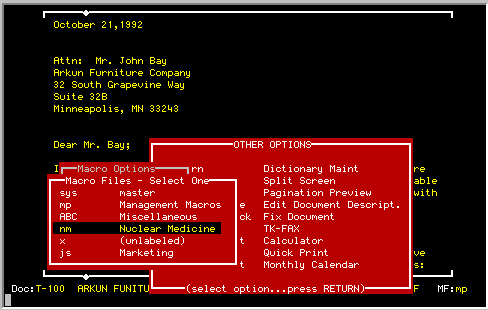
Once in a document the default directory may be changed as often as necessary with the SELECT MACRO FILE option in the MACROS option of the OTHER OPTIONS menu. The following figure is an illustration of some Macro Files in the SELECT MACRO FILE option:
An alternate way to edit themacros is to select the ~ ~BG directory from the SELECT DIRECTORY option. Each macro file will be listed as a separate document. The author field is used as the name of the file and therefore each document should have a different name in the author field. Normally one of the documents is named "sys" in the author field and this document is considered the "System" file that is used by all users.
If you edit a macro from the GLOSSARY/MACRO directory, you will see that each individual macro starts with a line that has the macro name preceded by a period. There should be nothing elso on this line. The macro starts on the next line and continues to the end of the document or another macro name preceded with a period.
The macro text contains the function key information in the format:
[function key]The two character names of the function keys are as follows:
| ER | error (beeps) | TB | TAB
|
| CR | RETURN | RU | RUBOUT (BACKSPACE)
|
| UK | CURSOR UP | DK | CURSOR DOWN
|
| RK | CURSOR RIGHT | LK | CURSOR LEFT
|
| IC | INSERT CHARACTER | DC | DELETE CHARACTER
|
| PD | PAGE DOWN | PU | PAGE UP
|
| FP | FIRST PAGE | SU | REPEAT KEY
|
| SD | MACRO | IL | INSERT LINE
|
| DL | DELETE LINE | EF | ERASE
|
| ST | SET TAB | HL | HELP
|
| OT | OTHER OPTIONS | CP | COPY/MOVE/INSERT
|
| BO | BOLD/UNDERLINE | FM | FORMAT LINE
|
| GE | JUMP TO END OF LINE | GO | FIND
|
| RE | REFORMAT PARAGRAPH | CT | CUT LINE
|
| EX | EXIT | GW | NEXT WORD
|
| SE | SELECT
|
These functions keys can be used anywhere within the macro text.
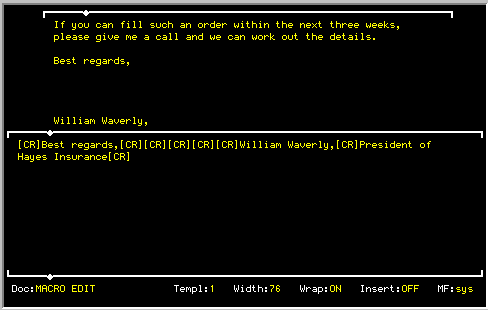
For an example, let us create a macro to add a salutation at the end of document and then call up the Quick Print option to print off a copy of the document. We are going to name this macro "BASTA" (that's enough) and this is how it would look in the macro file:
But when the name is used to recall the text with the MACRO function key, the case can be used to change how it is to be played back according the following rules:
| Macro Name | Resulting Inserted Text | |
| Lower case | No change - as recorded | |
| First letter upper second through end lower |
First character will be upper case, remainder as
recorded
| |
| All upper case | All upper case
|