Overview
When a fiscal year, and the periods it comprises, is defined, as is done when adding a new organization, each of the periods within that year become immediately available for posting transactions. As time goes by and all of the transactions for a period have been entered, the period is normally closed to further activity. This is to ensure that the financial reports produced for that period do not change without the knowledge of the accountant or financial officer of the organization.
Prior to the end of a fiscal year, it often becomes necessary to begin posting transactions to the next fiscal year. This is easily accomplished by defining the new year, a process which can be done as early as desired. The only restriction is that the new fiscal year must be defined prior to closing the current year.
When the last period of the current fiscal year has been closed, it is time to also close the fiscal year. Remember, the next fiscal year must already have been defined, and therefore opened to transactions. The process of closing a fiscal year also performs two tasks normally done manually:
1) Carry forward the balances of the Balance Sheet accounts to the new year; and
2) Transfer the balance of the Current Year Earnings account to the Retained Earnings, Prior Years account for the next year.
Until the fiscal year is closed in this way, the Balance Sheet accounts of the next year will show no beginning balance, only the net of the transactions posted to that year. Therefore, it is a good idea to close off a fiscal year as early as possible, even if adjustments may have to be made to it at a later date.
Making adjustments to a prior fiscal year can be accomplished in two ways:
1) Re-open the year, make the adjusting transactions, and re-close the year. Any changes which might have been made to Balance Sheet accounts will be automatically carried forward; or
2) Adjust the beginning balance of the current year's Balance Sheet accounts using the Balance Sheet Adjustment Journal 'AD', provide through the Enter Transaction screen. This is often used in order to avoid having to republish last year's financial statements.
Another concept to remember is that when opening a new fiscal year, TK-LEDGER also carries forward the previous year's chart of accounts and department definitions if departmental accounting has been indicated in the G/L Parameters screen.
It is the brief period of time between opening the new year and posting the first transactions, that significant changes can be made to either the chart of accounts or the department definitions.
Since department codes can only be applied to income and expense accounts, there are no departmental balances to carry forward, and any change, including complete reorganization can be made.
The same holds true for the income and expense accounts in the chart of accounts. No income or expense balances are carried forward to the new year when the prior year is closed. Therefore, any changes can be made. However, remember that one of TK-LEDGER's strengths is its ability to show trends over the years. Significant changes to the income and expense accounts may interfere with such reporting opportunities.
Making changes to the Balance Sheet side of the chart of accounts is more delicate. Any new balance sheet account can be added at any time. However, removing an existing balance sheet account can only be done if the account has no balance in the prior year to carry forward.
An example which illustrates the normal period control process is provided below. The organization in the example utilizes a calendar fiscal year which, therefore, begins on January 1st and ends on December 31.
|
EXAMPLE OF END-OF-PERIOD AND END-OF-YEAR PROCESSING |
| December 15 | - Define new fiscal year; - Make changes to new chart of accounts if appropriate; - Make changes to department definitions if appropriate; - Posting to first period can begin immediately. |
| December 31 | - December officially ends and with it, the fiscal year. |
| January 5 | - Revalue foreign currencies for December 31, if any; - Print December's control reports; - Review and make any necessary adjustments; - Reprint control reports if any adjustments were made; - Close December (which is the last period of last year); - Close last year to carry Balance Sheet account balances forward. |
| January 15 | - Additional adjustments have become necessary for last year
and it is decided to re-open the year; - Re-open last fiscal year, December will automatically be opened; - Normal posting continues for January unaffected; - Post adjustment transactions dated December of last year; - Print control reports for December; - Close December again; - Close last year to carry forward any changes to Balance Sheet account balances. |
| February 15 | - Print control reports for January; - Review and make any necessary adjustments; - Reprint control reports if any adjustments were made; - Close January; |
| March 15 | ... and so on. |
Opening A
New Year
A new fiscal year can be opened any time prior to posting the first transaction to it. When completed, all of the periods which were defined are open and ready for posting of transactions.
From the TK-ACCOUNTING menu, select General Ledger.
From the GENERAL LEDGER menu, select Fiscal Period Management.
From the FISCAL PERIOD MANAGEMENT menu, select Fiscal Year Maintenance.
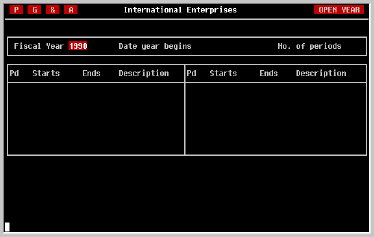
Although the number of fiscal periods in a year can be changed from one year to the next, doing so makes year to year financial comparisons difficult, if not impossible. Change the number of periods only if absolutely necessary.
In this field enter the date the period ends in the form MMDDYY, or DDMMYY if you have chosen to use the international date format. Include all six digits; the cursor will automatically skip over the "/" displayed in the field.
For further information regarding entry of dates refer to the discussion on date entry conventions at the beginning of this manual.
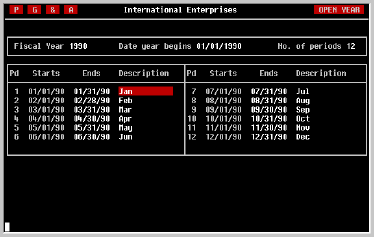
Use the [RETURN], cursor [UP], cursor [DOWN], and cursor [LEFT] to move from field to field until the information displayed is completely correct.
Although it is possible to exit this screen using the EXIT key before completing it, a warning message will be displayed indicating that errors have been found and should be repaired prior to beginning posting. This is not recommended procedure.
Exit this screen by pressing the EXIT key. If no error message is displayed, the fiscal year has been successfully defined and is now ready to receive transactions.
Closing A
Period
A period can be closed at any time because its closing has no effect on account balances. However, all fiscal periods in any fiscal year must be closed in order for the fiscal year itself to be closed.
From the TK-ACCOUNTING menu, select General Ledger.
From the GENERAL LEDGER menu, select Fiscal Period Management.
From the FISCAL PERIOD MANAGEMENT menu, select Close Period.
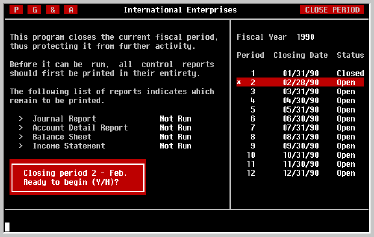
On the screen in the illustration above, there are several important pieces of information.
First, since periods must be closed sequentially, the screen shows which period is next to be closed on the right side.
Second, whether Control Reports are being forced or not, the screen shows which of the four Control Reports have been printed and which have not. If Control Reports are being forced, the screen will inform you that the period may not be closed until the indicated reports have been successfully printed and return you to the menu.
If Control Reports are not being forced, or each of the reports has been printed, you will be asked whether or not to proceed. Press [Y] and [RETURN] to proceed, or [N] and [RETURN], or just [RETURN] to quit.
Closing A
Year
There is no special time at which it must be run since posting transactions to the new fiscal year is enabled by opening the new year as described earlier. However, all the periods in the year must first have been closed, and it is recommended that fiscal years be closed as early as possible in order to update the balances of Balance Sheet accounts.
After closing, the fiscal year can later be re-opened at any time for late, or adjusting transactions.
From the TK-ACCOUNTING menu, select General Ledger.
From the GENERAL LEDGER menu, select Fiscal Period Management.
From the FISCAL PERIOD MANAGEMENT menu, select Close Fiscal Year.
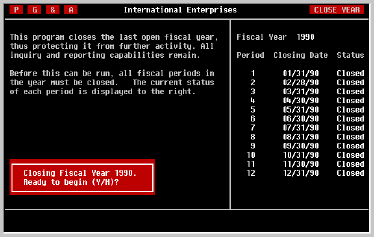
On the screen in the illustration above, there are several important pieces of information.
First, the fiscal year to be closed is displayed in the upper right corner. This helps prevent attempts to close a fiscal year twice.
Also, the list of periods defined for the fiscal year is displayed along with the status of each. If any remain open, a message will be displayed indicating that these periods must be closed before you will be able to continue.
If all of the year's periods have been closed, the message shown above will be displayed and you will be asked whether or not to proceed. Press [Y] and [RETURN] to proceed, or [N] and [RETURN], or just [RETURN] to quit.
The length of the process is dependent on the length and complexity of the chart of accounts, and on whether departmental accounting is being used. Average processing times may vary from thirty seconds to seven or eight minutes.
When the process has completed, you will be returned to the Fiscal Period Management menu.
Re-opening
A Period
From the TK-ACCOUNTING menu, select General Ledger.
From the GENERAL LEDGER menu, select Fiscal Period Management.
From the FISCAL PERIOD MANAGEMENT menu, select Re-open Fiscal Period.

As the screen in the illustration above suggests, the period to be re-opened must be in the current fiscal year. If it is not, the prior fiscal year must first be re-opened.
Since periods must be closed in sequence, they must also be re-opened in sequence. The first period to be re-opened will be the last period that was closed.
However, you can open multiple periods at one time by using the cursor [UP] key until all the desired periods are similary highlighted and marked. If too many were marked, press the cursor [DOWN] key to deselect periods one at a time. When the desired period(s) is marked, press [RETURN].
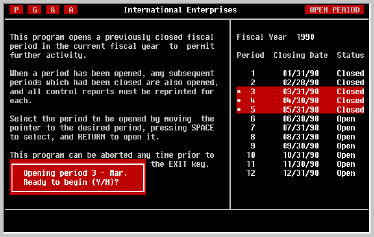
The message shown above will be displayed and you will be asked whether or not to proceed. Press [Y] and [RETURN] to proceed, or [N] and [RETURN], or just [RETURN] to quit.
The process will be completed in a second or two and you will be returned to the Fiscal Period Management menu.
Re-opening
A Year
From the GENERAL LEDGER menu, select Fiscal Period Management.
From the FISCAL PERIOD MANAGEMENT menu, select Re-open Fiscal Year.
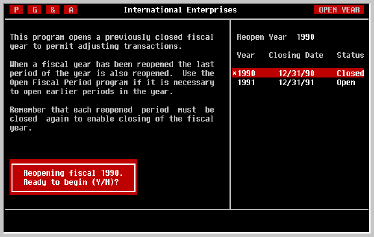
As the screen in the illustration above suggests, the last year to be closed will be the next to be re-opened and is shown graphically at the right side of the screen.
The message shown above will be displayed and you will be asked whether or not to proceed. Press [Y] and [RETURN] to proceed, or [N] and [RETURN], or just [RETURN] to quit.
The process will be completed in several seconds and will result in the last period of the year being opened as well. When finished, you will be returned to the Fiscal Period Management menu.