|
|
Printing Reports |
Each of the standard reports discussed in this
chapter has been designed to be both flexible and easy to use. Each
adheres to several conventions in collecting the information necessary to
produce a report, which if used, will greatly increase the accessibility
your financial information.
|
| Fiscal Year |
TK-LEDGER has been designed to maintain accounting
data indefinitely. Because of this, it is necessary to select the fiscal
year you would like to report from. In each report screen, the current
fiscal year will be displayed as the default and can be accepted by
pressing [RETURN].
If the data to be printed is from a prior fiscal year, you can either enter
the desired year, or press the minus [-] key to subtract one from the
default. Press [RETURN] when the desired year is displayed.
If the data to printed is from a future year, you can enter the year as
described above, or press the plus [+] key to add one to the default.
Again, press [RETURN] when the desired year is displayed.
|
| Period |
Each reports has been designed to enable data to be
printed for either one or more periods. When printed for multiple periods,
the amounts are combined making it possible to produce such reports as a
Quarterly Income Statement.
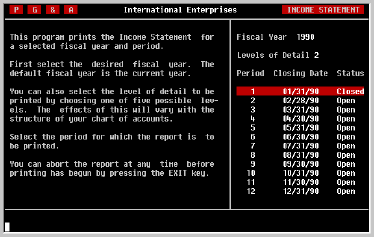
When selecting the period(s) to be printed, each screen will display the
periods defined for the chosen fiscal year, highlighting the first period,
as shown in the following illustration.
|
| Method 1 |
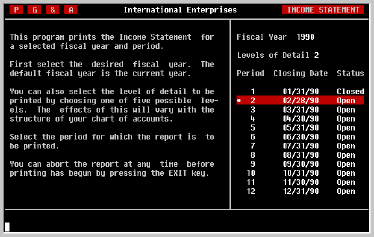
The easiest way to select a period is to type the
period number. If a valid period number was entered TK-LEDGER will find
the period and highlight it, also displaying an asterisk (*) in front of it
indicating that it has been selected. The screen shown below illustrates
how this will look.
If more than one period is desired, press the cursor [DOWN] key until all
the desired periods are similarly highlighted and marked. If too many were
marked, press the cursor [UP] key to deselect periods one at a time. Press
[RETURN] when the list of periods to be printed is correct.
|
| Method 2 |
Another method of selecting the period to be printed
is to move the highlighted bar using the cursor [DOWN] key until it is on
the first (or only) period to be printed. Press the [SPACE] key to mark
it; an asterisk (*) will be displayed in front of the period.
If more than one period is desired, press the cursor [DOWN] or cursor [UP]
keys to select or deselect as explained in Method 1 above. Press [RETURN]
when the list of periods to be printed is correct.
Once a period has been selected and the asterisk is visible in front of it,
the period can be deselected by pressing the [SPACE] key again. The
[SPACE] key therefore works like a toggle, selecting and deselecting
periods, until the desired periods have been marked.
NOTE: Only contiguous periods can be selected and combined. For
example, it is not possible to print an aggregate Income Statement for
periods 1, 3, and 5.
|
| Output Device |
When each of the other report parameters have been
selected, a one-line menu will appear at the bottom of the screen for
selection of the output device, as illustrated in the screen below.
Options can be selected by typing the first letter of the option name, such
as [P] for printer or [T] for terminal. Or you can use the [SPACE] key or
cursor [RIGHT] and [LEFT] keys to position the highlighted bar to the
desired option. Finish the selection by pressing [RETURN].

|
| Default |
As you can see, there are several choices. If a
default printer was defined in the G/L Parameters screen, the first option
will be Default Printer and the second will be Another
Printer. To select the default printer, press [RETURN] because this
option was already highlighted when the menu appeared.
|
| Another Printer |
If another printer is to be used for this report,
move the highlight bar to the next option (Another Printer) using the
[SPACE] key or the cursor [RIGHT] key and press [RETURN]. A pop-up menu,
similar to the one illustrated below, will be displayed listing the
printers which have been defined in the Printer Maintenance
screen. Move the selector to the desired printer and press [RETURN]. If
the option 'none' is chosen, you will be returned to the Period selection
described above.

If no default printer has been defined, only the Printer option
will be displayed. When it is selected, the same pop-up window will be
displayed as described above. Select the desired printer and press
[RETURN].
|
| Terminal |
If the report can be displayed in 80 columns or less,
or the terminal you are using provides a "compressed" or 132 column mode,
TK-LEDGER will provide a Terminal option. Select this to print the
report to your screen.
|
| File |
A further output device option is to save the report to a File
from which it can be imported into a word processor such as TK-WRITER, or
electronic mail system such as TK-MAIL, or used in other ways.
NOTE: Using this option can result in the deletion of other data
if the name of the file you provide is already in use for other purposes.
Use caution.
After selecting the File option, you will be asked for the name of
the file. Enter the name of the file in which you would like the report
to be saved and press [RETURN]. TK-LEDGER will print the report to a
global named ^TKAMREPT(<filename>).
If you have access to MUMPS programming, you may want the report to be
saved to a global of another name. If so, enter the name and reference
under which the report should be saved, such as ^REPORT("G/L","INC STMT").
Be sure that the reference is syntactically correct and ends with a closing
parenthesis.
|
| Aborting A Report |
After a report has begun printing, it can be stopped
by pressing the [SPACE] key from the terminal requesting the report. This
will print a "REPORT ABORTED' message where the report was terminated and
return control to the screen.
Be careful not to attempt typing ahead while printing is in progress as
this may cause the report to be aborted unintentionally.
|
Trial Balance |
From the TK-ACCOUNTING menu, select General Ledger.
From the GENERAL LEDGER menu, select Trial Balance.
The Trial Balance report is provided with TK-LEDGER to provide confidence
that the accounts are in balance for a specified period and year. Should
they become out of balance for any reason, this report will also help
identify the accounting period in which the error occurred.
It is not one of the four Control Reports provided with TK-LEDGER and
therefore need not be printed. However, it is recommended that it be made
a part of normal end-of-month accounting activities as a precaution.
At the bottom of the report is a summary line which shows total debits and
credits for the beginning of the period, posted during the period, and for
the end of the period. If the debits and credits do not match in any of
these three categories, the accounts are out of balance and it will be
necessary to call for support.

As the screen above shows, instructions for printing the report are
displayed for your reference.
|
| Fiscal Year |
Using the conventions discussed at the beginning of
this manual, select the fiscal year for which the report is to be printed.
The default is the current year. Press [RETURN] to proceed to the
next field.
|
| Active Accounts Only |
Although the Trial Balance Report can be printed for
all reports, this can require extra time and paper in
many cases, and it is not necessary. Enter a [Y] to limit the report to
active accounts, or a [N] for all accounts and press [RETURN]. Use the
cursor [UP] key to return to the 'Fiscal Year' field.
|
| Period |
Select the period to be
printed by moving the
highlight bar to the period and pressing the [SPACE] key. An asterisk (*)
will appear indicating that the period has been selected. If multiple
consecutive periods are desired, use the cursor [DOWN] key to select the
next period, and the cursor [UP] key to deselect the last period. Press
[RETURN] when completed.
|
| Device |
Select the desired output device. If your terminal
supports 132 column display, a Terminal option will also be included for
displaying the report to the screen. Refer to the discussion regarding
device selection at the beginning of this section for further assistance.
|
| Aborting |
After printing has begun, it can be stopped by
pressing the [SPACE] key on your terminal. After a report has been stopped
in this way, it can only be restarted from the beginning.
~X DA,3
|
Journal Report |
From the TK-ACCOUNTING menu, select General Ledger.
From the GENERAL LEDGER menu, select Journal Report.
The Journal Report, one of the four Control Reports provided with
TK-LEDGER, is a list of all Journal Entries made during a specified
accounting period (or periods) in the order in which they were entered.
This order is determined by the Journal Entry Number (of the form AAnnn)
which was assigned when the Entry was posted.
At the end of the report is the Journal Summary which lists all of the
accounts posted to by the reported transactions, the number of
transactions, total debits, total credits and net change. If the Total Net
Change is not zero, the Journal is out of balance (a condition which should
not occur under normal circumstances) and should be examined for unbalanced
entries.
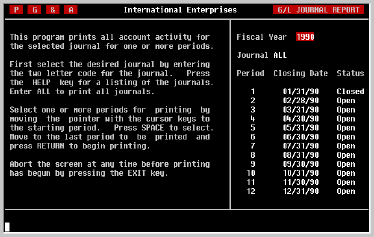
As the screen above shows, instructions for printing the report are
displayed for your reference.
|
| Fiscal Year |
Using the conventions discussed at the beginning of
this manual, select the fiscal year for which the report is to be printed.
The default is the current year. Press [RETURN] to proceed to the
next field.
|
| Journal |
Enter the two-character code for the journal to be
printed and press [RETURN]. The default is ALL. To return to the
'Fiscal Year' field, press cursor [UP].
NOTE: For printing of this report to satisfy accounting controls, ALL
journals must be printed by accepting the default, and may only be printed
for one period.
|
| Period |
Select the period to be
printed by moving the highlight bar to the period and pressing the
[SPACE] key. An asterisk (*)
will appear indicating that the period has been selected. If multiple
consecutive periods are desired, use the cursor [DOWN] key to select the
next period, and the cursor [UP] key to deselect the last period. Press
[RETURN] when completed.
|
| Device |
Select the desired output device. If your terminal
supports 132 column display, a Terminal option will also be included for
displaying the report to the screen. Refer to the discussion regarding
device selection at the beginning of this section for further assistance.
|
| Aborting |
After printing has begun, it can be stopped by
pressing the [SPACE] key on your terminal. After a report has been stopped
in this way, it can only be restarted from the beginning.
~X DA,4
|
Account
Detail Report |
From the TK-ACCOUNTING menu, select General Ledger.
From the GENERAL LEDGER menu, select Account Detail Report.
The Account Detail Report, one of the four Control Reports provided with
TK-LEDGER, is a list of all transactions made during a specified accounting
period (or periods) by account. With each transaction is printed the
Transaction Description, Journal Entry Number, Transaction Date as well as
the Debit or Credit Amount.
In addition, the report shows the balance of the account at the beginning
of the period, the Net Change to the account during the period and the
Ending Balance.
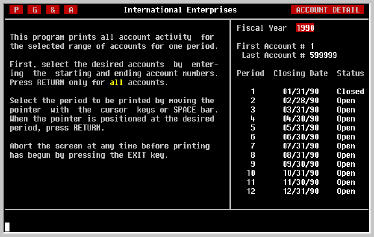
As the screen above shows, instructions for printing the report are
displayed for your reference.
|
| Fiscal Year |
Using the conventions discussed at the beginning of
this manual, select the fiscal year for which the report is to be printed.
The default is the current year. Press [RETURN] to proceed to the
next field.
|
| First Account |
Enter the number of the account which you would like
to be the first account printed and press [RETURN]. Only detail accounts
can be selected and the default is the first account.
You can also search for the account by entering one or more characters of a
word in the account description. TK-LEDGER will display a list of those
accounts which contain the entered characters from which the desired
account can be selected.
If you are using the Departmental Accounting feature of TK-LEDGER,
department codes cannot be selected here. This report will print the
detail for each department within the selected account(s).
|
| Last Account |
Enter the number of the account which you would like
to be the last account printed. If you are printing only one account, you
can press the [=] key. TK-LEDGER will copy the last account from the
'First Account' field. The default is the last detail account defined.
Searches for account numbers by words can also be done at this field. When
finished, press [RETURN], or return to the First Account field by pressing
cursor [UP].
NOTE: For printing of this report to satisfy accounting controls, ALL
accounts must be printed by accepting the default first and last accounts,
and may only be printed for one period.
|
| Period |
Select the period to be
printed by moving the
highlight bar to the period and pressing the [SPACE] key. An asterisk (*)
will appear indicating that the period has been selected. If multiple
consecutive periods are desired, use the cursor [DOWN] key to select the
next period, and the cursor [UP] key to deselect the last period. Press
[RETURN] when completed.
|
| Device |
Select the desired output device. If your terminal
supports 132 column display, a Terminal option will also be included for
displaying the report to the screen. Refer to the discussion regarding
device selection at the beginning of this section for further assistance.
|
| Aborting |
After printing has begun, it can be stopped by
pressing the [SPACE] key on your terminal. After a report has been stopped
in this way, it can only be restarted from the beginning.
~X DA,5
~X DA,6
|
Income Statement |
From the TK-ACCOUNTING menu, select General Ledger.
From the GENERAL LEDGER menu, select Income Statement.
The Income Statement is a vital financial statement because it provides a
period-to-period and year-to-year assessment of profit and/or loss. It is
also one of the four Control Reports provided with TK-LEDGER.
The order in which the income and expense data is presented in this report
is dependent on the design of the Chart of Accounts. However, you do have
control over the period of time for which it is printed, and the level of
detail provided. More personalized Income Statements can also be designed
quite easily with the Financial Report Writer discussed later in this
manual.
As the screen above illustrates, instructions for printing the report are
displayed for your reference.
|
| Fiscal Year |
Unlike many accounting systems, an Income Statement
can be printed as many times as desired and can even be printed for prior
fiscal years. Using the conventions discussed at the beginning of this
manual, select the fiscal year for which the report is to be printed. The
default is the current year. Press [RETURN] to proceed to the next
field.
|
| Levels of Detail |
The Income Statement can be printed with varying
degrees of detail. One level of detail provides a very summarized
statement of income. Two levels of detail is more informative and serves
as the default.
The first of the sample income statements that follow was printed at the
default '2' levels of detail. The second, which shows only the Expense
portion of the statement, was printed with 3. This will provide some idea
of how various levels of detail may be used.
Select from one to four levels of detail by entering the number desired and
pressing [RETURN].
|
| Period |
Select the period to be printed by moving the highlight bar to the period
and pressing the [SPACE] key. An asterisk (*) will appear indicating that
the period has been selected. If multiple consecutive periods are
desired, use the cursor [DOWN] key to select the next period, and the
cursor [UP] key to deselect the last period. Press [RETURN] when
completed.
NOTE: For printing of this report to satisfy accounting controls, only
one period may be printed at one time.
|
| Device |
Select the desired output device. Refer to the
discussion regarding device selection at the beginning of this section for
further assistance.
After printing has begun, it can be stopped by pressing the [SPACE] key on
your terminal. After a report has been stopped in this way, it can only be
restarted from the beginning.
~`X DA,7
~X DA,8
|
Balance Sheet |
From the TK-ACCOUNTING menu, select General Ledger.
From the GENERAL LEDGER menu, select Balance Sheet.
The Balance Sheet, or Statement of Financial Position, is a vital financial
report to an organization because it provides a periodic look at the
relationship between assets, liabilities (or debt) and equity (ownership).
In TK-LEDGER it is also one of the four Control Reports.
The order in which these three categories of financial data is presented in
this report is dependent on the design of the Chart of Accounts. However,
you do have control over the period of time for which it is printed, and
the level of detail provided. More sophisticated and customized statements
can also be designed quite easily with the Financial Report Writer
discussed later in this manual.
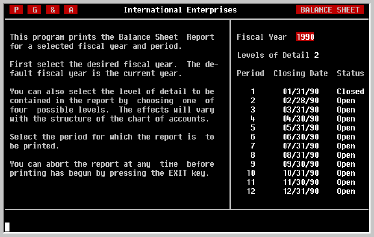
As the screen above illustrates, instructions for printing the report are
displayed for your reference.
|
| Fiscal Year |
Unlike many accounting systems, a Balance Sheet can be printed as many
times as desired and can even be printed for prior fiscal years. Using
the conventions discussed at the beginning of this manual, select the
fiscal year for which the report is to be printed. The default is the
current year. Press [RETURN] to proceed to the next field.
|
| Levels of Detail |
The Balance Sheet can be printed with varying degrees
of detail. One level of detail provides a very summarized statement of
income. Two levels of detail is more informative and serves as the
default.
The first of the sample balance sheets that follow was printed at the
default '2' levels of detail. The second, which shows only the Assets
portion of the statement, was printed with 3. This will provide some idea
of how various levels of detail may be used.
Select from one to four levels of detail by entering the number desired and
pressing [RETURN].
|
| Period |
Select the period to be printed by moving the highlight bar to the period
and pressing the [SPACE] key. An asterisk (*) will appear indicating that
the period has been selected. If multiple consecutive periods are
desired, use the cursor [DOWN] key to select the next period, and the
cursor [UP] key to deselect the last period. Press [RETURN] when
completed.
NOTE: For printing of this report to satisfy accounting controls,
only one period may be printed at one time.
|
| Device |
Select the desired output device. If your terminal
supports 132 column display, a Terminal option will also be included for
displaying the report to the screen. Refer to the discussion regarding
device selection at the beginning of this section for further assistance.
|
| Aborting |
After printing has begun, it can be stopped by
pressing the [SPACE] key on your terminal. After a report has been stopped
in this way, it can only be restarted from the beginning.
~X DA,9
~X DA,10
|
G/L Graphs |
With the Graph Account Data screen, you can easily display and
print a variety of graphs from the data in your general ledger.
From the TK-ACCOUNTING menu, select General Ledger.
From the GENERAL LEDGER menu, select Graph Account Data.
|
| Fiscal Year |
Using the conventions discussed at the beginning of
this manual, select the fiscal year for which the report is to be printed.
The default is the current year. Press [RETURN] to proceed to the
next field.
|
| Graph Accounts |
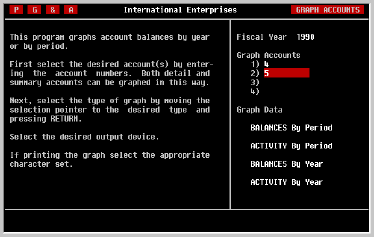
Select up to four accounts to be graphed together by
entering their account numbers, one in each of the fields provided,
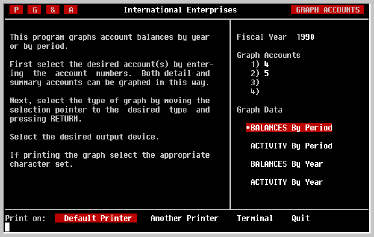
pressing [RETURN] after each. Continue pressing [RETURN] until cursor is
at the beginning of the next section, as shown below.
|
| Graph Type |
Select the desired type of graph by moving the
highlight to the appropriate type using the cursor [DOWN] and [UP] keys and
press [RETURN]. The available graph types are as follows:
1) ACTIVITY By Period - illustrates the net activity to the
account during each accounting of the selected fiscal year. These are not
account balances, but the net change to the account during the period.
2) BALANCES By Period - depicts the changing balance of the
selected account(s) period-by-period during each of the accounting periods
of the selected fiscal year.
3) ACTIVITY By Year - shows the net activity to the account for
each fiscal year from the selected fiscal year back up to ten years.
4) BALANCES By Year - shows the change in the balances of the
selected accounts from year to year from the selected fiscal year back up
to ten years.
|
| Output Device |
All output devices are valid except type 'FILE'.
Select the desired device as described at the beginning of this section.
|
| Printer Type |
Select the character set which your printer uses to
print line drawings and press [RETURN].
~X DA,11
|
|
|
Creating A Report |
Through the Financial Report Writer, TK-LEDGER provides the ability to
create, edit and print a wide variety of financial reports which meet the
unique needs of each organization.
From the TK-ACCOUNTING menu, select General Ledger.
From the GENERAL LEDGER menu, select Financial Report
Writer.
From the FINANCIAL REPORT WRITER menu, select Add A Report.
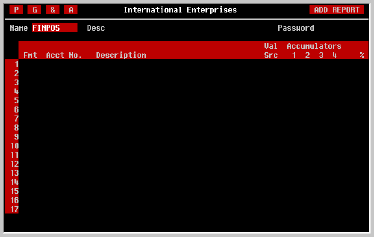
A screen similar to the example shown below will be displayed.
|
| Report Name |
Begin by giving the report a name of up to ten
characters in length. If TK-LEDGER produces an audible beep on your
terminal and returns you to the field, then the name is already in use.
Try another.
|
| Description |
Enter a description of the report. This description
will also be used as the report Title during printing.
|
| Password |
If this report contains sensitive information which
you would like to protect, enter a password in this field. No access to
the report will be allowed unless the password is correctly entered.
|
| Body |
The cursor should now be in the upper left corner of
the report editor in the column labeled 'Format'. The report editor looks
and works similar to a spreadsheet program. There are nine fields across,
and a nearly unlimited number of rows down.
Each field has a Help Window associated with it which will describe the
possible contents of the field. This Help Window can be displayed by
pressing the HELP key while in the desired field.
While editing the body of the report, there are several additional keys
which will be helpful.
|
| | [RETURN] |
Advances to the next field. If in the last field, the cursor advances
to the first field of the next line
| | Cursor [DOWN] |
Moves the cursor down one line
| | Cursor [UP] |
Moves the cursor up one line
| | NEXT SCREEN |
Displays the next page of the body
| | PREV SCREEN |
Displays the previous page of the body
| | DEL LINE |
Deletes the line the cursor is currently on and moves all following
lines up one
| | INS LINE |
Inserts a blank line at the current cursor position, moving the
current line and all following lines down
| | EXIT |
Exit the Report Editor and return to the menu
|
Now let's take a closer look at each of the fields and their effect on the
report which they will produce.
|
| Format | This field provides the Report Writer
with information to assist in the format of each line. There are five
possible values the field can have.
|
| | 1) Empty |
When left empty, the line will be printed as shown. That is, the
account number (if any), description and values will be printed normally.
| | 2) N |
If an 'N' is placed in the Format field, the line will not be
printed. This is normally used to hide lines which are being used soley to
retrieve data and compute totals for printing further down in the report.
| | 3) C |
A 'C' indicates that the text in the 'Description' field should
be centered on the report. This is commonly used for titles and headings.
| | 4) - |
A hyphen (or minus sign) indicates that a single lines should
be printed after this line to show that a subtotal is being printed next.
| | 5) = |
An equal sign is used to indicate that a double line should be
printed after this line to show that a total is being printed next.
|
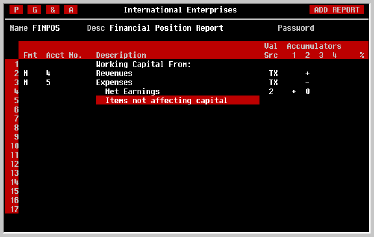
As the example above illustrates, the first row will be printed. The text
from the 'Description' field will be left justified and no values will be
printed to the right of the text.
The second and third rows will not be printed because of the 'N' in the
format field. As you will see later, these rows are being used to retrieve
data from the specified accounts and add it to an accumulator.
The fourth row is printed, text indented two characters, and the value from
accumulator number 2 to the right of it. Then the accumulator is zeroed
for later use.
|
| Account No. |
Data can only be retrieved from a valid G/L account.
To accomplish this, you must provide the account number which can be of
either a Detail or Summary Account.
When a valid number is entered, the editor will put the account description
in the 'Description' field for you. However, you can change the field to
contain whatever text is meaningful.
If values for a row will be printed from an accumulator, as illustrated in
row 4 of the earlier example, then the account number field should be
empty.
|
| Description |
As mentioned above, if a valid account number is
entered, the account description is automatically inserted into this field.
However, once in the field, the text can be easily modified to suit the
report.
Text can also be entered if no account number was entered in the 'Account
No.' field. Such text can be used for sub-headings within the final
report, or as internal comments for later reference when maintaining the
report.
If using the space for comments, don't forget to tell the Report Writer not
to print the line when generating the report by entering a [N] in the
'Format' field.
|
| Value Source |
In this field, you must tell the report writer the
source of the numbers that will be used. These numbers can be printed, or
simply added to an accumulator for inclusion in a subsequent subtotal. If
the field is left empty, no numbers will be retrieved or printed. If the
field contains a number from 1 to 4, then the contents of the appropriate
accumulator will be printed.
However, if you are retrieving data from an account, you must indicate the
type of data to be retrieved. The possible types which can be retrieved
are...
1) B - Balance of the account at the end of the period(s)
selected at run-time. Note that balance includes the balance carried
forward from the prior fiscal year, and the net of all transactions up to
and including those from the period for which the report will be printed.
For this reason this type is normally used for Balance Sheet accounts.
2) DB - Debits posted to the account during the period(s)
selected at run-time.
3) CR - Credits posted to the account during the period(s)
selected at run-time.
4) TX - Net of Debits and Credits posted during the period(s)
selected at run-time.
|
| Accumulators |
The Report Writer enables numbers which have been
retrieved from an account to be accumulated in one of the four built-in
accumulators. The accumulators can then be printed in order to show
subtotals and totals.
To add values to an accumulator, data must have been retrieved on the same
line of the report, either from an account, or from another accumulator.
Press [RETURN] until the cursor is in the desired accumulator column and
enter a [+] to add the retrieved value to the accumulator, or enter a [-]
to subtract the retrieved value from the accumulator, or enter a zero [0]
to clear the accumulator.
As discussed earlier, to retrieve the contents of an accumulator for
printing, enter the accumulator number [1..4] in the 'Value Source' field.
|
| Percent |
The '%' column at the far right of the Report Writer
screen is a special accumulator which must contain the divisor of a percent
formula. Consider the following example.
A simple breakdown of expenses is requested which shows each expense
category as a percentage of the organization's total expense. The
following example illustrates how it might look.
~X DA,12
Since the five expense categories were designed as summary accounts in the
chart of accounts, creation of such a report will be much easier.
|
| Step 1 | Create a new report using the Add A
Report screen
|
| Step 2 |
Enter the total expenses as the divisor in the '%'
percent column. Since there is a summary account which contains the sum of
all transactions posted to expense accounts, we will use this account,
number 5, to retrieve this value and add it to the percent column. Notice
that the 'Format' column on the left contains a 'N' indicating that this
line is not to be printed.
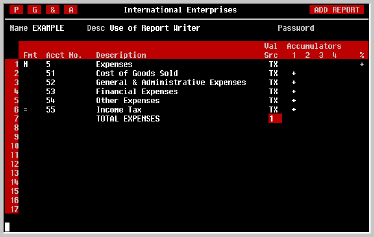
|
| Step 3 |
In rows 2 through 6 enter the account numbers of the
summary accounts at the category level. When the number has been entered,
and [RETURN] pressed, the account description will be automatically loaded
into the description field where it can be edited if desired.
For each of these rows, we will indicate that the values to be retrieved
will be the net transactions for the period(s) selected at run-time by
entering a 'TX' in the 'Value Source' field. Further we will indicate that
in addition to being printed, the values be added to Accumulator #1 by
entering a [+] in the appropriate accumulator column.
Notice the '=' in the 'Format' column on the 6th line. After this line is
printed, double lines will be printed to indicate that a total will be
drawn.
|
| Step 4 |
On Row 7 we leave the 'Acct No.' field blank and
enter the text "TOTAL EXPENSES" in the description field and indicate in
the 'Value Source' field that the values to be printed will come from
accumulator #1 which we have been adding to.
|
| Printing |
When the report is finally produced, we will select
parameters as shown in the example below. Notice that the same report can
be run for any fiscal year and period.
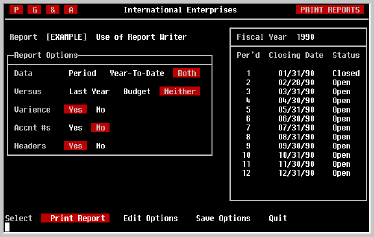
In addition, we will be able to select which data is to be printed, what it
should be compared to, and so on. These parameters are discussed in more
detail in the section on Printing Financial Reports.
The final report is shown on the following page.
~X DA,13
|
Modifying A Report |
Using this screen, financial reports created earlier can be quickly and
easily maintained.
From the TK-ACCOUNTING menu, select General Ledger.
From the GENERAL LEDGER menu, select Financial Report
Writer.
From the FINANCIAL REPORT WRITER menu, select Modify A
Report.
A list of the reports which have been created for the current organization
will be displayed. If the list is too long to be displayed on one page,
the NEXT SCREEN and PREV SCREEN function keys can be used to page through
the list for the report to be modified.
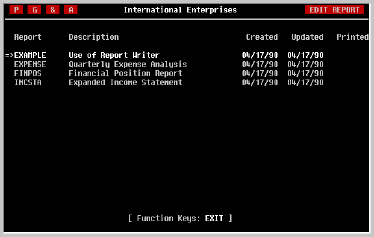
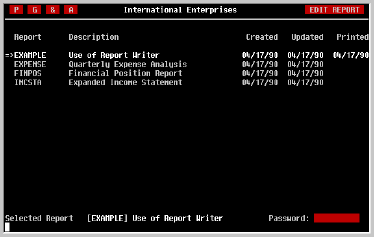
As illustrated in the example, TK-LEDGER shows not only the name of the
report, but also shows the description (or Title) of the report, the date
it was created, the date it was last modified and when it was last printed.
Select the desired report by moving the selection pointer to the desired
report and pressing the [RETURN] key. If the report has been password
protected, the password must be entered correctly before access will be
granted.
|
| Description |
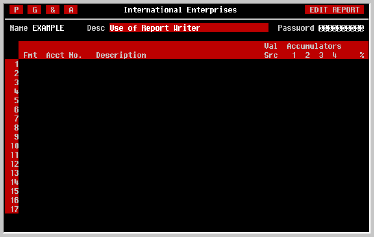
When the report has been selected, the Editor screen
will be displayed and the cursor will be in the 'Description' field. If
the description is to remain unchanged, or after making the desired
changes, press the [RETURN] key.
|
| Password |
You will also be provided an opportunity to add,
change or delete the password for this report. When finished, press
[RETURN]. To delete the password, simply press the DEL CHAR key until it
is gone.
|
| Body |
When finished with the 'Description' and 'Password'
fields, the body of the report will be displayed and the cursor will move
to the body to enable the changes you may wish to make there. Make these
changes as described in the section on Creating A Report
and press the EXIT key when finished.
|
Copying A
Report | The TK-LEDGER
Financial Report Writer allows reports to be copied, thus spawning new
reports quickly.
From the TK-ACCOUNTING menu, select General Ledger.
From the GENERAL LEDGER menu, select Financial Report
Writer.
From the FINANCIAL REPORT WRITER menu, select Copy A Report.
A list of the reports which have been created for the current organization
will be displayed. If the list is too long to be displayed on one page,
the NEXT SCREEN and PREV SCREEN function keys can be used to page through
the list for the report to be copied.
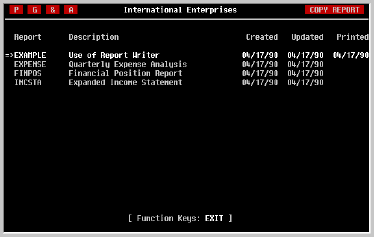
As illustrated in the example, TK-LEDGER shows not only the name of the
report, but also shows the description (or Title) of the report, the date
it was created, the date it was last modified and when it was last printed.
Select the desired report by moving the selection pointer to the desired
report and pressing the [RETURN] key. If the report has been password
protected, the password must be entered correctly before it can be copied.

|
| Name |
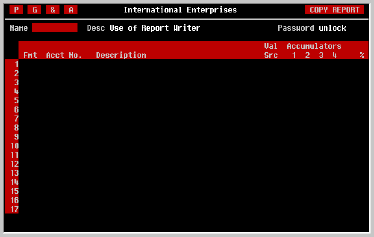
When the report has been selected, the Editor screen
will be displayed and the cursor will be in the 'Name' field. A new name
should be entered here, under which the new copy of the report will be
stored.
|
| Description |
When the new name has been entered and accepted, the
cursor will move to the description field which still contains the
description of the report being copied. This description can be left as
is, or changed as desired.
|
| Password |
You will also be provided an opportunity to add,
change or delete the password for this report. When finished, press
[RETURN]. To delete the password, simply press the DEL CHAR key until it
is gone.
|
| Body |
When finished with the 'Name', 'Description' and
'Password' fields, the body of the report will be copied to the new report
and displayed. The cursor will move to the body to enable the changes you
may wish to make there. Make these changes as described in the section on
Creating A Report and press the EXIT key when finished.
|
Deleting A
Report | This screen provides
the ability to remove unwanted or unnecessary financial reports from the
system.
From the TK-ACCOUNTING menu, select General Ledger.
From the GENERAL LEDGER menu, select Financial Report
Writer.
From the FINANCIAL REPORT WRITER menu, select Delete A
Report.
A list of the reports which have been created for the current organization
will be displayed. If the list is too long to be displayed on one page,
the NEXT SCREEN and PREV SCREEN function keys can be used to page through
the list for the report to be removed.
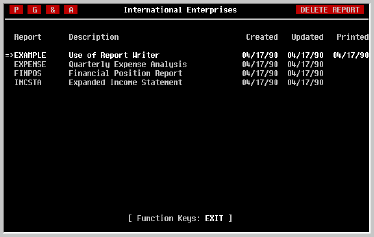
As illustrated in the example, TK-LEDGER shows not only the name of the
report, but also shows the description (or Title) of the report, the date
it was created, the date it was last modified and when it was last printed.
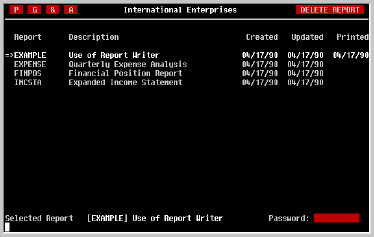
Select the desired report by moving the selection pointer to the desired
report and pressing the [RETURN] key. If the report has been password
protected, the password must be entered correctly before it can be removed.
|
| Last Chance |
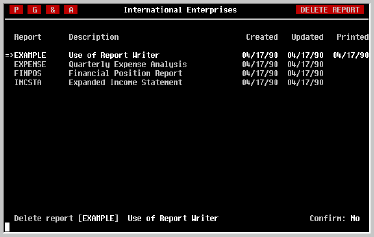
When the report has been selected, the screen will
provide one last opportunity for you to change your mind. Enter [Y] to
proceed, or [N] to reconsider; the default is NO. Press [RETURN] to
confirm your answer.
|
Printing A
Report Format |
TK-LEDGER also provides the ability to produce a hard copy of any
Report definition file which is helpful in the unlikely event that an
important report is unintentionally removed.
From the TK-ACCOUNTING menu, select General Ledger.
From the GENERAL LEDGER menu, select Financial Report
Writer.
From the FINANCIAL REPORT WRITER menu, select Print A Report
Format.
A list of the reports which have been created for the current organization
will be displayed. If the list is too long to be displayed on one page,
the NEXT SCREEN and PREV SCREEN function keys can be used to page through
the list for the report to be printed.
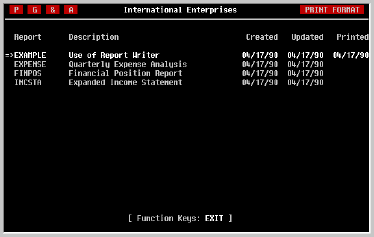
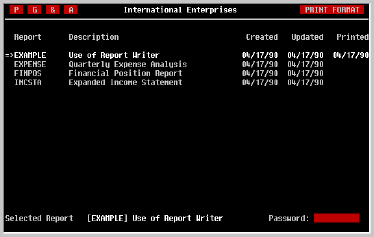
As illustrated in the example, TK-LEDGER shows the name of the report, the
description (or Title) of the report, the date it was created, last
modified, and last printed.
Select the desired report by moving the selection pointer to the desired
report and pressing the [RETURN] key. If the report has been password
protected, the password must be entered correctly before it can be printed.
|
| Output Device |
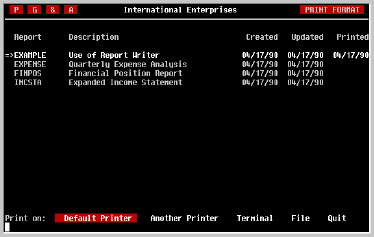
When the report has been selected, you will be asked
for the output device as illustrated below. Select the device as you would
any of TK-LEDGER's reports. Further information is provided in the opening
section on Standard Reports.
A sample of the Financial Position report is included on the following page
to show how the printed Report Format will appear.
~X DA,14
|
Printing a Report | This screen
enables the selection of the report to
be printed, the definition of run-time print parameters, and selection of
the output device. In addition, reports can be printed for any fiscal year
or period.
From the TK-ACCOUNTING menu, select General Ledger.
From the GENERAL LEDGER menu, select Financial Report
Writer.
From the FINANCIAL REPORT WRITER menu, select Print A
Report.
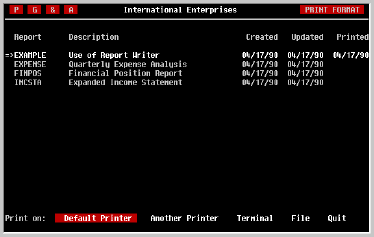
A list of the reports which have been created for the current organization
will be displayed. If the list is too long to be displayed on one page,
the NEXT SCREEN and PREV SCREEN function keys can be used to page through
the list for the report to be printed.
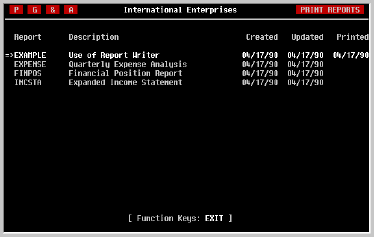
As illustrated in the example, TK-LEDGER shows the name of the report, the
description (or Title) of the report, the date it was created, last
modified, and last printed.
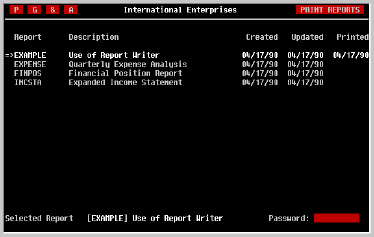
Select the desired report by moving the selection pointer to the desired
report and pressing the [RETURN] key. If the report has been password
protected, the password must be entered correctly before it can be printed.
|
| Activity |
When the report has been selected, the report's
default print options will be displayed, as illustrated below. Using the
[SPACE] or cursor [RIGHT] and [LEFT] keys select the desired activity.
|
| Edit Options |
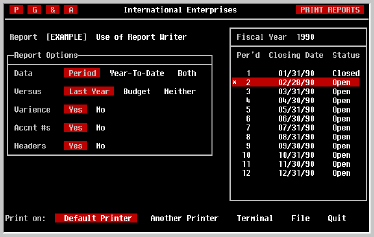
Although the basic format of the report is defined in
the format file which was created earlier, the Financial Report Writer also
enables the selection of a number of run-time print options. Select
Edit Options at the bottom of the screen and press [RETURN].
|
| Data |
During the definition of the report, it was decided
whether to retrieve the data from the account balance, the net period
transactions, total period debits, or total period credits. At run-time,
further information is required.
Will the data be printed in a 'Current Period' column on the report, in a
'Year-To-Date' column, or both. Note that if the report specifies that
values should be retrieved from the account balance (normally used only
with Balance Sheet accounts), these values will be 'Year-To-Date' values by
definition.
Select the desired data type by moving the highlighted bar using the
[SPACE] key or cursor [LEFT] and [RIGHT] keys. Move to the next print
option by pressing [RETURN] or cursor [DOWN].
|
| Versus |
The Report Writer enables comparisons to be made
between the selected periods' data and either the same data from the prior
fiscal year, this year's budget, or neither.
Select the desired option in the same way as before. Use the [RETURN] or
cursor [DOWN] to advance to the next option or cursor [UP] to go back to
the previous option.
|
| Variance |
If either Last Year or Budget were chosen in the
'Versus' option described above, you can elect whether or not variances
should be computed and printed. If the report was set up to show
percentages, then variance percentages will be printed also.
|
| Account Numbers |
On some reports it makes sense to include account
numbers, on others it does not. If included, they will be printed to the
left of the text, the first column on the report.
|
| Headers | This option is reserved for future
use.
|
| Save Options |
These print options can be changed and printed as
often as desired. However, it is also useful to be able to save a set of
parameters as the default set.
To accomplish this, change the options displayed on the screen to be the
way you would like them to be whenever this report is selected for
printing. When finished, select Save Options at the bottom of the screen.
The options will be saved as they appear on the screen and will
subsequently be used as defaults.
These default settings can be edited and re-saved at any time.
|
| Output Device |
When the report has been selected, and options
verified, select Print Report at the bottom of the screen. You will be
asked for the output device as illustrated below. Select the device as you
would any of TK-LEDGER's reports. Further information is provided in the
opening section on Standard Reports.
To show how the printed Report will appear, a sample of the Financial
Position report shown earlier has been included below.
~X DO,15
|