|
|
CHAPTER 4 |
Although the installation of TK-FAX is relatively simple, it is important
that you follow the instructions in this section very carefully. TK-FAX
does not have an automatic installation procedure for the various
parameters in the configuration so you will need to setup each of these
screens yourself before you will be able to successfully use this product.
This section will walk you through the various steps needed in the
installation and configuration.
|
| HARDWARE INSTALLATION |
|
| What you need? | A spare serial port
This port should be configured by the MUMPS operating system as 8 bits, no
parity, 19,200 baud. Line wrap should be turned off and XON/XOFF protocol
is required. Unless you are going to use your fax/modem for incoming modem
calls it can also be configured for no logon.
Configure the serial port as if it were a terminal with no modem control.
On LAT devices, configure this port as if it were a printer.
An outside phone line
A phone line is needed that can be connected permanently to the fax/modem.
Generally you cannot connect a modem device to a PBX system, so if you are
using a PBX phone system in the offices you will need to check with your
service personnel on the correct method of connecting the modem.
A modem cable
A cable is needed that can connect the fax/modem to the serial port. The
only connections required by the fax/modem are lines 2, 3 and 7 and you may
optionally connect line 1 (frame ground). Other connections are not
necessary. Note that a modem cable does not cross wires 2 & 3 as would be
the case with a standard terminal cable.
|
| Connecting the Fax/Modem |
Install the fax/modem as follows:
1. Plug the power supply of the fax/modem into an available outlet and
plug the cable coming from the power supply into the fax/modem.
2. Plug the phone line supplied with the fax/modem into the wall
receptacle and the other end into the back of fax/modem (use the socket
marked "WALL"). If the cord is not long enough, you can purchase longer
phone lines at your local electronics store.
3. Connect the modem cable coming from the MUMPS computer to the 25 pin
DB25 connector on the back of the fax/modem. (A male DB25 plug is required
at the fax/modem end.)
4. Turn the fax/modem power switch ON. You should see two or three of the
LED lights on the front panel of the fax/modem lit.
This completes the hardware installation. After you have installed the
software you will be able test your work to see if it was connected
correctly.
|
LOADING
THE SOFTWARE |
TK-FAX consists of forty or more routines all
beginning with the letters TKFAX. You will need to install these routines
on your MUMPS system in the directory (or UCI) where you intend to use the
software. An additional 30 or so routines will also be needed to help us
interface your particular MUMPS operating system and terminals. These
routines all begin with the letters TK and are called TK-CONFIG.
NOTE: The current version of TK-FAX is designed to support only one
directory (UCI) for each fax/modem. You can install the software in a
second directory but there will be a conflict over ownership of the
fax/modem and only one directory or the other will have control at a time.
Once all of the faxes for one directory have been sent, then the control
will be passed to the other directory. This situation is workable as long
as you are aware that DELAYED and ECONOMY faxes will tie up the fax/modem
until they are actually transmitted so it is best not to use delayed faxes
when sharing the fax/modem.
We distribute the PG&A software through either floppy diskettes or via
direct computer to computer transfers with the modem. If you are using a
mini-computer or mainframe and have no MS-DOS transfer capabilities, we
probably have already scheduled a time for the direct transfer and you need
not be concerned with loading the software.
If we have distributed TK-FAX to you by floppy, you will need to load up
the software using the instructions packed with the diskette for loading on
your particular MUMPS operating system.
|
CONFIGURING
TK-FAX |
In order to initialize and configure TK-FAX you
must first type the following at the direct mode MUMPS prompt:
D ^TKFAX (then press RETURN)
If you are not using any other PG&A software on your MUMPS system then you
will first be required to answer a series of questions that pertain to your
particular terminals and how you want to use the menus. These questions
are part of the TK-CONFIG and are explained in Appendix A.
If TK-FAX has not been initialized before you will see a short PLEASE WAIT
message as it automatically loads the control files into MUMPS globals.
This will just take a few seconds. The system will then display the main
TK-FAX menu which should look like this:
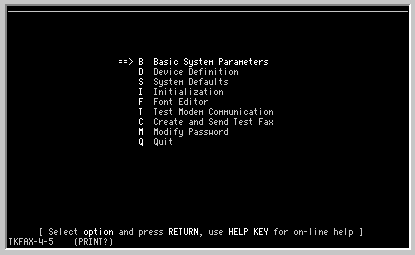
(If for some reason your screen doesn't look like this it may be because
you have not correctly identified your CRT type to the software during the
TK configuration.)
In order to call up the CONFIGURATION OPTIONS menu press the "C" for
configuration (followed by RETURN if necessary). There are three different
configuration screens that need to be defined.
|
| Basic Parameters |
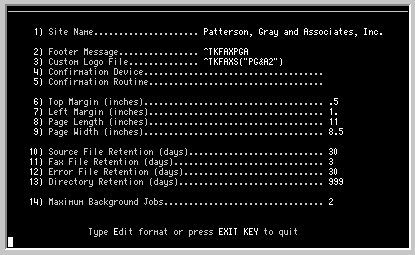
These parameters are the site specific settings for the physical layout
and contents of the faxes sent from TK-FAX as well as the database
retention times for the fax files.
|
| | Site Name |
This is the name of your organization that is inserted on the cover
sheet. The maximum number of characters is 38 and if this line is left
blank, then the cover sheet block will be one line shorter.
| Footer
Message |
An optional message can be included along with the TK-FAX Date and
Time stamp which appears on the bottom of each page of the
fax output. This may be an address, phone numbers, corporate byline, etc.
To include this message on each fax, enter the name of a MUMPS global
reference which contains the message. The message will be printed with
font A at 17 cpi and the message can be up to 130 characters in length, but
it is limited to one line only.
| Custom
Logo File |
If you would like to include a graphic to be printed along with the
cover sheet you may have this graphic scanned and converted to a TIFF
file (5.0 Type F) and then stored in a MUMPS file (global) to be
inserted with each fax output. PG&A provides a service whereby you can
mail in your graphic image and we will send you, either by floppy or modem,
a MUMPS global of the image.
| Confirmation
Device |
An optional printed copy of each fax queued can be printed for
filing. This copy will include date and time sent, usage time and a
message whether or not the fax was sent successfully. To turn on the
confirmation printout, enter a printer number here.
| Confirmation
Routine |
This entry may be used with the above Confirmation Device or alone.
If the above Confirmation Device is non-blank, then the Confirmation
Routine will be run using the Confirmation Device (although it doesn't
necessarily have to do any printing). If the Confirmation Device
is blank, then the Confirmation Routine will be run but it is assumed that
there will be no printing.
(The actual variables that are passed to the confirmation are not
documented here at this time. PG&A will provide a list upon request.)
| | Top Margin |
Enter the number of inches from the top of the fax where you want the
graphic, cover page, or text to start. Use decimals values for fractional
inches (.5 = one half inch, .75 for 3/4)
| | Left Margin |
Enter the number of inches from the left edge where you want the text
of the fax to be printed.
| | Page Length |
TK-FAX automatically breaks pages when it reaches either the ~BP
printer control code or the maximum number of lines for a page,
whichever occurs first. (Unlike TK-WRITER, TK-FAX does not perform any
widow or orphan line processing.) In order to compute the maximum line
count, enter the standard page size in inches for your remote fax
destinations. Typically this value will be 11.
| | Page Width | (Not currently used by TK-FAX)
| Retention
Days |
TK-FAX maintains a series of files which are created with each new fax
job. In order to clean up after itself, TK-FAX allows you to specify the
number of days that each of the files will be kept. After that they are
purged. The types of files that are available for purging are:
Source file - This is a copy of the original ASCII text of the fax.
Fax file - The ASCII text is converted to a faxable image and is
stored in this special format so that it can be sent through the
fax/modem. The fax file is approximately fifteen (15) times larger than
the original source file.
Directory File - Each fax queued is recorded in the fax directory.
This directory contains the status of each fax job, the date and time
queued, converted, sent, FROM and TO information etc.
Error File
- Errors due to hardware and software problems are logged
by TK-FAX and are available in the Error Report screens.
|
In general you will want to keep these files around as long as they still
have some meaning. You may want to resend a fax two or three months after
you originally sent it and you may have a need to verify the date and time
of a particular fax six months or a year after it was sent.
But at the same time there is a cost in disk space for saving this
information. You will want to adjust these retention values so that they
best suit your information requirements and still fit within your available
disk space allotment. If you only send an occasional fax, there should not
be any concern. But for sites that are sending anywhere from two or three
faxes to hundreds of faxes a day, you may want to carefully weight the
tradeoffs.
Just for pointers - here are the relative space requirements for each of
these files:
|
| | SOURCE FILE |
same size as the original text, about 3000 bytes/page
| | FAX FILE |
approximately fifteen times larger than the source file, about 45,000
bytes/page
| | DIRECTORY |
averages around 160 bytes per fax
| | ERROR FILE |
usually about 100 bytes per error
|
From this table you can see that there is significantly more space used in
the Fax file. Because this file is only used to resend a fax, and because
any given fax can be reconstructed from the Source file, this file can be
kept small. The Source file is the next biggest file, but if this
information is deleted, then there is no way of resending a fax without
going back to the original document (assuming that it is still available ).
|
| Device Definition |
TK-FAX currently supports configurations of from one to four fax/modems.
Additional fax/modems work the same way as the solo configurations with
the exception that several can dial and send many more faxes per hour.

Configure each fax/modem as follows:
|
| | $IO |
Enter the MUMPS $IO value of the serial line on which you have
connected the fax/modem.
If you are working with a local area network, you must define the
particular port to the network service as a modem so that it may always be
addressed by the same value of $IO.
| | Deactivate |
Leave this blank. If you are using a pair of devices, you can
temporarily shut down one device by entering a "Y" for Yes.
| | Fax Number |
Currently, this value is used only to report your own fax machine's
fax number. In later versions of the TK-FAX software, we may provide
reception services from this same fax/modem in which case this then would
be the fax number of the phone line that the fax/modem is connected to.
| Dialing
Prefix |
The fax/modem uses the standard Hayes compatible syntax for dialing
remote fax modems. The default dialing prefix if you leave this item
blank is "ATDT" which implies direct dial using tone. Other possibilities
are:
ATDP - Pulse dialing (use for European phones)
ATDT9W - Dial 9 for outside line, then wait for second dialtone
before dialing remainder of number
| | Speaker |
The default setting for TK-FAX is to have the fax/modem
speaker totally turned off. If you change this setting to a 1, then the
speaker will be on during the dialing phase of the fax transmission. This
can be useful if you are having problem dialing a particular number and
need to monitor the audio signal during the call process.
|
|
| System Defaults |
The TK-FAX Send Dialog box contains settings for cover sheet, borders,
pagination, fonts and fax speed. These settings can be changed from fax
to fax and the latest settings are stored for each individual fax number
in the Phonebook database. The default values are only used when a new
fax number is being used or if you decide not to use the Phonebook to
lookup the contact, company and fax number.

In order to decide how to set each of these default values, see the
explanation of these in the SENDING A FAX
section.
|
TESTING YOUR
FAX/MODEM |
Once you have finished the configuration screens you can go ahead and see
if your hardware and software installation will work correctly. You can
select the TEST MODEM COMMUNICATION option to see if TK-FAX can talk to
your fax/modem. After about a five second delay it should come up with a
message indicating GOOD or BAD communication.
If the communication is not good, it may be caused by any of the following:
An improper cable used between the MUMPS system and the fax/modem. It
needs to be a modem cable.
Invalid setup of the baud rate, number of data bits, parity in the
operating system. Needs to be 19,200 baud, 8 bits, no parity and 1 stop
bit.
A mistake was made in the device number of the fax/modem. Check again to
see if you correctly inserted the device number in the DEVICE
CONFIGURATION.
If the communication checks out, go ahead and try to send a fax. See
Section I.
|
CONFIGURATION
PASSWORD |
You may add a password to the TK-FAX Configuration menus to prevent
unauthorized users from changing the settings that you have entered. We
would highly recommend this unless you are the only one using the TK-FAX
software.
|
SYSTEM
RESTART |
There is one last detail that will help tighten up the operations of the
fax server. Because your computer can be taken down for one reason or
another, and because the fax server monitors queued up faxes in
background, you will need some way of restarting the fax server once it
has been stopped prematurely. We have included an entry point in the
queue program to help facilitate a restart. Implement this restart as
follows:
D RESTART^TKFAXC
It will restart the fax server and return control back to you with 5 to 10
seconds.
If for some reason the fax server job is "killed", it can always be
restarted by RESENDING any one of the queued fax jobs.
|
|
|
CHAPTER 5 |
The ASCII text sent by the fax server first has to be converted to a
graphic image before it can be transmitted to a remote fax. The actual
rules of how it is converted and what it will look like at the remote fax
is dependent upon the fonts that are built in to the sending fax software.
TK-FAX provides a number of different fonts to be used while converting the
ASCII text to a fax image. The font determines the shape or style of each
letter, the size, boldness and visual attributes of underlining and reverse
printing. Each font is assumed to contain the full 224 ASCII printable
character set as defined by the PC-850 code set used by MS-DOS machines.
This code set includes line drawing characters as well as many of the
Western European multi-national characters and special symbols. Additional
code sets will be made available as they are needed.
NOTE: Documents typed using the DEC multi-national and line drawing
character sets will be automatically converted to the PC code set if they
re typed from either TK-WRITER or TK-MAIL. Other ASCII text sent with
TK-FAX will not convert ASCII values over 126 and it will assume that they
are already in PC-850 code set already.
|
AVAILABLE
FONTS |
The fonts available at the time of this printing are:
|
| | FONT A |
16 by 16 fixed space font
12.5 characters per inch horizontal
6 lines per inch vertical
up to 90 character lines with 1 in. margins
| | FONT B |
16 by 12 fixed space font
12.5 characters per inch horizontal
8 lines per inch vertical
up to 90 character lines with 1 in. margins
| | FONT C |
8 by 12 fixed space font
25 characters per inch horizontal
8 lines per inch vertical
up to 160 character lines with 1 in. margins
| | FONT D |
16 by 16 fixed space font
12.5 characters per inch horizontal
6 lines per inch vertical
up to 90 character lines with 1 in. margins
| | FONT K |
12 by 12 fixed space font
16 characters per inch horizontal
8 lines per inch vertical
up to 102 character lines with 1 in. margins
|
TK-FAX will default to FONT A. Documents faxed from TK-WRITER will be
automatically converted using FONT C if the width is greater than what can
be printed on a 8.5 inch fax, usually about 90 characters. See Appendix C
for an example of these fonts.
You can override the FONT A default by specifying another font from the
SEND FAX DIALOG box. You can also change the font at different places
within the document by inserting a FAX command. The format for the CHANGE
FONT command is:
~FAX FONT=x (where x is the font letter A, B, C, D or E)
|
EDITING FONT
CHARACTERS |
It is possible for you to edit the appearance of one or more characters in
the font tables. This can be done by using the FONT EDITOR option in the
Configuration Options menu.
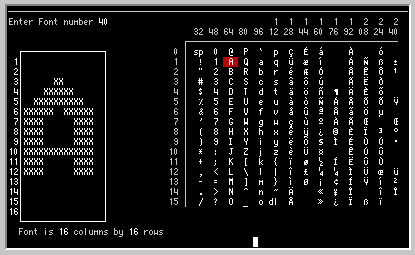
Editing a font requires that you enter a font number, select the character
to edit and then change individual pixels of the characters by typing
either a space or an "X". An "X" is printed in black, the spaces are left
white.
In order to edit a font you need to understand the relationship between the
font letters and their corresponding internal numbers. Each font has a set
of four files representing the four video representations that can be
faxed; standard, underlined, bold and the combination of bold and
underline. You must use the internal number in the FONT EDITOR as follows:
|
| | FONT A | 10 standard face
11 underline
12
reverse
13 reverse and underline
| | FONT B | 20 standard
21 underline
22
bold
23 bold and underline
| | FONT C | 10 standard
11 underline
12 bold
13 bold and underline
| | FONT D | 40 standard
41 reverse
42 bold
43 bold and underline
| | FONT K | 110 standard
111 reverse
112 bold
113 bold and underline
|
Editing a particular character only changes one of the video
representations of the font. You may need to edit all four.
Once a font has been edited, you should be careful not to reinitialize
TK-FAX with the INITIALIZE option in the Configuration Options. This will
change the fonts back to their "factory" representation. If necessary you
can save the font file by copying it into another global to prevent
accidental changes. The font file is ^TKFAXF.
|