|
|
Reconciling
Bank Statements |
From the ACCOUNTS PAYABLE menu, select Reconcile Bank Statement.
Reconciling bank statements with your check register is perhaps one of the
most tedious (and unfulfilling) chores in accounting. You have to
maintain a list of checks which haven't cleared, account for deposits in
transit, add everything up and hope it your records match the statement
so you won't have to go through the whole process again.
Though TK-PAYABLES can't promise that it will always be simple, or that you
will always reconcile on the first try, we have provided a function which
can at least minimize the manual effort associated with the task.
|
Selecting
The Account |
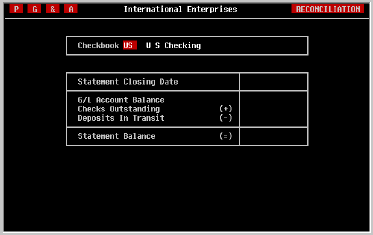
As the screen above suggests, this program can be used to reconcile as
many checkbooks as each organization has defined. Select the desired
checkbook by entering its name. If a default checking account was defined
in the Accounts Payable Parameters screen, it will be displayed
when the screen is appears and can be accepted by pressing the [RETURN]
key.
|
| Statement Date |
When you have selected the checking account, you will
be asked to enter the statement date. Enter the actual statement closing
date provided by your bank on the statement.
When the date has been entered, the program will load the data you will
need to proceed with the reconciliation, such as outstanding checks and
deposits for the month. This information will be then displayed as shown
in the example below.
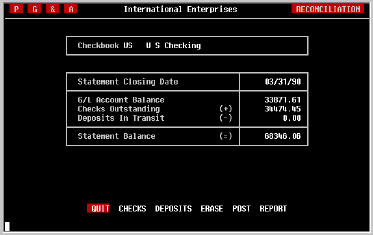
There are three steps you must follow to complete the reconciliation and
print the Final Reconciliation report.
|
Clearing
Returned Checks |
Select the 'CHECKS' option in the one line menu at the bottom of the
Reconciliation screen. As illustrated below, a screen will be
displayed which contains all of the known outstanding checks for the
account. Using the checks returned with your statement, indicate to the
system which ones cleared by entering a [Y] in the 'Cleared' column next
to each appropriate check.
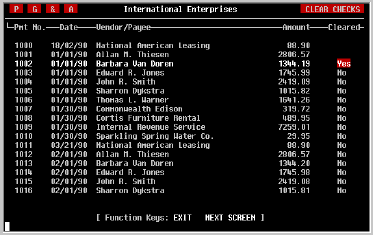
Notice as you do this that the column becomes blank. This is merely a
device to make it easier to identify the checks which have or have not been
cleared on the screen. Blank means 'Yes' as you will see if you use the
cursor [UP] key to move the cursor up to a check you have cleared.
HINT: It is very helpful to sort the checks returned with your
statement in the order of the check number that TK-PAYABLES assigned
because that is the order in which they will be displayed on this
screen.
While clearing checks, you can use the cursor [UP] to move the cursor to a
previous check and the cursor [DOWN] and [RETURN] keys to move the cursor
down to the next check. In addition, you can use the NEXT SCREEN or PREV
SCREEN keys to page forward and backward through the list.
When finished, press the EXIT key to return to the Reconciliation
screen where the amount in outstanding checks will be changed to reflect
the checks you have indicated should be cleared.
You can exit and re-enter the Clear Checks screen as many times as
is necessary until the statement reconciles and you have posted it. At
that time, the appropriate checks will be cleared and will not show up
when reconciling next month's statement.
|
Noting Deposits
In Transit |
Select the 'DEPOSITS' option from the one line menu at the bottom of the
Reconciliation screen. As illustrated below, a screen will be
displayed which contains all the credits which have been posted to the
checking account during the 15 days prior to the statement date.
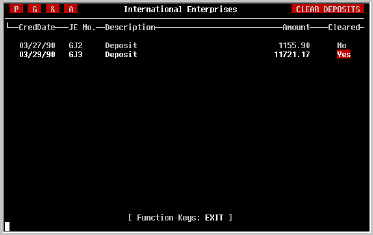
The purpose of this screen is to identify any deposits, or other credits,
which have been posted to the general ledger, but do not appear on the bank
statement. Under normal circumstances, most of these transactions will be
reflected in your bank statement. As a result, each transaction shown on
the screen has been 'Cleared' for you.
Beginning at the end of the list, which may be longer than will fit on a
single screen, confirm that each deposit or credit shown is also shown in
the bank statement. For each transaction which does not appear on the bank
statement, indicate this on the screen by entering a [N] next to the
transactions.
During this process, you can use the cursor [UP] to move the cursor to a
previous transaction and the cursor [DOWN] and [RETURN] keys to move the
cursor down to the next one. In addition, you can use the NEXT SCREEN or
PREV SCREEN keys to page forward and backward through the list.
When finished, press the EXIT key to return to the Reconciliation
screen where the amount of Deposits in Transit will be changed to reflect
the deposits or credits you have indicated did not appear on the
statement.
You can exit and re-enter the Clear Deposits screen as many times
as is necessary until the statement reconciles and you have posted it.
|
Printing A Test
Reconciliation |
Select the 'REPORT' option from the one line menu at the bottom of the
Reconciliation screen. This can be done at any time during the
reconciliation process, even if only to document what you have done so
far, or to assist you in finding a troublesome error. However, a Test
Reconciliation can only be printed from the Reconciliation screen.
Like other reports in the system, you can print this report to either your
screen or to a printer. Select the desired device and press [RETURN]. For
additional information on selecting output devices refer to the beginning
of the Standard Reports section in this manual.
The report, as illustrated on the next page, will contain the following
information that may be useful to you during the reconciliation process.
Current reconciliation summary
List of checks being cleared this statement
List of deposits/credits in transit
List of checks still outstanding
"INCLUDE DA,62
|
Printing A Final
Reconciliation|
From the ACCOUNTS PAYABLE menu, select Print Final
Reconciliation.
The Final Reconciliation Report can be printed at any time after a
reconciliation has been posted. It documents the steps that were taken
as part of the reconciliation process, such as the checks that were
cleared, and the deposits which were still in transit when the bank
statement was produced. One copy of the report should be attached to the
bank statement for future reference prior to being filed away.
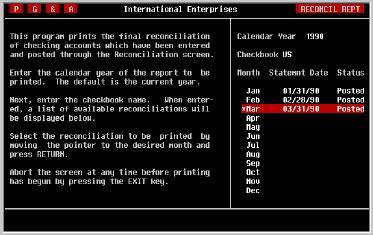
As the screen above shows, instructions for printing the report are
displayed for your reference.
| | Calendar Year |
Using the conventions discussed at the beginning of
this manual, select the calendar year from which the reconciliation will be
chosen. The default is the current year. Press [RETURN] to proceed to the
next field.
| | Account |
Enter the general ledger account number associated
with the checking account for which you want to print the reconciliation.
If a default checking account was defined in the Accounts Payables
Parameters screen, it will be displayed as the default and can be accepted
by pressing [RETURN].
| | Statement Date |
From the list of posted reconciliations for the
account, select the one to be printed by moving the highlighted bar to it
and pressing the [SPACE] key. An asterisk (*) will appear indicating
that the period has been selected. If multiple consecutive periods are
desired, use the cursor [DOWN] key to select the next period, and the
cursor [UP] key to deselect the last period. Press [RETURN] when
completed.
| | Device |
Select the desired output device. A Terminal option
will also be included for displaying the report to the screen. Refer to
the discussion regarding device selection at the beginning of this section
for further assistance.
| | Aborting |
Due to the normally brief length of this report, the
ability to abort it after printing has begun is not available. When the
report has finished, you will be returned to the screen discussed above, at
which time you can select another reconciliation to print or quit using the
EXIT key.
"INCLUDE DA,63
|
|
|
|
Vendor Inquiry |
From the TK-ACCOUNTING menu, select Accounts Payable.
From the ACCOUNTS PAYABLE menu, select Vendor Inquiry.
This screen provides immediate access to a vendor's up-to-date transaction
history; what invoices have been entered, what credits, adjustments and
payments have been made, what invoices are still outstanding.
The information is provided in three levels of detail. First, a summary
invoices by year is displayed with a grand total. Second a list which
summarizes activity by invoice is provided with the most recent invoices
first. Finally, you can select any invoice shown and review the
transactions involving that invoice.
|
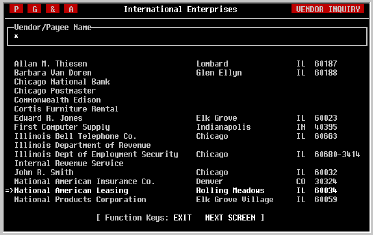
| Vendor Selection |
The first step is to select the vendor whose history
you would like to view. Enter the first two or three characters of the
vendor's name and press [RETURN]. A list of vendors whose names begin with
the letters you entered will be displayed. As illustrated in the example
above, you can also press an asterisk [*] to view the list of all vendors.
Any of the vendors shown on the screen can be selected by moving the
pointer to its name and pressing [RETURN]. Like the menu system, the
pointer can be moved by pressing either the [SPACE] key or the cursor [UP]
and cursor [DOWN] keys.
If the vendor does not appear on the list, it may be that the list is too
long to display in one screen. You can tell if there are more vendors by
the list of Function Keys displayed at the bottom of the screen. If NEXT
SCREEN or PREV SCREEN is shown, the next or previous pages of the list can
be displayed by pressing the proper function key. If you are still unable
to find the desired organization, press EXIT to search again.
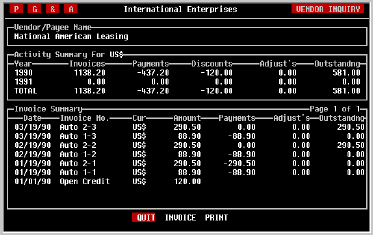
When the vendor has been selected, the vendor summary screen will be
displayed as illustrated below.
|
| Activity Summary |
The first section on the screen, under the vendor's
name, is a summary of all transactions with the vendor for last year, this
year and grand total.
If you are using the system's multi-currency capabilities it will be
helpful to understand that this summary is by currency. If you have
accepted invoices from the vendor in more than one currency, only one can
be shown here at a time. Use the 'CURRENCY' option in the one-line menu at
the bottom of the screen to change the currency being displayed.
|
| Invoice Summary |
The bottom section shows a list of the vendor's
invoices with the most recent at the top. If open credits have been
entered, you will also find them here. Notice that for each invoice, you
can find the invoice date, invoice number and invoice amount, as well as
any payments and adjustments which may have occurred. Finally you are
shown the outstanding balance on the invoice.
|
| Invoice Detail |
On the bottom line of the screen, you will see the
familiar one-line menu containing an 'INVOICE' option. To see more detail
on a particular invoice, move the highlighted bar to 'INVOICE' and press
[RETURN] As the screen below illustrates, you can then select the invoice
to be viewed by moving the highlighted bar up or down until it rests on it.
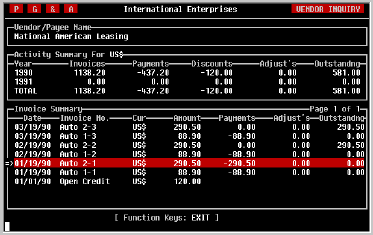
After pressing [RETURN] the invoice screen will be displayed showing the
original invoice and a list of all subsequent transactions that have been
applied, such as payments, adjustments and so forth.
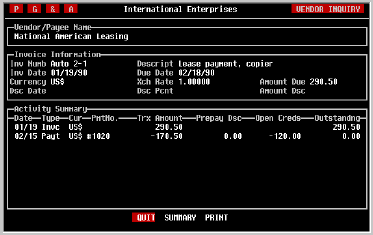
To return to the Summary screen, select 'SUMMARY' from the one line menu at
the bottom of the screen.
To exit Vendor Inquiry select 'QUIT' or press the EXIT key.
|
A/P Vendor
History |
From the ACCOUNTS PAYABLE menu, select Print A/P Vendor
History.
This report provides the ability to print accounts payable history for a
specified range of dates for a vendor. All transactions involving the
selected vendor that occurred during a period of time specified by a
starting date and an ending date will be included.
The report is not intended to be a control report for accounting purposes
and is provided solely for vendor inquiry.
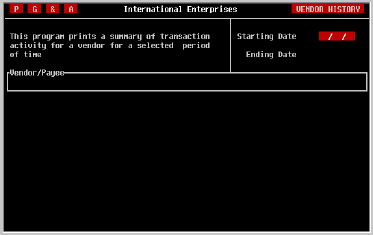
As the screen above shows, instructions for printing the report are
displayed for your reference.
|
| Starting Date |
Using the conventions discussed at the beginning of
this manual, enter the date for which you would like data pertinent to the
vendor to begin. Press [RETURN] to proceed to the next field.
|
| Ending Date |
Again using date entry conventions discussed earlier
in this manual, enter the cutoff date of the data to be included in the
report and press [RETURN] when completed.
|
| Vendor Selection |
Next, select the vendor for whom you wish to print
the report. As you do when selecting a vendor in other parts of the
system, enter the first two or three characters of the vendor's name and
press [RETURN]. A list of vendors whose names begin with the letters you
entered will be displayed. As illustrated in the example below, you can
also press an asterisk [*] to view the list of all vendors.
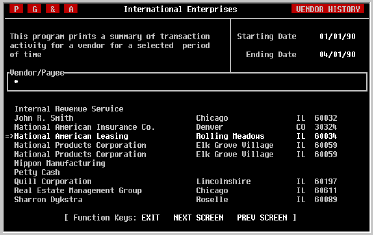
Any of the vendors shown on the screen can be selected by moving the
pointer to the desired name and pressing [RETURN]. As in the menu system,
the pointer can be moved by pressing either the [SPACE] key or the cursor
[UP] and cursor [DOWN] keys.
If the vendor does not appear on the list, it may be that the list is too
long to display in one screen. You can tell if there are more vendors to
be seen by looking at the Function Keys displayed at the bottom of the
screen; if NEXT SCREEN or PREV SCREEN is shown, the subsequent or previous
pages of the list can be displayed by pressing the appropriate function
key. If you are still unable to find the desired vendor, press EXIT to
search again.
|
| Device |
Select the desired output device. If your terminal
supports 132 column display, a Terminal option will also be included for
displaying the report to the screen. Refer to the discussion regarding
device selection at the beginning of this section for further assistance.
|
| Aborting |
After printing has begun, it can be stopped by
pressing the [SPACE] key on your terminal. After a report has been stopped
in this way, it can only be restarted from the beginning.
"INCLUDE DA,67
|
|
|
Printing Reports |
Each of the standard reports discussed in this chapter has been designed
to be flexible, easy to use. Where possible, each adheres to several
conventions in collecting the information needed to produce a report.
These conventions, if remembered and used, will greatly increase the
usefulness and accessibility of the information TK-PAYABLES maintains.
|
| Year |
TK-PAYABLES has been designed to maintain accounting
data for as long as it is needed. Because of this, it is often necessary
to select the fiscal or calendar year from which the data will be retrieved
for the report. In each report, the current year will be displayed
as the default and can be accepted by pressing [RETURN].
If the desired data is from a prior year, you can enter the desired year,
or press the minus [-] key to subtract one from the default. If the data
to printed is from a future year, you can enter the year as described
above, or press the plus [+] key to add one to the default. In either
case, press [RETURN] when the desired year is displayed.
|
| Period |
Standard reports which are organized based on accounting periods have been
designed to enable data to be printed for one or more periods. When
printed for multiple periods, data from all selected periods are combined
making it possible to produce reports such as a Quarterly Check Register.
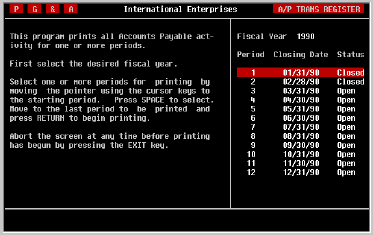
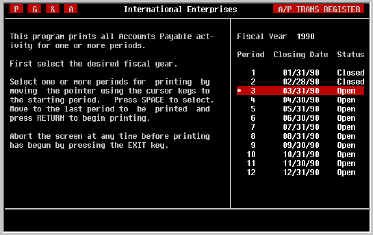
When selecting the period(s) to be printed, each screen will display the
periods defined for the chosen fiscal year, highlighting the first period,
as shown in the following illustration.
|
| Method 1 |
The easiest way to select a period is to type the
period number. If a valid period number was entered TK-PAYABLES will find
the period and highlight it, also displaying an asterisk (*) in front of it
indicating that it has been selected. The screen shown below illustrates
how this will look.
If more than one period is desired, press the cursor [DOWN] key until all
the desired periods are similarly highlighted and marked. If too many were
marked, press the cursor [UP] key to deselect
periods one at a time.
Press [RETURN] when the list of periods to be printed is correct.
|
| Method 2 |
Another method of selecting the period to be printed
is to move the highlighted bar using the cursor [DOWN] key until it is on
the first (or only) period to be printed. Press the [SPACE] key to mark
it; an asterisk (*) will be displayed in front of the period. Use the
cursor [DOWN] and cursor [UP] keys to select the rest of the periods to be
printed and press [RETURN] when the list is correct.
Once a period has been selected and the asterisk is visible in front of it,
the period can be deselected by pressing the [SPACE] key again. The
[SPACE] key therefore works like a toggle, selecting and deselecting
periods, until the desired periods have been marked.
NOTE: Only contiguous periods can be selected and combined. It
is not possible to print a report for periods 1, 3, and 5.
|
| Output Device |
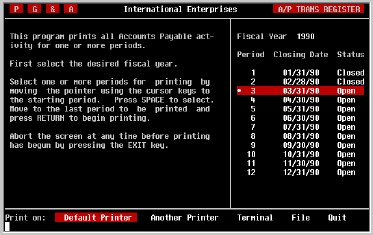
When each of the other report parameters have been
selected, a one-line menu will appear at the bottom of the screen for
selection of the output device, as illustrated in the screen below.
Options can be selected by typing the first letter of the option name, such
as [P] for printer or [T] for terminal. Or you can use the [SPACE] key or
cursor [RIGHT] and [LEFT] keys to position the highlighted bar to the
desired option. Finish the selection by pressing [RETURN].
|
| Default |
As you can see, there are several choices. If a default printer was
defined in the Accounts Payable Parameters screen, the first option
will be Default Printer and the second will be Another
Printer. To select the default printer, press [RETURN] because this
option was already highlighted when the menu appeared.
|
| Another Printer |
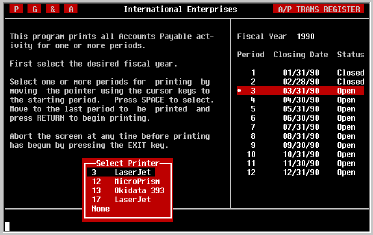
If another printer is to be used for this report,
move the highlight bar to the next option ('Another Printer') using the
[SPACE] key or the cursor [RIGHT] key and press [RETURN]. A pop-up menu,
similar to the one illustrated below, will be displayed listing the
printers which have been defined in the Printer Maintenance
screen. Move the selector to the desired printer and press [RETURN]. If
the None option is chosen, you will be returned to the question
immediately preceding the Device question.
If no default printer has been defined, only the Printer option
will be displayed. When it is selected, the same pop-up window will be
displayed as described above. Select the desired printer and press
[RETURN].
|
| Terminal |
If the report can be displayed in 80 columns or less,
or the terminal you are using provides a "compressed" or 132 column mode,
TK-PAYABLES will provide a Terminal option. Select this to print
the report to your screen.
|
| File |
A further output device option is to save the report to
a File from which it can be imported into a word processor such as
TK-WRITER, or electronic mail system such as TK-MAIL, or used in other
ways.
NOTE: Using this option can result in the deletion of other data
if the name of the file you provide is already in use for other purposes.
Use caution.
After selecting the File option, you will be asked for the name of
the file. Enter the name of the file in which you would like the report
to be saved and press [RETURN]. TK-PAYABLES will print the report to a
global (a global is a MUMPS file) named ^TKAMREPT(<filename>).
If you have access to MUMPS programming, you may want the report to be
saved to a global of another name. If so, enter the name and reference
under which the report should be saved, such as ^REPORT("A/P","TRXREG").
Be sure that the reference is syntactically correct and ends with a closing
parenthesis.
|
| Aborting A Report |
After a report has begun printing, it can be stopped
by pressing the [SPACE] key from the terminal requesting the report. This
will print a "REPORT ABORTED" message where the report was terminated and
return control to the screen.
Be careful not to attempt typing ahead while printing is in progress as
this may cause the report to be aborted unintentionally.
|
A/P Journal
Report | From the
TK-ACCOUNTING menu, select General Ledger.
From the GENERAL LEDGER menu, select Print Journal Report.
The Journal Report, one of the four Control Reports provided with
TK-LEDGER, is a list of all Journal Entries made during a specified
accounting period (or periods) in the order in which they were entered.
This order is determined by the Journal Entry Number (of the form AAnnn)
which was assigned when the Entry was posted.
All journal entries which are generated by TK-PAYABLES, whether from
entering an invoice or paying a bill, whether a Cash or Accrual basis was
used, are posted to a special journal with the mnemonic 'AP'. In addition
to the information saved and printed for most journals, the A/P Journal
includes such information as the vendor, invoice and type of transaction.
At the end of the report is the Journal Summary which lists all of the
accounts posted to by the reported transactions, the number of trans-
actions, total debits, total credits and net change. If the Total Net
Change is not zero, the Journal is out of balance (a condition which should
not occur under normal circumstances) and should be examined for unbalanced
entries.
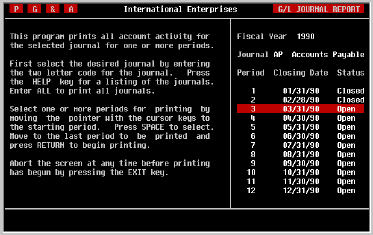
As the screen above shows, instructions for printing the report are
displayed for your reference.
|
| Fiscal Year |
Using the conventions discussed at the beginning of
this manual, select the fiscal year for which the report is to be printed.
The default is the current year. Press [RETURN] to proceed to the
next field.
|
| Journal |
Enter [A][P] to print only the Accounts Payable
Journal and press [RETURN]. The default is ALL. To return to the
Fiscal Year field, press cursor [UP].
NOTE: For printing of this report to satisfy accounting controls,
ALL journals must be printed by accepting the default, and may only be
printed for one period.
|
| Period |
Select the period to be printed by moving the highlight bar to the period
and pressing the [SPACE] key. An asterisk (*) will appear indicating that
the period has been selected. If multiple consecutive periods are
desired, use the cursor [DOWN] key to select the next period, and the
cursor [UP] key to deselect the last period. Press [RETURN] when
completed.
|
| Device |
Select the desired output device. If your terminal
supports 132 column display, a Terminal option will also be included for
displaying the report to the screen. Refer to the discussion regarding
device selection at the beginning of this section for further assistance.
|
| Aborting |
After printing has begun, it can be stopped by
pressing the [SPACE] key on your terminal. After a report has been stopped
in this way, it can only be restarted from the beginning.
"INCLUDE DA,64
|
A/P Transaction
Register |
From the ACCOUNTS PAYABLE menu, select Print Transaction
Register.
While the Journal Report from the TK-LEDGER
system documents Accounts Payable transactions which have generated journal
entries in the order in which they were posted, the A/P Transaction
Register documents all Accounts Payable transactions in vendor order by
invoice. In addition, the report shows a summary of the changes to
Accounts Payable for the period.
Although the report is not considered a Control Report for general ledger
purposes, it is a very important report and should be included in your
normal fiscal period closing activities because it provides an audit trail
for all Accounts Payable transactions for the period, whether those
transactions generated general ledger activity or not.
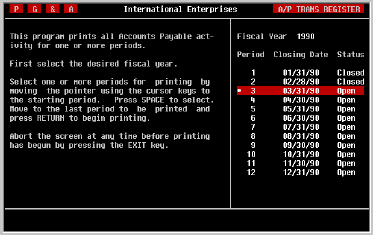
As the screen above shows, instructions for printing the report are
displayed for your reference.
|
| Fiscal Year |
Using the conventions discussed at the beginning of
this manual, select the fiscal year for which the report is to be printed.
The default is the current year. Press [RETURN] to proceed to the
next field.
|
| Period |
Select the period to be printed by moving the highlight bar to the period
and pressing the [SPACE] key. An asterisk (*) will appear indicating that
the period has been selected. If multiple consecutive periods are
desired, use the cursor [DOWN] key to select the next period, and the
cursor [UP] key to deselect the last period. Press [RETURN] when
completed.
|
| Device |
Select the desired output device. If your terminal
supports 132 column display, a Terminal option will also be included for
displaying the report to the screen. Refer to the discussion regarding
device selection at the beginning of this section for further assistance.
|
| Aborting |
After printing has begun, it can be stopped by
pressing the [SPACE] key on your terminal. After a report has been stopped
in this way, it can only be restarted from the beginning.
"INCLUDE DA,65
|
A/P Status
Report |
From the ACCOUNTS PAYABLE menu, select Print Transaction
Register.
While the A/P Transaction Register documents
all Accounts Payable transactions for a fiscal period, the A/P Status
Report show the status of accounts payable for a specific date by telling
you what invoices are (were) outstanding on that date, what liability
account they are being held in (if Accrual is being used), and what expense
accounts the invoice is being distributed to.
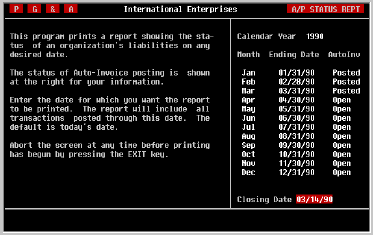
As the screen above shows, instructions for printing the report are
displayed for your reference.
|
| Closing Date |
Enter the closing date for the report and press
[RETURN]. In many cases this will be the cutoff date for a fiscal period.
However, the report can be printed for any date desired.
|
| Device |
Select the desired output device. If your terminal
supports 132 column display, a Terminal option will also be included for
displaying the report to the screen. Refer to the discussion regarding
device selection at the beginning of this section for further assistance.
|
| Aborting |
After printing has begun, it can be stopped by
pressing the [SPACE] key on your terminal. After a report has been stopped
in this way, it can only be restarted from the beginning.
"INCLUDE DA,68
|
Payment Register |
From the ACCOUNTS PAYABLE menu, select Print Payment
Register.
The Payment Register maintained by TK-PAYABLES provides concise
documentation of all disbursements during a period. Even though
TK-PAYABLES assists you in reconciling your accounting to the bank's
statement, it is prudent to include this report in your normal fiscal
period closing activities.
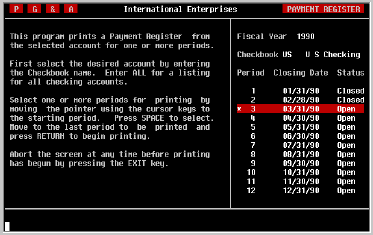
As the screen above illustrates, instructions for printing the report are
displayed for your reference.
|
| Fiscal Year |
Unlike many accounting systems, the Payment Register
can be printed as many times as desired and can even be printed for prior
fiscal years. Using the conventions discussed at the beginning of this
manual, select the fiscal year for which the report is to be printed. The
default is the current year. Press [RETURN] to proceed to the next
field.
|
| Checkbook |
Enter the two-to-three character name of the checkbook for which you
would like to print a register, or enter 'ALL' to print the register for
all checkbooks. The default, if any, is the default checking account
defined in the Accounts Payable Parameters screen.
|
| Period |
Select the period to be printed by moving the highlight bar to the period
and pressing the [SPACE] key. An asterisk (*) will appear indicating that
the period has been selected. If multiple consecutive periods are desired,
use the cursor [DOWN] key to select the next period, and the cursor [UP]
key to deselect the last period. Press [RETURN] when completed.
|
| Device |
Select the desired output device. Refer to the
discussion regarding device selection at the beginning of this section for
further assistance.
After printing has begun, it can be stopped by pressing the [SPACE] key on
your terminal. After a report has been stopped in this way, it can only be
restarted from the beginning.
"INCLUDE DA,66
"INCLUDE DA,17
"INCLUDE DA,20
|