TK-Payables Manual
CONTENTS
MAINTENANCE FUNCTIONS
INVOICE ENTRY
ADJUSTING INVOICES
MAKING PAYMENTS
RECONCILIATION
VENDOR INQUIRY
STANDARD REPORTS
APPENDICES
INTRODUCTION
Overview
System Conventions
Screen Compilation
System Menus
General Ledger Interface
Fiscal Period Control
Checks and Check Handling
Getting Started
A/P Parameters Maintenance
Checkbook Maintenance
Printing A/P Parameters
Vendor Maintenance
Printing A Vendor List
Automatic Invoice Maintenance
Printing An Automatic Invoice List
Entering An Invoice (Single Currency)
Entering An Invoice (Multi-Currency)
Saving and Recalling Standard Invoices
Posting Automatic Invoices
Entering Invoice Adjustments
Entering Open Credits
Deleting An Invoice
Printing Cash Requirements Report
Printing Aged Payables Report
Selecting/Paying Invoices
Taking Open Credits
Printing Checks
Printing Issued Checks Report
Voiding A Check
Printer Jams and Other Disasters
Reconciling Bank Statements
Clearing Returned Checks
Noting Deposits In Transit
Printing A Test Reconciliation Report
Printing A Final Reconciliation Report
Onscreen Vendor Inquiry
A/P Vendor History Report
Printing Reports
A/P Journal Report
A/P Transaction Register
A/P Status Report
Payment Register
A. System Information
B. Default Keyboard Assignments
INTRODUCTION
Overview | Welcome to TK-PAYABLES, PG&A's comprehensive,
multi-user companion to the TK-LEDGER general ledger system. During the design and development of TK-PAYABLES, we sought to combine the ease-of-use characteristics of many PC packages with the strengths of multi-user minicomputers and mainframes. The result, as you will soon see, is a system which is extraordinarily easy to learn, simple to use, and comprehensive in its treatment of your accounts payable data. Some of its more important features are explained in the paragraphs which follow.
| |||||||||||||||||||||||||||||||||||||||||||||||||||
| Integrated | Like TK-LEDGER, TK-PAYABLES supports multiple concurrent users and multiple organizations. In fact there is no need to redefine the organizations for which you will be managing accounts payable because TK-PAYABLES makes use of the organizations, charts of accounts and department/division structures that were defined in TK-LEDGER. | |||||||||||||||||||||||||||||||||||||||||||||||||||
| Interfaced | Whether operating on a Cash or Accrual basis, TK-PAYABLES automatically generates precise, well documented transactions which are posted through a special journal in TK-LEDGER. And because both systems are designed for real-time accounting, interim financial statements can be printed which include all Accounts Payable transactions entered to date. That means financial managers can know what an organization's financial obligations are to-the-penny at any time. | |||||||||||||||||||||||||||||||||||||||||||||||||||
| Comprehensive |
TK-PAYABLES is much more than a check-writing system.
It tracks each vendors's invoice from receipt to payment and provides the
audit trail that makes it possible to document every step. Furthermore, it provides the real-life functions necessary to support each of the day-to-day operations of an Accounts Payable Department such as printing vendor histories, deleting erroneous invoices, voiding checks, applying invoice-specific credits, maintaining open credits, and reconciling bank statements. And each transaction is well documented in comprehensive, straightforward reports. | |||||||||||||||||||||||||||||||||||||||||||||||||||
System | Like TK-LEDGER, TK-PAYABLES has several conventions which, if recognized and understood, can make the software easier to use and less time consuming. | |||||||||||||||||||||||||||||||||||||||||||||||||||
| Dates |
All dates entered in the system, whether during data
entry or subsequent data inquiry are entered in the same way. When a date
is requested the computer displays a blank date field, " / / " into
which only numbers can be typed; the "/" will be skipped over automatically
as the date is entered. As a result, dates are normally entered by typing
the date without slashes, such as "011588" or "01151988" for January 15,
1988. If the international date format was selected during installation, dates will be entered and displayed in the DD/MM/YY format. Otherwise, the system will use the MM/DD/YY format generally accepted in the United States. In addition, there is a shorthand syntax for entering dates which may already be familiar to some users. It is often referred to as the T Syntax. In this shorthand method, the letter "T" represents today's date (or whatever date the computer thinks it is). Further, the value of T can be incremented or decremented by adding or subtracting from it. As a result, the following expressions would be understood by the system as...
Special Keys
| There are a handful of special keys, or Function Keys, which
will be referred to often throughout this manual and will be used
repeatedly in the system. Once each has been used several times, or a
template is made for your particular keyboard which identifies which keys
they are, you will have no trouble. In the meantime, however, the
following conventions may be helpful.
| Question Mark |
By pressing [?] on your keyboard at any menu as well
as in most data fields in each data entry screen, TK-PAYABLES will display
a list of currently active function keys and identify their location on
your keyboard.
| EXIT Key |
We have made it very easy to access TK-PAYABLES screens from the menu, and
it is equally easy to exit the screens using the Exit key. | One key (or sequence of keys) has been assigned as the EXIT key for each type of terminal. If your terminal is a DEC VT220, VT320 or compatible, the F11 key has been assigned; if a VT100, the PF4 key will be used. For the many other terminals on which this software may be used, proceed to any menu in the system and press the question mark "?" as discussed earlier, or refer to Appendix B of this manual, to determine which key has been assigned the EXIT function. Fiscal Year | Entry
Because of TK-PAYABLES's ability to work with data
from multiple fiscal and calendar years, it is frequently necessary to
identify the fiscal year of the data to be displayed or reported. To
reduce the effort associated with this small task, we have incorporated the
following conventions:
| Default |
Whenever fiscal year is asked, a default value is
displayed which can be accepted by pressing [RETURN]. The default fiscal
year is the least of the fiscal years which are currently open. In most
cases that translates to this year.
| + or - |
The default, or current value of fiscal year can be
incremented or decremented one year by pressing the [+] or [-] keys
respectively. Therefore, by pressing the plus [+] key, 1988 becomes 1989.
| Screen |
To assure quick response time, TK-PAYABLES like other PG&A products,
uses compiled screen displays. Because these displays are distributed in
source form, each must be processed (or compiled) prior to its first use.
When this occurs, a message will appear at the bottom of the screen
indicating that compilation is taking place. Normally, this process
requires only a few seconds and when completed will not be necessary
again for that particular type of terminal. Occasionally, new versions of the software will include minor modifications to these screen displays. When such an update has been installed, several of the system's screens may require another compilation. This is entirely automatic and will not require any special attention. | ||||||||||||||||||||||||||||||||||||||
System Menus |
The TK-PAYABLES system is built around the same comprehensive menu and
security system used by TK-LEDGER, called TK-GUARDIAN. There is much that could be said here to acquaint you with the capabilities of this system. And, indeed, it will be necessary to gain such an understanding in order to manage the security of your accounting software. However we will limit our discussion here to using menus. | |||||||||||||||||||||||||||||||||||||||||||||||||||
| Logon |
Logon is the process by which users identify themselves to the system.
Once a user's identity is known, it is also possible for the TK-GUARDIAN
to determine which parts of the software that user may have access to. Neither TK-GUARDIAN nor TK-PAYABLES require the logon process to be used. However, only rudimentary security can be provided without it. Since TK-GUARDIAN enables you to design your own logon screen, we will not show one here. Refer to the TK-GUARDIAN Reference Manual for further information. | |||||||||||||||||||||||||||||||||||||||||||||||||||
| Menus |
TK-PAYABLES is provided with a pre-loaded system of
menus beginning with a Master Menu which then branches to other menus
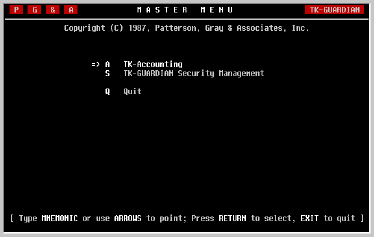
and/or application screens. While each menu's content is different, each functions in like manner. The following example illustrates how the first menu in the system will appear.
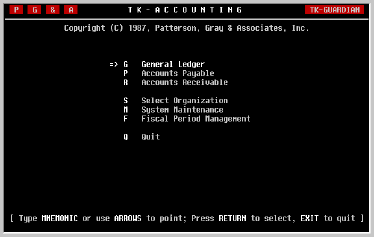
Notice the '=>' pointing to the first item on the menu. Referred to as the selection pointer, it identifies the option which would be chosen if you were to press the [RETURN] key. It can be moved in several ways. You can use the [SPACE] key or cursor [DOWN] key to move the pointer down the list of items. When it points to the desired option, simply press [RETURN]. Of course you can also move the selection pointer up the list using the cursor [UP] key. If there is more than one column of items in the menu you can also use the cursor [RIGHT] and cursor [LEFT] keys to move the pointer around. This type of item selection is often referred to as the Point 'N Shoot method and is very easy to learn.
Another method of selecting an item involves typing one or more of the characters to the left of the desired item (called a Mnemonic) until the selection pointer has found and points to the correct one. For example, to select System Maintenance in the menu shown above, you could press a [M]. The selection pointer would find and point to the correct item and you could then press [RETURN].
NOTE: Some systems are configured so that the [RETURN] is not required after typing the identifying characters. As soon as the menu knows which item is being selected, it proceeds directly to that item without waiting for [RETURN] to be pressed.
| |||||||||||||||||||||||||||||||||||||||||||||||||||
| The EXIT Key |
Now that you know how to select an item on a menu, it will also
be helpful to know how to quit a menu. Some menus actually have an item
called Quit which you can select like any other item. However, not
all do. In such a menu, you need to press the EXIT key. But which key is
it? As the following example shows, you can find out by pressing a [?] at any menu. A small window will appear which identifies several important keys on your keyboard. This is necessary because TK-PAYABLES supports a wide variety of terminals many of which employ different keyboards.
| |||||||||||||||||||||||||||||||||||||||||||||||||||
| Shortcuts |
The TK-GUARDIAN system also provides a means for users to define their
own shortcuts to items which they use frequently. To add a shortcut, the user points to the item that is to be named and presses the [+] key. For example, if Enter Invoices in the ACCOUNTS PAYABLE menu is an item that will be frequently used, proceed to the menu, point to Enter Invoices and press the [+] key. You will be asked to give the item a name. In this case let's pick INVOICE as the name we will remember. After typing in the name, press [RETURN]; the shortcut is now added for you. To use the shortcut, go to any other menu in the system and press the slash [/] key. Notice that you are then asked for the shortcut name at the bottom of the screen. Enter INVOICE and press [RETURN]; without having to go through all the menus and keystrokes in between, you're there. For more information regarding shortcuts and security, refer to the TK-GUARDIAN Reference Manual. | |||||||||||||||||||||||||||||||||||||||||||||||||||
General Ledger |
TK-PAYABLES has been designed to minimize the effort of maintaining the
general ledger side of accounts payable transactions. It does this by
automatically generating and posting a journal entry for each appropriate
event, fully sensitive to whether a Cash or Accrual basis is being used.
These journal entries are posted to a special journal with the mnemonic
'AP' to separate them from transactions with other sources. Since TK-LEDGER is a real-time accounting system, that is, journal entries are posted on a one-by-one basis, the same is true for accounts payable transactions. The fiscal period into which an entry is posted depends on the transaction date, not the date the invoice was entered. Thus, for example, an invoice may be entered in advance of the fiscal period in which the liability and expense should be taken without affecting the current period's liabilities and expenses. This can be a significant aid to cash planning. Which events actually generate a journal entry depends on whether the organization is maintaining its books on a Cash or Accrual basis, which is a decision that must be made in the Accounts Payable Parameters screen for each organization prior to using the system. The election of basis can be changed at any time. However, changing the basis has no affect on invoices already in the system; the basis of an invoice is assigned when the invoice is entered and cannot be changed. While this approach makes it possible to change the election of basis at any time, it also means that there will be a period of transition, during which the general ledger will not be purely Cash or Accrual in accounts payable. To those who might find this unacceptable, it is possible to delete all invoices currently in the system, and re-enter them after changing the basis election in the Accounts Payable Parameters screen. | |||||||||||||||||||||||||||||||||||||||||||||||||||
| Cash Basis | If an organization elects a Cash basis, only those transactions which affect cash will generate a journal entry in the general ledger. As a result, neither entering, nor adjusting nor deleting an invoice will result in a journal entry. However, since paying a bill or voiding a check both impact cash, each generates an appropriate journal entry. | |||||||||||||||||||||||||||||||||||||||||||||||||||
| Accrual Basis | Since an accrual system tracks liability in addition to changes in cash, every function, with the exception of entering an open credit, affects the general ledger and thus generates a journal entry. Because of this, the Invoice Date takes on new importance because it is the date on which the organization accepts the liability (and the expense) of an invoice. Care should be exercised when defining data entry guidelines, that the source of the Invoice Date for every invoice transaction is documented to avoid taking on liability and expense in an undesirable accounting period. | |||||||||||||||||||||||||||||||||||||||||||||||||||
Fiscal Period |
Because of the direct and immediate interface of TK-PAYABLES with the
general ledger system, and because no specific end-of-period closing is
required for Accounts Payable like other systems, it is important to note
a few things about fiscal period control with TK-PAYABLES. First of all, to the user TK-PAYABLES operates on a calendar month basis, not a fiscal period basis. This is possible because TK-LEDGER determines the fiscal year and period from the transaction date. However, like TK-LEDGER, TK-PAYABLES will not accept a transaction dated such that it falls into an accounting period which is closed. Should such an occasion arise and it is desirable for the transaction to be posted to a closed accounting period, it is possible to re-open the period using the utility in the FISCAL PERIOD MANAGEMENT menu, enter the transaction and re-close the period. Naturally, it is wise to reprint the TK-LEDGER control reports and the TK-PAYABLES Transaction Register whether or not you have elected to force the printing of control reports. Where possible, TK-PAYABLES will provide the ability to post the trans- action to a later date in an open accounting period. This is true, for example, in the Delete Invoice screen. When an invoice is deleted, the user is not asked for a transaction date; the system will first attempt to use the same date as the Invoice Date. If subsequent transactions were entered, such as an invoice adjustment, or a payment and then a voided check, TK-PAYABLES will attempt to use the same date as the most recent of these subsequent transactions. If the chosen date falls in a closed accounting period, the user will be notified and allowed to override the chosen date with today's date, or abort the transaction. In summary, TK-PAYABLES is fully compliant with TK-LEDGER maintained fiscal periods. And, because journal entries are generated and posted in real-time, no specific procedure of closing accounts payable is required prior to closing a fiscal period. However, it is strongly recommended that printing of the A/P Transaction Register and the Payment Register be included as a routine part of end-of-period activities even though they are not considered Control Reports from TK-LEDGER's point of view. | |||||||||||||||||||||||||||||||||||||||||||||||||||
Checks And |
Whether evaluating or using any accounts payable system, it is important
to consider how checks will be used and controlled. There are three different approaches to check number control which have been implemented by various systems. Each has its own strengths as well as weaknesses. | |||||||||||||||||||||||||||||||||||||||||||||||||||
| Approaches |
1) Pre-printed Check Numbers. Many systems track checks and
maintain registers based on the pre-printed check number supplied by the
bank or check vendor. While this approach has the benefit of maintaining
only one number, and no two checks can ever have the same number
regardless of circumstances, from a software package's point of
view, there is a dramatic weakness: an error of any kind, whether
computer's or user's, can result in the computer being out-of-sync with the
checks, resulting in significant problems. 2) Computer-Assigned Check Numbers. Some systems elect to use checks which have no pre-printed number on them at all. The software generates the check number and prints it on the check, thus eliminating the possibility of the computer becoming out-of-sync with the pre-printed check numbers. However, this approach also has weaknesses. Most banks do not require check numbers to be present in order for checks to be cashed. As a result, unscrupulous persons can manually write and cash an unnumbered check, destroy the returned check and any other material evidence and cause significant problems. In addition, the computer itself, due to unforeseen problems or errors, is able to print two different checks with the same number, again causing significant problems. 3) Pre-printed And Computer-Assigned Check Numbers. Though TK-PAYABLES is not the only system to take this approach, we feel it provides the greatest protection if managed properly. TK-PAYABLES maintains its own internal check numbers which are printed on the check in addition to a pre-printed check number. No currently available approach is completely free from weaknesses. However, we believe this is the most sound approach and if you use the guidelines suggested below, we believe you will have the information you need to discover and correct any problems that may occur.
| |||||||||||||||||||||||||||||||||||||||||||||||||||
| Check Stock |
TK-PAYABLES uses a standard check stock which can be
purchased from a number of forms vendors. A facsimile of such a check is
illustrated on the following page to help you identify it. "INCLUDE DA,51
| |||||||||||||||||||||||||||||||||||||||||||||||||||
| Check-Handling Guidelines |
When preparing to implement TK-PAYABLES for an organization, it is
important to identify and communicate proper check-handling guidelines to
eliminate all unnecessary risks, and maintain an adequate audit trail of
cash disbursement activities. We suggest the following be incorporated
into your current guidelines. 1) Multi-part Checks. Order and use only checks with more than one copy. In addition to the original and the copies which you currently attach to paid invoices or use for other purposes, include one extra copy to be used for check control as explained below. 2) Check Number Control Copies . Every time a check is written, whether manually or through TK-PAYABLES, maintain one copy for check number control. How ever you physically store these checks, there should be a sheet for every check that has ever been used in Pre-printed Check Number sequence. If you void a check, mark it plainly on the original and maintain the original discarding the check number control copy. Because this stack of check copies (or voided originals) is maintained in pre-printed check number sequence, you will be able to easily determine if any checks are missing. 3) Returned Checks . As your checks are returned from the bank, sort them and maintain them in order of the number which TK-PAYABLES assigned when they were printed. This will make clearing the checks in the Bank Statement Reconciliation screen much easier, and provides the ability to retrieve, if necessary, any check which was handled through TK-PAYABLES. |