|
|
Entering An
InvoiceSingle Currency |
From the ACCOUNTS PAYABLE menu, select Enter Invoices.
When goods or services are purchased, the supplying vendor generally
provides an invoice, or a request for payment, which describes the
purchased goods or services, the amount to be paid and the date payment is
expected. Occasionally the invoice is provided verbally, or stipulated
in a contract. In any case, the purchaser accepts an obligation to pay
the amount of the invoice in a reasonable period of time.
This screen is the focal point of the entire TK-PAYABLES system. Through
it, every obligation (or payable) must be entered in order for it to be
recorded, paid and posted to the general ledger.
|
| Vendor Selection |
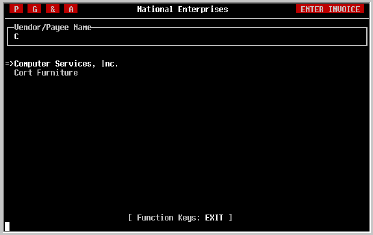
The first step is to select the vendor for whom you
are entering the invoice. Enter the first two or three characters of the
vendor's name and press [RETURN]. A list of vendors whose names begin with
the letters you entered will be displayed as illustrated in the example
above. You can also press an asterisk [*] to view the list of all vendors.
Any of the vendors shown on the screen can be selected by moving the
pointer its name and pressing [RETURN]. Like the menu system, the pointer
can be moved by pressing either the [SPACE] key or the cursor [UP] and
cursor [DOWN] keys.
If the vendor does not appear on the list, it may be that the list is too
long to display in one screen. You can tell if there are more vendors by
the list of Function Keys displayed at the bottom of the screen. If NEXT
SCREEN or PREV SCREEN is shown, the next or previous pages of the list can
be displayed by pressing the appropriate function key. If you are still
unable to find the desired organization, press EXIT to search again.
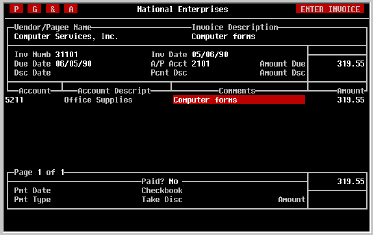
When the vendor has been selected, the invoice entry screen will be
displayed as illustrated below.

|
| Description |
Enter a description of the purchase, whether goods or
services, which will serve to remind you or others later as to the nature
of the transaction.
|
| Invoice Number |
Most invoices contain an invoice number which is
unique to that vendor and which identifies your purchase or obligation. If
such a number is provided, enter it here. It will be printed on all
reports as well as the remittance advice on the check. This assists your
company in maintaining an audit trail as well as your vendor in properly
crediting your account.
If no invoice number is provided, this field can also be used in addition
to the description field to identify the transaction. For example, phone
bills typically do not have such a number. It can be helpful to enter
other information, such as the dates of service covered by the invoice.
|
| Invoice Date |
All invoices must be dated, whether or not the date is provided. If you
selected the Accrual option in the Accounts Payable Parameters
screen, this is the date on which you accept the obligation to pay, and
the date the accompanying transaction to the general ledger will use.
If you selected the Cash option in Accounts Payable Parameters
screen, no transaction will be posted to the general ledger until a
payment is made for the invoice.
|
| Due Date |
TK-PAYABLES has been programmed to automatically add 30 days to the
Invoice Date to produce a default due date. If this date is correct, just
press [RETURN] to accept it. If not, enter the date on which the payment
is due.
|
| A/P Account |
If you are running on an Accrual basis, TK-PAYABLES must know which
liability account in the general ledger will be used for the accompanying
journal entry. If a default is displayed, it can be accepted by simply
pressing [RETURN].
|
| Amount Due |
Enter the full amount of the invoice.
NOTE: While TK-PAYABLES permits partial payments for Cash basis
organizations, it does this using the PROPORTIONATE DISTRIBUTION method.
That is, when an invoice has more than one expense distribution as
discussed later in this section, the payment will be expensed in proportion
to the distribution you entered. If this is not desirable, and you expect
to make partial payments, enter only that part which you will pay, not the
full invoice amount. However, make sure that the sum of all the invoice
amounts you enter equals the total amount of the invoice you received.
|
| Discount Date |
Some vendors offer a discount if their invoice is
paid by a specified date. If this is the case, enter that date here. If
you do not enter a date, the cursor will advance to the 'Account' field.
|
| Percent Discount |
If the discount is computed based on a percentage,
enter the percent of the discount here; the amount of the discount will be
computed and displayed in the next field.
|
| Discount Amount |
If you entered a percentage in the previous field,
this field will be filled in for you. If not, enter the amount of the
discount and press [RETURN].
|
Distributing
The Expense |
In order for TK-PAYABLES to post this invoice to the general ledger,
whether running on a Cash or Accrual basis, it must know which G/L account
(or accounts) the invoice amount should be allocated to.
|
| Account Number |
There are two ways in which to enter an account
number. If you know the number, simply enter it and press [RETURN].
Remember, if departments have been created in the general ledger system,
expense account numbers must be of the format...
AAAAAA-DDDDD
where AAAAAA is the G/L account number and DDDDD is the
department code.
Most often checks are written for company operating expenses. In these
cases, the G/L account number must begin with a 5. However, sometimes a
check is written to pay for items which are to be capitalized and
depreciated, such as a piece of office equipment or furniture. In such
cases, an asset account such as Office Equipment Original Value should be
used. These accounts begin with a 1.
As a result of the need for such flexibility, TK-PAYABLES only checks to be
sure that the G/L account being chosen is a detail account; no transactions
can be posted to a summary account.

If you can't remember the exact account number, enter part or all of a word
found in the account description and TK-PAYABLES will display a list of
accounts from which to choose as illustrated above. If you don't see the
account you are looking for, select the last option in the window and try
again.
|
| Comments |
Initially, the 'Comments' field will contain the
description entered for the invoice at the top of the screen. However,
this description will be saved with the transaction in the G/L account, so
you can also easily modify it to suit each distribution transaction entered
here.
|
| Amount |
Enter the amount to be posted to the account you
entered. Note that the sum of these amounts is shown in the box at the
bottom right corner of the screen, and that it must be equal to the invoice
amount in order for the invoice to be posted.
Also, when entering only one account and amount, you can press the [=]
equal sign in this field to copy the invoice amount. Or, if entering the
final account of a multi-account distribution, the equal sign can be used
to fill in the portion of the invoice amount which is not yet distributed.
NOTE: All amounts entered in this distribution will be debits to
the general ledger. Credit amounts cannot be entered here.
When you have completed the expense distribution, press [RETURN] at the
'Account' field on an empty row or press the [TAB] or EXIT key. The cursor
will advance to the 'Paid?' field.
|
| Paid? |
Occasionally, such as when you have paid for a
C.O.D., the check has already been written manually by the time the invoice
is entered into the system. If the invoice has not been paid, accept the
default by pressing [RETURN]; the cursor will move to the one-line menu at
the bottom of the screen and wait for your selection.
If the invoice has already been paid, press [Y] and [RETURN] and answer the
next five questions.
|
| Payment Date |
Enter the date which was written on the check. If
the date is the same as the invoice date, press the equal sign [=] to copy
the invoice date.
|
| Checkbook |
Enter the two-to-three character name for the checkbook from which the
check was written. If a default checkbook was entered in the Accounts
Payable Parameters screen it will be displayed here and can be accepted by
pressing [RETURN].
|
| Payment Type |
Two payment types are allowed here, CHECK and WIRE TRANSFER. Accept the
default (CHECK) by pressing [RETURN]. You can change the type to WIRE by
pressing a [W] or to CHECK by pressing [C]. When finished, press
[RETURN].
|
| Take Discount? |
If a discount was entered on the discount line above,
indicate by pressing [Y] and [RETURN] if the discount was subtracted from
the invoice amount when the check was written.
|
| Check Amount |
Enter the amount of the check. If a discount was
taken include the discount amount. TK-PAYABLES will subtract it for you
during posting.
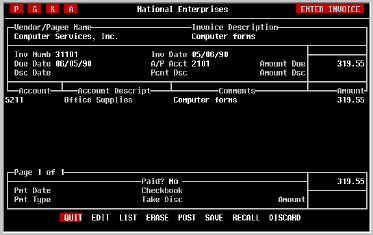
When the appropriate information has been entered a [TAB] or EXIT key will
bring you to a one-line menu of options at the bottom of the screen as
shown in the next illustration.
|
| QUIT |
Select this option to return to the menu system.
Remember that your work will not be lost when you exit. However, to find
it again you will need to know the following:
If a password is required to access the accounting software, the accounting
software knows who you are and it saved your work under your name.
Regardless of which terminal you use, as long as you correctly identify
yourself to the system, it will automatically find and display your work
for you.
If a password is not required for access to the accounting software, then
your work is saved at the terminal from which it was entered. To find it
again, simply use the same terminal.
|
| EDIT | You can change the information on the
screen by selecting 'EDIT'.
|
| LIST |
This option allows you to print a copy of the invoice
before it is posted. Once the invoice is posted, however, it can no longer
be printed using this option. A sample of the listing is provided on the
following page.
|
| ERASE | Sometimes you just want to erase what
you've entered and start again. That's what this option does.
"INCLUDE DA,56
|
| POST |
To post the invoice, move the highlighted bar over
the option 'POST' and press [RETURN]. If any data entry errors are
detected at this point, they will be described to you. Simply fix the
error using the 'EDIT' option and attempt to post the invoice again.
|
| Exiting The Screen |
To exit the Enter Invoice screen, proceed to the one-line menu
using the [TAB] or EXIT key and select the 'QUIT' option or press EXIT
again.
|
Entering An
InvoiceMulti-currency |
From the ACCOUNTS PAYABLE menu, select Enter Invoices.
When goods or services are purchased, the supplying vendor generally
provides an invoice, or a request for payment, which describes the
purchased goods or services, the amount to be paid and the date payment is
expected. Occasionally the invoice is provided verbally, or stipulated
in a contract. In any case, the purchaser accepts an obligation to pay
the amount of the invoice in a reasonable period of time.
This screen is the focal point of the entire TK-PAYABLES system. Through
it, every obligation (or payable) must be entered in order for it to be
recorded, paid and posted to the general ledger.
|
| Vendor Selection |
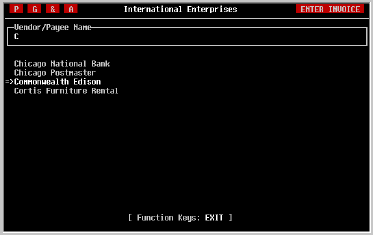
The first step is to select the vendor for whom you are entering the
invoice. Enter the first two or three characters of the vendor's name
and press [RETURN]. A list of vendors whose names begin with the letters
you entered will be displayed as illustrated in the example above. You
can also press an asterisk [*] to view the list of all vendors.
Any of the vendors shown on the screen can be selected by moving the
pointer its name and pressing [RETURN]. Like the menu system, the pointer
can be moved by pressing either the [SPACE] key or the cursor [UP] and
cursor [DOWN] keys.
If the vendor does not appear on the list, it may be that the list is too
long to display in one screen. You can tell if there are more vendors by
the list of Function Keys displayed at the bottom of the screen. If NEXT
SCREEN or PREV SCREEN is shown, the next or previous pages of the list can
be displayed by pressing the appropriate function key. If you are still
unable to find the desired organization, press EXIT to search again.
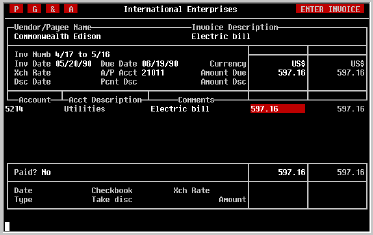
When the vendor has been selected, the invoice entry screen will be
displayed as illustrated below.

|
| Description |
Enter a description of the purchase, whether goods or
services, which will serve to remind you or others later as to the nature
of the transaction.
|
| Invoice Number |
Most invoices contain an invoice number which is
unique to that vendor and which identifies your purchase or obligation. If
such a number is provided, enter it here. It will be printed on all
reports as well as the remittance advice on the check. This assists your
company in maintaining an audit trail as well as your vendor in properly
crediting your account.
If no invoice number is provided, this field can also be used in addition
to the description field to identify the transaction. For example, phone
bills typically do not have such a number. It can be helpful to enter
other information, such as the dates of service covered by the invoice.
|
| Invoice Date |
All invoices must be dated, whether or not the date is provided. If you
selected the Accrual option in the Accounts Payable Parameters
screen, this is the date on which you accept the obligation to pay, and
the date the accompanying transaction to the general ledger will use.
If you selected the Cash option in Accounts Payable Parameters
screen, no transaction will be posted to the general ledger until a
payment is made for the invoice.
|
| Due Date |
TK-PAYABLES has been programmed to automatically add
30 days to the Invoice Date to produce a default due date. If this date is
correct, just press [RETURN] to accept it. If not, enter the date on which
the payment is due.
|
| Currency |
When an organization has been set up to use the
multi-currency capabilities of this software, it is necessary to indicate
the currency of each invoice being entered. TK-PAYABLES assists by
displaying the organization's base currency as the default, which can be
accepted simply by pressing [RETURN].
If another currency is desired, it can be entered. Or, by pressing the
[SPACE] key you can have TK-PAYABLES display the available currencies one
at a time. When the desired currency is displayed, press [RETURN] to
accept it and move on.
|
| Exchange Rate |
If a foreign currency was selected in the previous
field, an exchange rate will be required. TK-PAYABLES will automatically
select as a default the exchange rate that is (was) active as of the
invoice date. This can be accepted by pressing [RETURN]. Of course, the
rate can also be changed if necessary.
The maximum length of this field is seven, including a decimal point.
However, no other format restrictions are used. A rate of 150.021 is as
valid as .003123.
|
| A/P Account |
If you are running on an Accrual basis, TK-PAYABLES
must know which liability account in the general ledger will be used for
the accompanying journal entry. If a default is displayed, it can be
accepted by simply pressing [RETURN].
Remember that the currency of the liability account must be the same as the
currency you selected for this invoice.
|
| Amount Due |
Enter the full amount of the invoice. If you selected a foreign currency
earlier, the base currency equivalent of the amount will be displayed in
the column to the right.
NOTE: While TK-PAYABLES permits partial payments for Cash basis
organizations, it does this using the PROPORTIONATE DISTRIBUTION method.
That is, when an invoice has more than one expense distribution as
discussed later in this section, the payment will be expensed in
proportion to the distribution you entered. If this is not desirable,
and you expect to make partial payments, enter only that part which you
will pay, not the full invoice amount. However, make sure that the sum
of all the invoice amounts you enter equals the total amount of the
invoice you received.
|
| Discount Date |
Some vendors offer a discount if their invoice is paid by a specified
date. If this is the case, enter that date here. If you do not enter a
date, the cursor will advance to the 'Account' field.
|
| Percent Discount |
If the discount is computed based on a percentage, enter the percent of
the discount here; the amount of the discount will be computed and
displayed in the next field.
|
| Discount Amount |
If you entered a percentage in the previous field, this field will be
filled in for you. If not, enter the amount of the discount and press
[RETURN].
|
Distributing
The Expense |
In order for TK-PAYABLES to post this invoice to the general ledger,
whether running on a Cash or Accrual basis, it must know which G/L account
(or accounts) the invoice amount should be allocated to.
|
| Account Number |
There are two ways in which to enter an account number. If you know the
number, simply enter it and press [RETURN]. Remember, if departments have
been created in the general ledger system, expense account numbers must be
of the format...
AAAAAA-DDDDD
where AAAAAA is the G/L account number and DDDDD is the
department code.
Most often checks are written for company operating expenses. In these
cases, the G/L account number must begin with a 5. However, sometimes a
check is written to pay for items which are to be capitalized and
depreciated, such as a piece of office equipment or furniture. In such
cases, an asset account such as Office Equipment Original Value should be
used. These accounts begin with a 1.
As a result of the need for such flexibility, TK-PAYABLES only checks to be
sure that the G/L account being chosen is a detail account; no transactions
can be posted to a summary account.
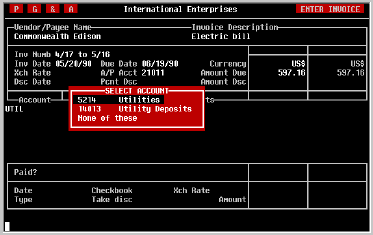
If you can't remember the exact account number, enter part or all of a word
found in the account description and TK-PAYABLES will display a list of
accounts from which to choose as illustrated above. If you don't see the
account you are looking for, select the last option in the window and try
again.
|
| Comments |
Initially, the 'Comments' field will contain the
description entered for the invoice at the top of the screen. However,
this description will be saved with the transaction in the G/L account, so
you can also easily modify it to suit each distribution transaction entered
here.
|
| Amount |
Enter the amount to be posted to the account you
entered. Note that the sum of these amounts is shown in the box at the
bottom right corner of the screen, and that it must be equal to the invoice
amount in order for the the invoice to be posted. In addition, the base
currency equivalent of the amount will be displayed in the column to the
right.
Also, when entering only one account and amount, you can press the [=]
equal sign in this field to copy the invoice amount. Or, if entering the
final account of a multi-account distribution, the equal sign can be used
to fill in the portion of the invoice amount which is not yet distributed.
NOTE: All amounts entered in this distribution will be debits to
the general ledger. Credit amounts cannot be entered here.
When you have completed the expense distribution, press [RETURN] at the
'Account' field on an empty row or press the [TAB] or EXIT key. The cursor
will advance to the 'Paid?' field.
|
| Paid? |
Occasionally, such as when you have paid for a
C.O.D., the check has already been written manually by the time the invoice
is entered into the system. If the invoice has not been paid, accept the
default by pressing [RETURN]; the cursor will move to the one-line menu at
the bottom of the screen and wait for your selection.
If the invoice has already been paid, press [Y] and [RETURN] and answer the
next six questions.
|
| Payment Date |
Enter the date which was written on the check. If
the date is the same as the invoice date, press the equal sign [=] to copy
the invoice date.
|
| Checkbook |
Enter the two-to-three character name for the checkbook from which the
check was written. If a default checkbook was entered in the Accounts
Payable Parameters screen it will be displayed here and can be accepted by
pressing [RETURN].
The currency the payment was made in is determined by the checkbook chosen
here. This currency will be displayed to the right when the checkbook has
been selected.
|
| Exchange Rate |
Enter the exchange rate for the payment, or accept
the default which will be derived for you based on the date of the payment.
Under most circumstances the default will be appropriate.
|
| Payment Type |
Two payment types are allowed here, CHECK and WIRE
TRANSFER. Accept the default (CHECK) by pressing [RETURN]. You can change
the type to WIRE by pressing a [W] or to CHECK by pressing [C]. When
finished, press [RETURN].
|
| Take Discount? |
If a discount was entered on the discount line above,
indicate by pressing [Y] and [RETURN] if the discount was subtracted from
the invoice amount when the check was written.
|
| Check Amount |
Enter the amount of the check in the currency in
which it was paid. If a discount was taken include the discount amount.
TK-PAYABLES will subtract it for you during posting.
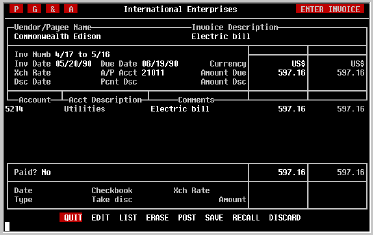
When the appropriate information has been entered a [TAB] or EXIT key will
bring you to a one-line menu of options at the bottom of the screen as
shown in the next illustration.
|
| QUIT |
Select this option to return to the menu system.
Remember that your work will not be lost when you exit. However, to find
it again you will need to know the following:
If a password is required to access the accounting software, the accounting
software knows who you are and it saved your work under your name.
Regardless of which terminal you use, as long as you correctly identify
yourself to the system, it will automatically find and display your work
for you.
If a password is not required for access to the accounting software, then
your work is saved at the terminal from which it was entered. To find it
again, simply use the same terminal.
|
| EDIT |
You can change the information on the screen by selecting 'EDIT'.
|
| LIST |
This option allows you to print a copy of the invoice
before it is posted. Once the invoice is posted, however, it can no longer
be printed using this option. A sample of the listing is provided on the
following page.
|
| ERASE | Sometimes you just want to erase what
you've entered and start again. That's what this option does.
"INCLUDE DA,57
|
| POST |
To post the invoice, move the highlighted bar over
the option 'POST' and press [RETURN]. If any data entry errors are
detected at this point, they will be described to you. Simply fix the
error using the 'EDIT' option and attempt to post the invoice again.
|
| Exiting The Screen |
To exit the Enter Invoice screen, proceed to the one-line menu
using the [TAB] or EXIT key and select the 'QUIT' option or press EXIT
again.
|
Saving and
Recalling
Invoices |
TK-PAYABLES has been designed to enable repetitive invoices to be entered
and posted quickly and easily using the 'SAVE' and 'RECALL' options in the
one-line menu at the bottom of the Enter Invoice screen. Any
invoice which is used frequently is an appropriate candidate for this
feature.
|
| Saving |
To save an invoice, it must first be entered; enter
it the way you normally would before posting; only this time do not post.
Instead select the 'SAVE' option on the one-line menu at the bottom of the
screen. You will be asked to give it a name as illustrated below.
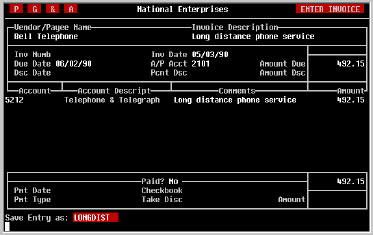
Enter a name for the invoice which you will be able to remember later, such
as 'LONGDIST' for a long distance phone bill, and press [RETURN]. The
invoice you entered is now saved and can quickly be recalled using the name
you provided it.
NOTE: If modifications are made to the TK-LEDGER chart of accounts
when beginning a new fiscal year, a careful review of these saved invoices
must be made to ensure that they do not refer to G/L accounts which no
longer exist, or which have changed in purpose.
|
| Recalling |
Recalling an invoice which has been saved earlier is
as simple as saving it was. Select the 'RECALL' option from the one-line
menu at the bottom of the screen.
If the Invoice Entry screen is empty when you begin, it will first
be necessary to select the appropriate vendor as you normally would to
enter an invoice. Then press the EXIT key to get to the one-line menu at
the bottom of the screen.
When you select the 'RECALL' option, the screen will ask for the name of
the Invoice which was saved earlier as shown in the screen below.
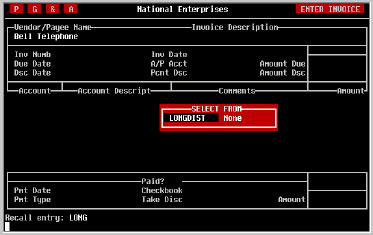
At this point, there are three methods for finding the invoice to be
recalled.
1) If you remember the name, type it in and press [RETURN]. If the
invoice is there, the screen will load and display it on the screen above.
2) If you remember the first character or two of the name, enter them and
press [RETURN]. A window will be displayed listing all of the SAVED
invoices which match the characters you typed in. You can select the
desired one by moving the cursor to it and pressing [RETURN]. As in the
first option, the invoice will be loaded and displayed on the screen above.
3) If you are unsure what the invoice was named, simply press the HELP
key for your terminal. A list of all SAVED invoices will be
displayed from which you can choose. (Remember the HELP key. If you are
unsure which key it is, refer to APPENDIX B at the back of this manual.)
Regardless of which method you use, the invoice you chose will be loaded
and displayed. If at that point there are changes to be made, as there
often are, select the 'EDIT' option from the menu at the bottom of the
screen and you will be given the opportunity to make them before posting.
|
| Discarding |
SAVED invoices will remain in the system until they
are discarded. To discard a saved invoice, select the 'DISCARD' option
from the one-line menu at the bottom of the screen.
You will be asked for the name of the invoice to be discarded, just as you
would be to recall an entry, as shown below.
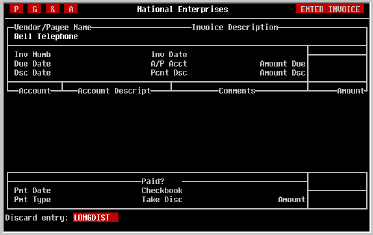
Enter the name of the invoice to be removed and press [RETURN]. The
invoice will be immediately removed and you will be returned to the menu at
the bottom of the screen from which you can choose to 'QUIT' or continue as
appropriate.
|
Posting
Automatic
Invoices |
From the ACCOUNTS PAYABLE menu, select Post Auto Invoices.
If you have not created any automatic invoices in the TK-PAYABLES system,
this screen need not be used.
If automatic invoices have not been posted before, and you would like to
begin posting them for a month in the middle of the calendar year, you will
have to run this program for each of the preceding months of the year to
change the status of these months to 'Posted'. See the illustration below.
However, before you do this, make sure that the 'Begin After' date for each
of the automatic invoices you have defined falls at the end of the month
prior to the month you wish to begin. This will ensure that they are not
posted for prior months.
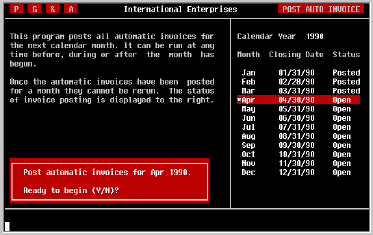
As the illustration above suggests, posting of automatic invoices is
performed on a calendar month basis. The fiscal period which each posted
invoice falls into will, however, be based on the invoice date computed
from the parameters you entered.
Posting of automatic invoices cannot be repeated for a month. Invoices
which for any reason may have been missed must be entered manually via the
Enter Invoices screen, and set up to be an automatic invoice for the
following month.
When you enter this screen, the posting status for the current calendar
year will be displayed. In addition, a box will be displayed in the lower
left corner of the screen in which you will be asked to confirm the
posting of automatic invoices for the first unposted month. If you are
unsure, answer by pressing [N] and press [RETURN]. The default is No.
The screen will remain while the automatic invoices are being posted. When
finished, you will be returned to the menu system.
|
|
|
Entering Invoice
Adjustments |
From the ACCOUNTS PAYABLE menu, select Credit Invoice. When
it is necessary to increase or reduce the payable amount of an invoice,
this screen provides the means to do so. After selecting the appropriate
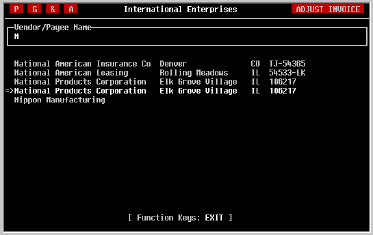
option from the menu, the following screen will be displayed.
|
| Select Vendor |
First, select the vendor whose invoice is to be
adjusted. Enter the first two or three characters of the vendor's name and
press [RETURN]. A list of vendors whose names begin with the characters
you entered will be displayed as illustrated above. You can also press
thee asterisk [*] to list all vendors.
Any of the vendors shown on the screen can be selected by moving the
pointer to its name followed by pressing [RETURN]. As in the menus, the
pointer can be moved by pressing the [SPACE] key or the cursor [UP] and
cursor [DOWN] keys.
If the vendor does not appear on the list, it may be that the list contains
too many names to be displayed on one screen. You can tell if there are
more vendors by looking at the list of function keys displayed at the
bottom of the screen. If either NEXT SCREEN or PREV SCREEN is shown, the
next or previous pages of the list can be displayed by pressing the
appropriate function key. If you are still unable to find the desired
organization, press EXIT to search again.
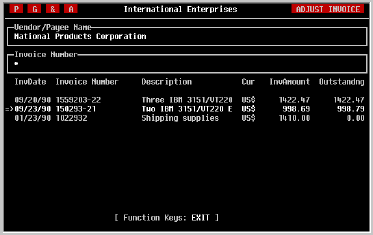
|
| Select Invoice |
You can select the invoice to be adjusted in much the
same way that you selected the vendor. You can enter the invoice number if
you know it, the first few characters of the invoice number, or an asterisk
to display all of the vendor's invoices.
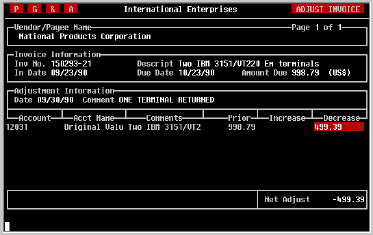
Move the pointer to the invoice to be adjusted and press [RETURN]. As
shown in the following illustration, the Adjust Invoice screen will be
displayed containing information that identifies the chosen invoice, as
well as the current distribution of the invoice to the general ledger.
|
| Trans Date | First, enter the transaction date
of the adjustment. The date must fall in an open fiscal period.
|
| Comment | Enter a brief description of the
reason for the adjustment. This information will prove helpful later when
you need to remember why the adjustment was applied.
|
| Exchange Rate |
If you are using TK-PAYABLE's multi-currency capabilities and
the invoice was entered in a foreign currency, then it is necessary to
select an exchange rate. The default rate for the transaction
date will be displayed and can be accepted by pressing [RETURN].
|
Distributing
The Adjustment |
At this time, it is necessary to distribute the adjustments to the
appropriate general ledger account(s). To assist you, the current
distribution of the invoice will be displayed. The amounts associated
with these transactions can be either increased or decreased by placing
the amount of change in the appropriate column.
You may also add new accounts to the distribution. This enables you to
change an incorrect account number by decreasing its amount to zero and
adding the proper account. Notice that when adding a new distribution
transaction you can only increase the amount.
As you increase or decrease the distribution amounts, the net change to
the invoice will be displayed in the lower right corner of the screen.
Verify that this amount is correct before posting the adjustment.
When finished, press the [TAB] or EXIT keys to proceed to the one-line menu
as illustrated in the following screen.
|
| EDIT | To return and make changes to the
information you have just entered, move the highlighted bar to the EDIT
option and press [RETURN].
|
| LIST |
To print a copy of the adjustment prior to posting, select LIST. A sample
adjustment listing is shown on the following page.
|
| POST |
When the information you have entered is satisfactory, select the POST
option and press [RETURN]. When posting has completed, the screen will
return to the list of currently open invoices as it was when you began.
|
| QUIT |
Should you decide not to post the adjustment select
QUIT and press [RETURN]. You will be returned to the list of open invoices
as it was when you began.
|
| Exiting The Screen |
From the Options menu select QUIT, or press the EXIT key.
"INCLUDE DA,58
|
Entering
Open Credits |
From the ACCOUNTS PAYABLE menu, select Enter Open Credit.
Occasionally, a vendor will issue you an open credit,
or a credit which can be applied to your next purchase or purchases. When
payments are made, TK-PAYABLES assists you in remembering which vendor you
have open credits with, and the amount of these credits which remains to be
used.
The purpose of this screen is to inform TK-PAYABLES of the receipt of an
open credit, often accompanied by a credit memo from the vendor.
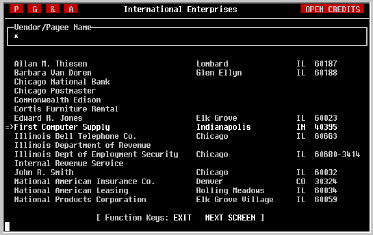
|
| Vendor Selection |
The first step is to select the vendor for whom you
are entering the open credit. Enter the first two or three characters of
the vendor's name and press [RETURN]. A list of vendors whose names begin
with the letters you entered will be displayed. As illustrated in the
example above, you can also press an asterisk [*] to view the list of all
vendors.
Any of the vendors shown on the screen can be selected by moving the
pointer to its name and pressing [RETURN]. Like the menu system, the
pointer can be moved by pressing either the [SPACE] key or the cursor [UP]
and cursor [DOWN] keys.
If the vendor does not appear on the list, it may be that the list is too
long to display in one screen. You can tell if there are more vendors by
the list of Function Keys displayed at the bottom of the screen. If NEXT
SCREEN or PREV SCREEN is shown, the next or previous pages of the list
can be displayed by pressing the proper function key. If you are still
unable to find the desired organization, press EXIT to search again.
When the vendor has been selected, the open credit entry screen will be
displayed as illustrated below.
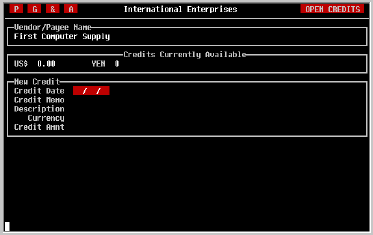
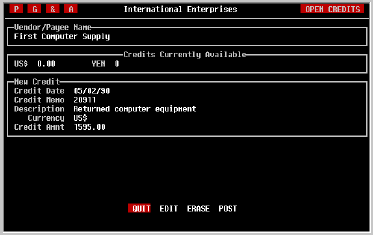
Open credits are entered in the currency in which they are given. Notice
in the example that the current balances of open credits from the vendor,
if any, are displayed in a row under the vendor's name.
|
| Credit Date | Enter the date of the credit.
If a credit memo was issued, use the date provided on the memo.
|
| Credit Memo # |
If a credit memo was issued, it will normally contain
a reference number which identifies the transaction to the vendor. Enter
that number here.
|
| Description |
Enter a brief description of the reason for the open
credit which would be helpful in identifying it later.
|
| Currency |
If you are using the software's multi-currency
capabilities, it will be necessary to indicate the currency of the credit.
The default is your base currency.
|
| Credit Amount | Enter the amount of the open
credit.
As always, while editing, you can use the cursor keys to move about the
screen. When the screen has been completed, press the [TAB] or EXIT key to
display the one-line menu illustrated below.
|
| EDIT | To return to edit any of the information
on the screen before posting, select EDIT and press [RETURN].
|
| ERASE | This option permits you to erase your
work and begin again. Select ERASE and press [RETURN].
|
| POST |
If the screen is complete, and the information
correct, select POST and press [RETURN]. When posting is complete, you
will be returned to the ACCOUNTS PAYABLE menu.
|
| QUIT |
Should it be necessary to quit without posting the
open credit, select QUIT and press [RETURN]. You will be returned to the
ACCOUNTS PAYABLE menu.
|
Deleting An
Invoice |
From the ACCOUNTS PAYABLE menu, select Delete Invoice.
In order to maintain integrity in its database, and
accuracy in its audit trail, TK-PAYABLES does not allow some invoice
information, such as the invoice date, to be modified after an invoice has
been posted. It is, however, possible to delete an erroneous invoice and
re-enter it.
There is one simple restriction. An invoice may not be deleted if a
payment has been made, unless the check (or checks) is first voided.
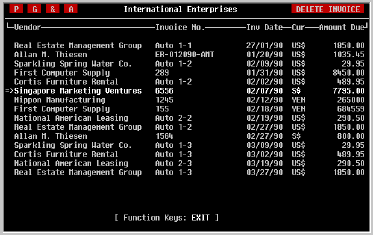
After selecting the Delete Invoice option, the following screen
will be displayed containing a list of the currently open invoices which
may be deleted. Note that invoices which have been paid, or partially
paid will not appear in the list.
|
Selecting The
Invoice |
Select the invoice to be deleted using the [SPACE] or cursor [UP] and
cursor [DOWN] keys to move the pointer. If the list contains more
invoices than can be displayed on one screen, use the NEXT SCREEN or PREV
SCREEN keys to advance to the page containing the desired invoice.
When the pointer rests next to the invoice to be deleted, press [RETURN].
As shown in the following illustration, you will be asked to confirm
deletion of this invoice. Answer by pressing [Y] and [RETURN] to proceed,
or [N] and [RETURN] to abort. The default reply is [N]o.
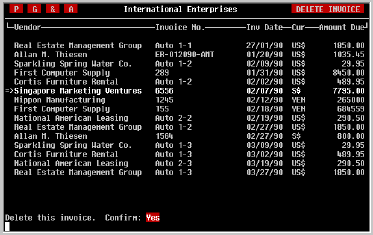
As the invoice is being deleted, a message will be displayed at the bottom
of the screen indicating that it is in progress, and to please wait. When
finished, the screen will be redisplayed without the now deleted invoice.
|
| Exiting |
Press the EXIT key to return to the ACCOUNTS PAYABLE menu.
|
|
|
Printing Cash
Requirements Report |
From the ACCOUNTS PAYABLE menu, select Print Cash
Requirements.
Before selecting bills
to be paid, it is often useful to print a list of the invoices due for
payment. TK-PAYABLES provides two such reports for this purpose: the Aged
Payables Report and the Cash Requirements Report, each of which lists all
invoices due on or before a closing date and can be used to assist in
deciding which invoices should be paid.
The Cash Requirements Report lists the invoices due for payment in the
order of date due and provides a running total of the cash required to pay
these invoices up to a closing date specified by the user at the time of
printing. In addition, a separate report will be printed for each currency
for which liabilities exist.
If the organization routinely takes advantage of cash discounts for early
payment, a separate column shows the running total of cash that would be
required if the invoices were paid early enough to take the available
discounts.
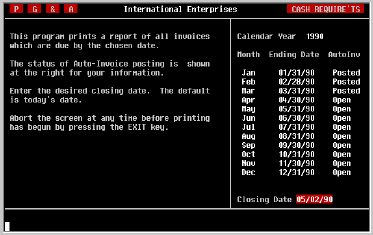
As the screen above illustrates, instructions for printing the report are
displayed for your reference. Note that the status of posting of automatic
invoices is displayed as a reminder to post them if necessary.
|
| Closing Date |
Enter the closing date for the report and press
[RETURN]. Normally, this will be the cutoff date for invoices to be paid.
However, the report can be printed for any date desired.
Note that unlike the majority of reports in the TK Accounting series, this
report cannot be generated for past months or periods. It is based only on
invoices currently in the system which have a balance yet to be paid.
Thus, when an invoice has been fully paid, it will no longer be available
for this report.
|
| Device |
Select the desired output device. Refer to the
discussion regarding device selection at the beginning of the Standard
Reports section for further information on selecting output devices.
After printing has begun, it can be stopped by pressing the [SPACE] key on
your terminal. After a report has been stopped in this way, it can only be
restarted from the beginning.
"INCLUDE DA,59
|
Printing
Aged Payables
Report |
From the ACCOUNTS PAYABLE menu, select Print Aged Payables.
The Aged Payables report is another useful report for cash managers
because it illustrates the relative ages of the current list of invoices
due by placing them in columns. As the following sample report
illustrates, there is a column for current invoices (0-30 days), old
invoices (31-60) days, and very old invoices (greater than 60 days).
There is also a column for invoices not yet due.
In addition, prepayment discounts are included as well as the sum of
partial payments already made on an invoice. Note that partial payments
are only available if your accounting is done on an Accrual basis.
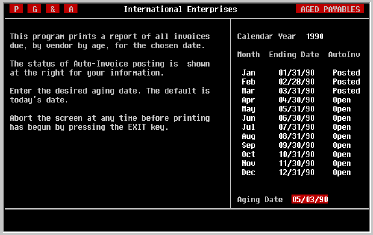
As the screen above illustrates, instructions for printing the report are
displayed for your reference. Note that the status of posting of automatic
invoices is displayed as a reminder to post them if necessary.
|
| Aging Date |
Enter the aging date for the report and press [RETURN]. Normally, this
will be the cutoff date for printing checks. However, the report can be
printed for any date desired.
Note that unlike the majority of reports in the TK Accounting series, this
report cannot be generated for past months or periods. It is based only on
invoices currently in the system which have a balance yet to be paid.
Thus, when an invoice has been fully paid, it will no longer be available
for this report.
|
| Device |
Select the desired output device. Refer to the
discussion regarding device selection at the beginning of the Standard
Reports section for further information on selecting output devices.
After printing has begun, it can be stopped by pressing the [SPACE] key on
your terminal. After a report has been stopped in this way, it can only be
restarted from the beginning.
"INCLUDE DA,60
|
Selecting/Paying
Invoices |
From the ACCOUNTS PAYABLE menu, select Select/Pay Invoices.
This screen provides the means for selecting the invoices you want to pay,
indicating the amount to be paid, applying any open credits which may be
available, and printing the checks. Although this can be a rather complex
job, with or without a computer, TK-PAYABLES has been designed to make it
as easy as possible. In the pages that follow, we will walk through the
necessary steps.
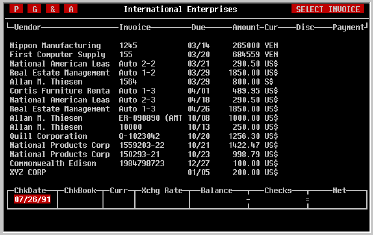
|
| Check Date |
As shown in the screen above, the first step is to
enter the date of the check run. Notice that the default date is today and
can be accepted by simply pressing [RETURN].
Remember that this date is both the date which will be shown on the face of
the printed checks, as well as being the transaction date for entries made
to the general ledger. As a result, check dates will not be accepted if
they are outside the range of open periods in TK-LEDGER.
|
| Checkbook |
Because TK-PAYABLES provides the ability to maintain
and use multiple checking accounts, the next step is to select the desired
checkbook by entering its two-to-three character name. If a default
checking account was entered in the Accounts Payable Parameters screen, it
will be displayed here and can be changed, or accepted by pressing
[RETURN].
If you don't remember the name, press the [SPACE] key to see the next
checkbook. This can be repeated until the desired checkbook is displayed.
Then press [RETURN] to accept it.
|
| Exchange Rate |
If the currency of the checkbook you selected is not
your base currency, it will be necessary to confirm the exchange rate of
the currency you will be writing checks in. The current rate will be
displayed as the default and can be accepted by pressing [RETURN].
|
| Balance |
The box labeled 'Balance' at the bottom of the screen
is for your information only and contains the balance of the selected
checking account, as reflected by the general ledger. If you do not keep
your general ledger up to date by posting deposits and adjustments
regularly, this balance may not be accurate.
NOTE: The balances of Asset and Liability accounts in the general
ledger are not brought forward into a new fiscal year until the prior year
has been closed. As a result, when checks are written for the first
period of a new fiscal year, the balance shown here may be temporarily
incorrect. This will be corrected when the prior year is closed. In fact,
it can be resolved by closing the prior year and reopening it until
final transactions can be made.
|
| Checks and Net |
As you select checks for payment, the sum of the
amounts to be paid will be displayed in the box labeled 'Checks'. The box
labeled 'Net' will contain the balance the checking account will have if
the selected checks are posted.
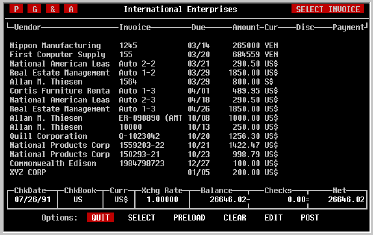
When you have finished entering the check date and other information in the
boxes at the bottom of the screen, a new menu will be displayed, as shown
above, from which you can select/deselect the invoices to be paid in this
check run.
|
| SELECT |
The Select option allows you display a list of outstanding invoices
and enter amounts to be paid. You can display a specific invoice, or the
invoices belonging to a specific vendor, or simply all outstanding
invoices. Once displayed, you can enter the amounts you want to pay on
the invoices displayed, if any. This process is discussed in more detail
later.
|
| PRELOAD | The Preload
option enables the mass selection of
invoices by either Due Date or Discount Date. After entering the desired
date, TK-PAYABLES will find all outstanding invoices which are due (or
discountable) up to and including the specified date. When one is found, a
payment amount will be inserted in the payment field which is equal to the
invoice amount. After preloading, these payment amounts can be manually
adjusted using the Select options discussed above.
|
| CLEAR | This option clears all payments from
the list of outstanding invoices, allowing them to be reselected.
|
| EDIT | If you need to change the check date or
select another checkbook, this option will let you do it.
|
Entering
Payments |
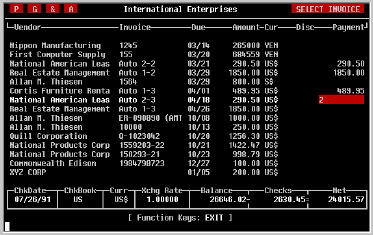
Using the Select option, display the list of invoices for which you would
like to enter payment amounts. The default list is All Invoices.
If you select the Vendor list, you will be asked for a vendor name.
Enter several characters of the vendor's name in either upper or lower
case. A list of vendors whose names begin with the characters you typed
will be displayed in a small window. Select the desired vendor by moving
the cursor to its name and pressing [RETURN].
If you select the Invoice list, you will be asked for an invoice
number. Enter several digits of the invoice number and press [RETURN]. A
list of invoices whose invoice number matches the characters you typed
will be displayed, from which you can select the desired invoice.
When the invoice list is displayed, notice that the invoices are shown in
the order that they are due, with those being due first at the top of the
screen.
You may use the [RETURN] and cursor [UP] and [DOWN] keys to move up or down
the list one invoice at a time, and the NEXT SCREEN or PREV SCREEN keys to
move forward or backward through the list of invoices one screen at a time.
Select an invoice for payment by simply entering the amount of the invoice
to be paid. As in other screens, the equal sign [=] serves as a copy
function key; press [=] in any payment field, and the amount of the invoice
will be copied to the payment field, indicating that the invoice is to be
paid in full.
|
| TOO SOON |
Occasionally, you may see a 'TOO SOON' message in the
payment field. TK-PAYABLES always shows you every open invoice in the
system; even when the invoice date is after the check date you entered
earlier. However, it is not possible to write a check for an invoice prior
to the date of the invoice.
If you see this message and must write a check for the invoice, there are
two approaches you can use. First, you can change the date of the check
run to include the invoice date of the invoice you want to pay. If this is
not practical, you may have to delete the invoice and re-enter it with an
earlier date.
|
| Early Payment | When an invoice is
entered into the system
TK-PAYABLES allows entry of early payment discount information including
the date and amount of the discount. When this feature is used, such an
invoice will appear on this screen twice, once for the discount date and
once for the invoice due date.
You can easily tell if the invoice you are looking at is discounted or not
by looking at the 'Disc'ount column. If a discount is shown, it is the
discounted invoice and the 'Due' date is the discount date. If not, it is
the invoice's final due date.
Under no circumstances will TK-PAYABLES permit a payment amount to be
entered on both of these lines. If a payment is entered for the discounted
invoice, the payment field of the non-discounted invoice will be filled
with asterisks '***********' and will not allow any changes to be made to
it.
|
Deselecting
An Invoice |
If you make a mistake and enter an amount for the wrong invoice, or simply
change your mind about paying it at this time, simply enter a zero [0]
for the amount of payment. TK-PAYABLES will ignore all invoices which have
no payment entered in the 'Payment' field.
|
| Ready to Print |
When finished selecting invoices, press the [TAB] or EXIT key to return
to the Select menu from which you can return to the Options
menu. You may 'QUIT' the bill payment process at this time and return to
the menu system. Any payment amounts you entered will be remembered
until they are either paid or cleared.
To proceed with paying the selected invoices, select 'POST' from the
Options menu.
|
Taking
Open Credits |
This screen will appear only if open credits are available for one or more
of the vendors whose invoices are being paid in this check run.
If one or more of the vendors being paid have available open credits, they
will be displayed, one at a time, and you will be given the opportunity to
indicate the amount of open credit to be taken for each invoice.
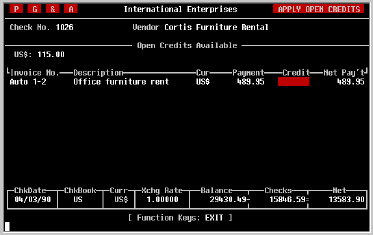
Notice in the illustration above, that the amount of available credit for
the vendor is shown for your information in the upper right portion of the
screen. Only open credits in the currency of the invoice can be used.
Enter the amount of the open credit you wish to apply to each invoice,
until the available open credit is used up. In no event will you be able
to apply more open credit than is shown on the screen, nor more than the
amount of the invoice.
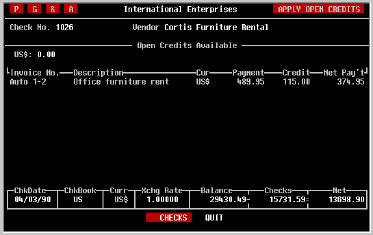
When finished allocating open credits for the first vendor, press the [TAB]
or EXIT keys to produce the one line menu at the bottom of the screen. If
'NEXT VENDOR' appears in the menu, there is more than one vendor with open
credits to be applied; select NEXT VENDOR and press [RETURN] to repeat the
open credit application process again for the second vendor. Continue this
process until the desired open credits have been applied for each vendor.
Note that 'NEXT VENDOR' will no longer appear in the menu when open credits
for the last vendor have been applied.
|
Finished Applying
Open Credits |
When finished applying open credits, select the 'CHECKS' option from
the one line menu at the bottom of the screen. The system will begin
posting the checks and its progress will be displayed in the lower left
corner of the screen.
Of course you may also quit at this point; TK-PAYABLES will still remember
the payments you elected to make. However, it will not remember
application of open credits. This must be done again each time you start
the payment process.
|
Printing Checks |
When posting of the check run has completed, and you elected to print
checks in the Accounts Payable Parameters screen, you will be asked
for the device on which the checks are to be printed as illustrated in
the screen below. If you elected not to print checks, proceed several
pages ahead to Printing the Check Report.
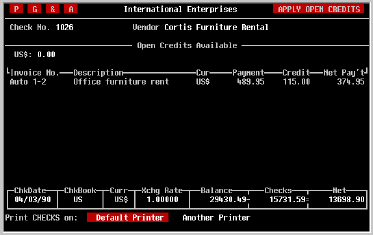
If you press the EXIT key at this time, you can temporarily postpone
printing of the checks. However, you will not be able to pay any other
bills until the checks and Check Report have been printed. When you enter
the Select Invoices
screen again, it will inform you that the checks have
not been printed and ask if you would like to print them at this time.
If a default printer was assigned for check printing in the Accounts
Payable Parameters screen, 'Default Printer' will be available for you
to select; otherwise only 'Printer' will be allowed. Note that checks
may not be printed to the terminal screen or to a file as other reports in
the system.
NOTE: If you have elected to print checks in the Accounts Payable
Parameters screen, it is wise to have already loaded the desired printer
with the appropriate check stock. However, it can also be done at this
time.
Select the desired printer by moving the highlighted bar to the desired
option and press [RETURN].
|
Print
Confirmation
Pattern |
When the printer has been selected, you will be asked whether to print the
confirmation pattern. If you have designated a printer for checks which is
always loaded, it may not be necessary to print this pattern. Since the
default is No, simply press [RETURN]. Your checks will begin
printing immediately.
If you had to load the printer with checks, you may want to confirm that
the checks will be printed properly. Indicate this by typing [Y] for Yes
and pressing [RETURN]. The confirmation is a large VOID pattern. It
should be centered on the check and the last line of the pattern should be
just a fraction of an inch above the signature line on the check.
When the pattern has finished printing, you will be asked whether it should
be printed again. If adjustments were needed, you may want to print it
once more to confirm that the adjustments did the trick.
When you are satisfied that the check stock is properly lined up in the
printer, accept the default response No by pressing [RETURN]. Printing of
your checks will begin immediately. A sample check has been included on
the following page to acquaint you with the format.
|
Print
Trailing Void |
When the last check has been printed, you will be asked whether or not to
print a trailing void. If you reload your check stock each time you print
checks, this is not necessary.
If you have a dedicated check printer, chances are that the last check
cannot be torn off without advancing to the next check. Responding Yes to
this question will print the void pattern on the next check, thus advancing
the last check so that it can be torn off.
"INCLUDE DA,53
|
Printing Issued
Checks Report |
Finally, you will be asked for the printer on which to print the report.
The ISSUED CHECKS REPORT provides a list of all of the checks that were
posted, whether or not you printed them. If you do not print checks the
report will be useful in manually writing your checks.
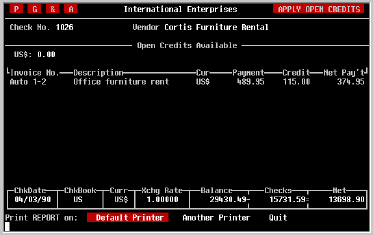
Select the desired device. If you indicated a default printer for reports
in the Accounts Payable Parameters screen, it will be the default
printer used here.
When the report has finished printing, the payment process is completed and
you will be returned to the menu system. A sample of the Checks Issued
Report is provided on the next page.
"INCLUDE DA,61
|
Voiding A Check |
From the ACCOUNTS PAYABLE menu, select Void Check.
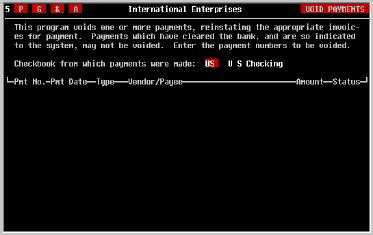
From time to time it is necessary to void one or more checks that have been
written. This is easily accomplished using the Void Check screen
shown below.
|
| Checking Account |
The first step is to identify the check book from
which the check(s) to be voided were written. As in other screens this is
accomplished by entering the two-to-three character name given the
checkbook. If a default checking account was defined in the Accounts
Payable Parameters screen, it will be displayed here and can be
accepted by pressing [RETURN].
|
Selecting Checks
To Be Voided |
The cursor will be in the 'Check' field of the first line of the lower
half of the screen. Enter the TK-PAYABLES Check Number of the check to
be voided. This is the number that is printed in the upper right corner
of each check, not the check control number which is preprinted on the
check.
If the check has been cleared using the Bank Reconciliation
screen, or has already been voided, this screen will not permit the check
to be voided again.
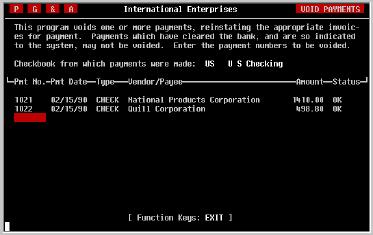
When the TK-PAYABLES check number has been entered and accepted by the
screen, the check date, vendor, amount and status of the check will be
displayed next to it.
If you mistakenly identify a check which you do not want to void, move the
cursor back to that line using the cursor [UP] key and change the number to
the correct number. However, there is no way to delete an entry other than
to proceed to the one line menu at the bottom of the screen, as discussed
below, erasing the entire group, and re-entering the checks to be voided.
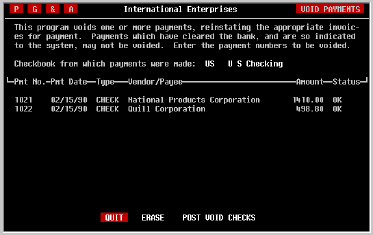
When you have finished entering the number of the check(s) to be voided,
press the [TAB] or EXIT keys to proceed to the one line menu at the bottom
of the screen as shown in the following illustration.
|
| QUIT |
If you quit at this time, TK-PAYABLES will remember
the checks you indicated should be voided, even though it will not have
posted the changes. When you return to this screen at a later time, they
will displayed as you left them.
|
| ERASE | Select this option to erase the entire
list of checks to be voided and begin again.
|
| POST VOID CHECKS |
When satisfied that your list of checks to be voided
is complete, select this option to post the changes. Each check in the
list will be voided, the invoice(s) which it was paying will be reinstated,
and all payment transactions to the general ledger will be reversed.
Payment, Credit or Deletion of the reinstated invoices can now be effected
through the appropriate screens. When finished posting the voided checks,
you will be returned to the menu system.
|
Printer Jams
and
Other Disasters |
No matter how well your computer equipment is maintained, or how
dependably your software works, there are times when things just don't
work out the way they're planned. Throughout the TK-Accounting software
we have attempted to make provisions for these unpredictable, yet expected
events. If a printer jams while printing a financial statement, for
example, you simply fix the printer and print it again.
However, it gets a bit more complicated when you are printing checks;
particularly if the software has no way of knowing that a problem has
occurred and goes merrily on its way. Second chances are difficult to
secure. Nontheless, we have attempted to make provisions for these events
as well.
TK-PAYABLES provides two basic solutions, one of which will be able to
resolve nearly any situation.
|
Solution 1
Void Bad Checks |
This is the preferred solution to check printing problems because it is
easy to apply and leaves a dependable audit trail. It cannot be used,
however, when the check printing program has been interrupted, whether by
hardware or software failure.
If no hardware or software errors occurred and the check printing program
was able to run to completion, follow these steps.
1) Remove the misprinted checks immediately and write V O
I D across them so that they will not be confused with good
checks later.
2) When the check run has completed, use the Void Check screen to void the
misprinted checks in the system. Not only does this mark those check
numbers as void, but it also reinstates the invoices so that they can be
paid with new checks.
3) Using the Select/Pay Invoices screen, reselect the desired
invoices for payment and print as you normally would. The only side
effects of this option are some voided checks in your check register.
|
Solution 2
Transaction Rollback |
If the check printing program was interrupted, or prevented from
completing by hardware or software failure, it is necessary to undo the
entire uncompleted check run and begin over again.
Remember that this solution removes all traces of the partially completed
check run, including auditability. It should be used only when the first
solution cannot be used, and care should be taken to quickly void
all of the checks from the run to prevent accidental use. Failure
to do so can result in serious bookkeeping and cash management problems.
1) Remove all the checks, even those that printed correctly, and
write V O I D across each one so that they
can not be confused with good checks later.
2) Use the Transaction Rollback screen, which is described in the
TK-LEDGER Manual to 'undo' the entire check run. The transaction will be
labeled 'A/P Check Run', should be dated today, and in the time column will
show 'Incompl' meaning that the check run did not finish. The process
requires only a minute.
3) Using the Select/Pay Invoices screen, reselect the desired
invoices for payment and print as you normally would.
|