|
|
Getting Started
| Let's walk through the process of setting up an
organization for recording and paying its bills. Remember, TK-PAYABLES
screens are accessed through the TK-GUARDIAN menu/security system so
starting TK-PAYABLES is accomplished by starting TK-GUARDIAN as illustrated
below.
>DO ^TKGU
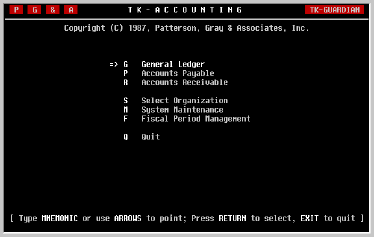
Once you have reached the MASTER MENU, select the
TK-Accounting option from which will be displayed the TK-ACCOUNTING
menu as shown below.
If you have created more than one organization in TK-LEDGER, it may be
desirable to select the organization for which you would like to begin
implementing Accounts Payable at this time using the Select
Organization option.
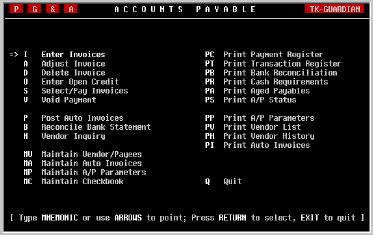
Now select Accounts Payable. The ACCOUNTS PAYABLE
menu will be displayed as illustrated in the following example.
Each of the setup activities discussed in the following pages is presented
in the sequence in which it should be performed when implementing Accounts
Payable for an organization. After the initial implementation is finished,
the same screens can be used to maintain the system.
If you are not able to finish all of the initial data entry in one sitting,
the information you entered will be retained so you can easily continue at
a later time.
|
A/P Parameter
Maintenance |
From the ACCOUNTS PAYABLE menu, select Maintain A/P
Parameters.
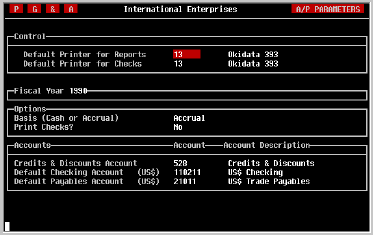
In order for TK-PAYABLES to operate properly, there are two sets of
parameters which must be entered and maintained.
|
| Control |
The first set of parameters control system-wide
functions. Changing them affects the entire system, not just the current
fiscal year. In Accounts Payable, they include the default printer for
reports and the default printer for checks.
|
Default Printer
for Reports |
Like TK-LEDGER, TK-PAYABLES allows one printer to be selected as
the default printer for financial reports. Defining a default printer is
only a convenience and not absolutely necessary. It can be changed at
any time.
To identify a default printer for Accounts Payable reports, it must first
have been defined as a system printer using the Printer Maintenance
screen in the SYSTEM MAINTENANCE menu. Then enter the device
number of the desired printer in this field.
|
Default Printer
for Checks |
With the falling prices of computer equipment, many organizations have
elected to purchase a small, relatively inexpensive printer to be
dedicated to printing checks. In this way, check stock can be loaded and
ready to print at a moment's notice.
To accommodate this trend, TK-PAYABLES allows a second printer to be
selected as the default for printing checks. Defining a default printer
for printing checks is only a convenience and not absolutely necessary. It
can be changed at any time.
To identify a default printer for printing checks, it must first have been
defined as a system printer using the Printer Maintenance screen
in the SYSTEM MAINTENANCE menu. Then enter the device number in
this field.
|
General Ledger
Parameters |
The bottom half of the screen is used to define information on an annual
basis, which TK-PAYABLES requires in order for it to be able to post
transactions to the General Ledger.
Each time a new fiscal year is created in TK-LEDGER, these parameters will
be copied for the new fiscal year automatically. However, changes in the
chart of accounts for the new fiscal year may necessitate corresponding
changes to Accounts Payable P
arameters as well. Such changes must be made prior to making any accounts
payable transactions for the new fiscal year.
|
| Accounting Basis |
TK-LEDGER is unconcerned with whether an organization
operates on a Cash or Accrual basis; from its perspective, the only
difference is that one chart of accounts contains accrual accounts (such as
Accounts Payable, Accounts Receivable, and so on) while the other does not.
However, TK-PAYABLES must have this information to determine when expenses
should be recognized and posted to the general ledger.
Organizations operating on a Cash basis do not have an account showing how
much money they owe their creditors. As a result, when an invoice is
entered in TK-PAYABLES, no expenses or liabilities are acknowledged in the
general ledger because no general ledger transaction is generated.
However, when that invoice is paid, the general ledger must know which
account the cash is coming from and which account(s) the expenses should
are going to, and a general transaction is generated. In fact, only those
accounts payable transactions which affect how much cash the organization
has generate generate transactions, hence the term "Cash Basis".
On the other hand, organizations operating on an Accrual basis have an
account which indicates how much is owed creditors. As a result, when an
invoice is entered, TK-PAYABLES must know which account it is, and must
also know which expense accounts the expense should be put in, and a
general ledger transaction is generated. In fact, for such an
organization, all accounts payable transactions generate a general
ledger transaction.
To select the appropriate basis in this field, press a [C] for cash basis
or a [A] for accrual, and press [RETURN]. If there is any uncertainty
about what basis your organization is operating on, ask your accountants.
They will be able to provide this information.
|
| Print Checks |
Not all organizations want the computer to print
their checks. However, they do appreciate its assistance in organizing and
documenting the payment of their bills. If you have check stock and wish
to have TK-PAYABLES print your checks, indicate that here by pressing [Y].
To print only a check report, press an [N]. Finish by pressing [RETURN].
|
Credits & Discounts
Account |
Enter the general ledger account number of the account to which any Open
Credits or early payment discounts will be posted. It may be shown either
as a revenue account or a contra-expense account and therefore may begin
either with a 4 (if revenue) or 5 (if contra-expense). In
TK-LEDGER's standard chart of accounts, a contra-expense account, number
528, has been provided for this purpose.
|
Default Checking
Account |
Enter the general ledger account number assigned to the checking account
used to pay most of your bills. This field may be left blank if you use
more than one checking account, but if entered, the account number must be
an Asset account beginning with a 1.
NOTE: Before the general ledger account number can be entered here,
a checkbook must be created using the Checkbook Maintenance screen. The
corresponding G/L account number will be defined at that time. This field
is only for indicating which of the checkbooks will be the default.
|
Default Payables
Account |
If you have elected a Cash basis, don't bother trying to answer this
question. It is only important for organizations electing an Accrual
basis and even then is optional.
If you have chosen Accrual and would like to define a default payables
account to speed up entry of invoices, enter that account number here and
press [RETURN]. The account must be a liability account and therefore
begin with a 2.
|
| Exiting The Screen |
When finished defining the Accounts Payable Parameters, press the EXIT
key.
|
Checkbook
Maintenance |
From the ACCOUNTS PAYABLE menu, select Checkbook
Maintenance.
TK-PAYABLES provides several important functions
for maintaining accurate payment records. Among them are the Payment (or
Check) Register Report and Checkbook Reconciliation. It is therefore
necessary to provide TK-PAYABLES some important information about your
checkbook (or checkbooks) before you can begin making and recording
payments.
|
Finding A
Checkbook |
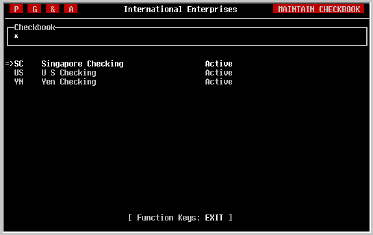
If making changes to an existing checkbook's information, enter the first
character or two of the checkbook's name and press [RETURN]. A list of
checkbooks whose names begin with the letters you entered will be
displayed. As illustrated in the previous example, you can also press an
asterisk [*] to view the list of all checkbooks.
Any of the checkbooks shown on the screen can be selected by moving the
pointer to the desired name and pressing [RETURN]. As in the menu system,
the pointer can be moved by pressing either the [SPACE] key or the cursor
[UP] and cursor [DOWN] keys.
If the checkbook does not appear on the list, it may be that the list is
too long to display in one screen. You can tell if there are more
checkbooks to be seen by looking at the Function Keys displayed at the
bottom of the screen; if NEXT PAGE or PREV PAGE is shown, the subsequent or
previous pages of the list can be displayed by pressing the NEXT SCREEN or
PREV SCREEN function keys.
If you are still unable to find the desired checkbook, press EXIT to search
again.
|
Adding A
Checkbook |
When adding a new checkbook, enter its two-three character name. Remember
that this is the name that will be used to select the checkbook when
paying bills or reconciling bank statements. Only uppercase alphabetic
characters and numbers will be permitted.
After pressing [RETURN], the software will quickly check to be sure the
name has not already been used. If it has, the information belonging to
the checkbook with the name will be displayed.
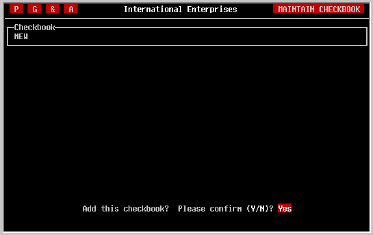
If the name has not been assigned to a checkbook before, you will be asked
to confirm the addition of this new checkbook. Press [Y] and [RETURN] to
confirm the addition as shown in the example below.
|
Entering Checkbook
Information |
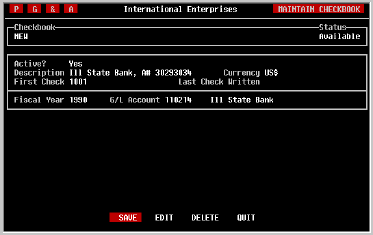
When an existing checkbook has been selected, or the addition of a new
one has been confirmed, the data entry screen will be displayed as shown
in the example below. While in the screen, you can move the cursor to any
field using the cursor [UP] and cursor [DOWN] keys.
Note, however, that once a payment has been made from a checkbook only the
checkbook availability (active or not) and description can be changed. The
G/L account number to which the checkbook is assigned may also be changed
at the beginning of the fiscal year to reflect changes in the chart of
accounts.

|
| Active? |
Once payments have been made from a checkbook TK-PAYABLES does not permit
the checkbook to be removed from the system. However, checkbooks are
closed from time-to-time and new ones opened. Once a checkbook has been
closed, it can be flagged as inactive. This prevents unintentional
further use.
To make a checkbook active, press [Y] and [RETURN].
To make a checkbook inactive, press [N] and [RETURN].
In either case, be sure to save your change as described in the next few
pages.
|
| Description |
You may also enter a short description of the check-
book such as 'Operating Account' or 'Payroll Account' or 'ILL STATE BANK
#33-002930'. This will provide additional assistance in identifying the
checkbook on reports and inquiry.
|
| Currency |
If you are using TK-LEDGER's multi-currency capabilities, it will be
necessary to indicate the currency in which checks from this account will
be issued. You can do this by entering the currency abbreviation or by
pressing the [SPACE] key until the desired currency is displayed.
|
| First Check |
While TK-PAYABLES maintains its own check numbering
system independent of the preprinted numbers on the check stock, you may
still decide what check number TK-PAYABLES will begin with. Enter that
number here. If you leave this field blank, the starting check number will
be 0001.
|
| Last Check |
As payments are made through the system, the 'Last
Check' field on the right side of the screen will be updated to display the
number of the last check written from this checkbook. It is displayed here
for information only and cannot be changed.
|
| Fiscal Year |
The general ledger account number which is assigned to each checkbook may
change from fiscal year to fiscal year to reflect changes in the G/L
chart of accounts. Such changes must also be made here.
Enter the fiscal year for which you would like to select a G/L account
number. If you are just installing TK-PAYABLES, you will want to use the
default fiscal year which appears when the screen is first displayed.
If payments have been made from the checkbook during the year entered here,
the G/L account number may not be changed. As a result, you will not be
able to access the 'G/L Account' field described below.
|
| G/L Account No. |
To each checkbook a unique, G/L asset account number
must be provided. When entering an account number, TK-PAYABLES checks
several things to be sure that the account number you have entered is
valid. Account numbers will not be accepted if...
|
| | 1) |
The account cannot be found in the general ledger;
| | 2) |
The account number does not belong to an asset account; that is, it
does not begin with a 1.
| | 3) |
The account has already been assigned to another checkbook;
| | 4) |
The currency assigned to the G/L account does not match the currency
chosen for the checkbook.
|
When you have entered a valid G/L account number the account's description
will be displayed for you to be sure that you have selected the correct
account.
|
| Finishing |
When you have completed the screen, press the EXIT
key. The cursor will jump to the bottom of the screen where a one-line
menu will be displayed as shown below. From this menu several actions can
be taken.
|
| SAVE |
If each field has been completed correctly, you may save the information
by moving the highlight to 'SAVE' and pressing [RETURN]. Your changes
will be saved and the screen will prepare to look for another checkbook.
|
| EDIT |
You may return to edit the contents of the screen
without saving by selecting this option. When finished, press the EXIT key
just as before, to return to this menu.
|
| DELETE |
As long as no checks have ever been written from the
checkbook you will be given the opportunity to remove the checkbook
entirely. If the option does not appear, then checks have been written and
the checkbook cannot be removed.
|
| QUIT |
If you would like to quit without saving your changes, select 'QUIT' and
press [RETURN]. The screen will prepare to look for another checkbook.
|
| Exiting |
To exit the screen, press the EXIT key at the one
line menu or at the 'Checkbook' prompt.
|
Printing A/P
Parameters |
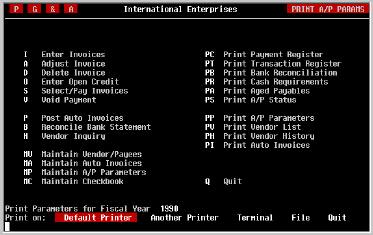
From the ACCOUNTS PAYABLE menu, select Print A/P Parameters.
The Accounts Payable Parameters listing is provided for you to produce a
paper listing of the parameters entered for each fiscal year. The report
is short, yet important, because it documents the decisions made when
implementing the system as well as those made from fiscal year to fiscal
year. A copy of it should be saved along with all of your other Accounts
Payable reports.
|
| Fiscal Year |
Using the conventions discussed at the beginning of this manual, select
the fiscal year for which the report is to be printed. The default is the
current year. Press [RETURN] to proceed to the next field.
|
| Device |
Select the desired output device. A Terminal option
will also be included for displaying the report to the screen. Refer to
the discussion regarding device selection in the Standard Reports section
of this manual for further assistance.
|
| Exiting |
At either the 'Fiscal Year' or 'Device' questions you
can press the EXIT key to return to the menu system. Once the report has
begun, however it cannot be aborted. When it has finished you will be
returned to the menu system.
"INCLUDE DA,52
|
Vendor
Maintenance |
From the ACCOUNTS PAYABLE menu, select Maintain
Vendors/Payees.
In order for TK-PAYABLES to accept invoices, pay bills, and keep necessary
records, it must know who an organization's vendors are. This screen
provides the ability to add new vendors as well as to maintain vendor
information as time passes.
|
| Finding A Vendor |
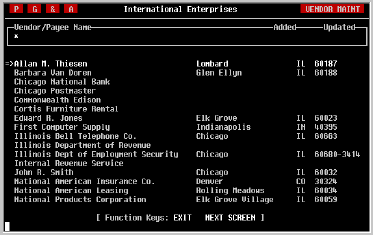
If making changes to an existing vendor, enter the
first two or three characters of the vendor's name and press [RETURN]. A
list of vendors whose names begin with the letters you entered will be
displayed. As illustrated in the previous example, you can also press an
asterisk [*] to view the list of all vendors.
Select the desired vendor moving the pointer to the desired name and
pressing [RETURN]. As in the menu system, the pointer can be moved by
pressing either the [SPACE] key or the cursor [UP] and cursor [DOWN] keys.
If the vendor does not appear on the list, it may be that the list is too
long to display in one screen. You can tell if there are more vendors in
the list by looking at the Function Keys shown at the bottom of the screen;
if NEXT PAGE or PREV PAGE is shown, the subsequent or previous pages of the
list can be displayed by pressing the NEXT SCREEN or PREV SCREEN function
keys.
If the vendor is not in the list, press EXIT to search again.
|
| Adding A Vendor |
When adding a new vendor, enter its complete name as
you want it to appear on checks and reports. Note that upper and lower
case characters can be used freely as shown in the example below. When
selecting this vendor later, TK-PAYABLES will not be hindered by whether
you choose to use uppercase or upper and lower. As a result, National
American Leasing, can be found later by entering NAT or Nat
or nat.
After pressing [RETURN] you will be asked to confirm the addition of this
new vendor. Press [Y] and [RETURN] to confirm the addition as shown in the
example below. Even though you have confirmed the addition of a new
vendor, the addition will not take place until you SAVE it as described
later on in this section.
NOTE: Be sure to search thoroughly before adding a new vendor to
prevent vendors from being entered more than once. Although a vendor can
be deleted if no invoices have been posted for it, once invoices have
been posted, it cannot be deleted.

|
Entering Vendor
Information |
When an existing vendor has been selected, or the addition of a new vendor
has been confirmed, the data entry screen will be displayed as shown in
the sample screen below. While in the screen, you can move the cursor to
any field using the cursor [UP] and cursor [DOWN] keys, and from section
to section by pressing the [TAB] key.
Furthermore, any field can be changed including the vendor's name.
However, the screen will not allow a vendor's name to be blank.

|
| Vendor Address |
Enter the vendor's mailing address in the fields provided. This address
will be printed on checks and positioned to enable use of standard window
envelopes.
A field for the vendor's phone number is provided for your convenience
should you ever need to call, but is not printed on checks.
|
Organization's
Account No. |
If your organization has an account number with this vendor, enter the
number in this field. This will also be printed on your checks to assist
your vendor in properly crediting your account.
|
Federal ID or
Soc Sec No. |
In some cases, it is necessary to have a record of the vendor's Federal Tax
Identification number on file. Use this field for that purpose.
If the Vendor/Payee is an employee or an independent contractor, this field
can be used to hold the social security number. This information will be
helpful in the printing of IRS 1099 forms.
|
Potential 1099
Recipient? |
If this Vendor/Payee may receive payments which must be supported by a
1099 form at the end of the year, answer by pressing [Y] and [RETURN].
|
| Employee? |
If the Vendor/Payee is also an employee, indicate it
here by pressing [Y] for Yes and pressing [RETURN]. Otherwise press [N]
for No.
|
| Exiting The Screen |
The editing session for a vendor will automatically terminate when the
[RETURN] key is pressed at the last field, but can be terminated at any
time by pressing the EXIT key. When terminated, a one-line menu similar
to the example below will be displayed.
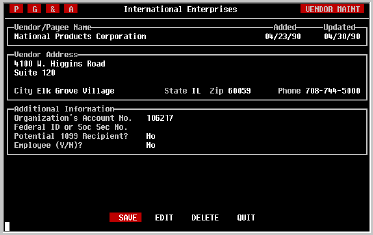
From this menu several actions can be taken.
|
| SAVE |
If you have added or changed information on the screen, a SAVE option
will be displayed. If you want the changes to become permanent, you must
save them using this option. You can select it by pressing an [S] or by
using the cursor or [SPACE] keys to position the highlighted bar over the
SAVE option and pressing [RETURN].
|
| EDIT |
If you would like to return to edit the information on the screen before
saving, select this option. The cursor will jump back to the 'Name' field
from which you can move the cursor to the field that needs to be changed.
|
| DELETE |
If no invoices have been posted to the vendor, the DELETE option will be
displayed. Once an invoice has been posted to the vendor, this option
will no longer be available for that vendor.
|
| QUIT |
When finished with this vendor, select the QUIT option to return to the
vendor lookup screen. From this point you can select another vendor or
exit by pressing the EXIT or [RETURN] keys.
|
Printing A
Vendor List |
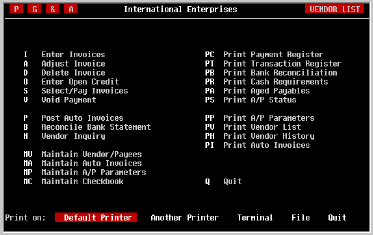
From the ACCOUNTS PAYABLE menu, select Print Vendor List.
The Vendor List is provided for you to produce a paper listing of the
vendors in your system and the information associated with them. It is
important to reprint this report each time a vendor is added, or changes
are made to vendor information. A copy should be maintained along with
your other Accounts Payable reports.
|
| Device |
Select the desired output device. If your terminal
supports 132 column display, a Terminal option will also be included for
displaying the report to the screen. Refer to the discussion regarding
device selection in the Standard Reports section of this manual for further
assistance.
|
| Exiting |
At the 'Device' questions you can press the EXIT key to return to the menu
system. Once the report has begun, however, it cannot be aborted. When
it has finished you will be returned to the menu system.
"INCLUDE DA,54
|
Automatic Invoice
Maintenance |
From the ACCOUNTS PAYABLE menu, select Maintain Auto
Invoices.
Most of the vendors with whom you do business
provide an invoice which initiates the normal bill-paying sequence.
However, occasionally, a vendor such as your landlord does not provide this
service, yet expects to be paid on a prompt and regular basis.
In this screen TK-PAYABLES provides a mechanism for you to enter these
invoices and have TK-PAYABLES remember to post them for you.
|
Selecting
The Vendor |
The first step to adding, or modifying an automatic invoice is to select
the vendor. Of course, to select it, the vendor must first have been
added to the vendor file using the Maintain Vendors/Payees screen.
To select a vendor, enter the first two or three characters of the vendor's
name and press [RETURN]. A list of vendors whose names begin with the
letters you entered will be displayed. As illustrated in the following
example, you can also press an asterisk [*] to view the list of all
vendors.
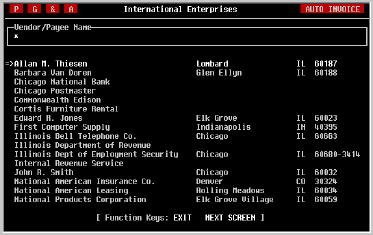
Any of the vendors shown on this screen can be selected by moving the
pointer to its name and pressing [RETURN]. Like the menu system, the
pointer can be moved by pressing either the [SPACE] key or the cursor [UP]
and [DOWN] keys.
If the vendor does not appear on the list, it may be that there are too
many vendors to be displayed on one screen. You can tell if there are more
vendors by the list of Function Keys displayed at the bottom of the screen.
If NEXT SCREEN or PREV SCREEN is shown, the next or previous pages of the
list can be displayed by pressing the appropriate function key.
If you are still unable to find the desired vendor, press EXIT to search
again.
|
Selecting
An Invoice |
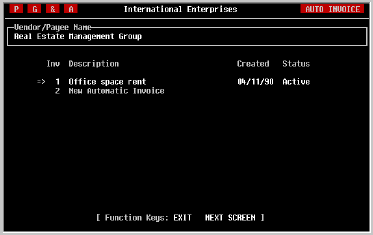
When you have selected a vendor, the next step is to select the invoice.
As shown in the example below, TK-PAYABLES assists you in this process by
displaying a list of all the automatic invoices that have been created for
the selected vendor, plus one labeled New Automatic Invoice. As
you can see, each invoice is assigned a sequential number which will
remain with the invoice throughout the system.
If you are making changes an existing automatic invoice, move the pointer
to the desired invoice and press [RETURN].
If, on the other hand, you are adding a new automatic invoice, move the
pointer to the item labeled 'New Automatic Invoice' and press [RETURN].
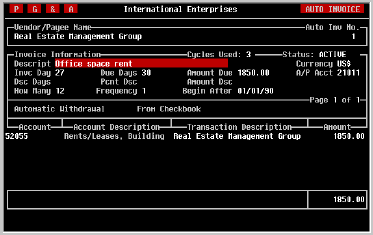
Having selected the invoice to be worked on, the Automatic Invoice
screen will be displayed as shown below. If you are changing an existing
automatic invoice, a one line menu will also appear at the bottom of the
screen. Select EDIT using the [SPACE] or cursor [RIGHT] keys and press
[RETURN]. This will put the cursor in the 'Descript'ion field shown below.
|
| Description |
Enter a word or phrase which describes the reason for
this invoice. For example, if creating an automatic invoice for paying the
rent, the description entered might be "Office space rent".
|
| Currency |
If using TK-LEDGER's multi-currency capabilities, it
will be necessary to select the currency the invoice will use. The default
is your base currency. It can be changed by entering the name of the
desired currency or simply pressing the [SPACE] key until the desired
currency is displayed.
|
| Invc Day |
The Invoice Day indicates to TK-PAYABLES which day of
the month this invoice will be acknowledged as being payable. It is
not the day that the payment is due; we will enter in the Due
Days field how many days should elapse from invoice date to payment
date, and the actual payment date will be computed by the software.
For example, assume that we are entering an automatic invoice for paying
the rent, which is normally due on the first of the month. The landlord
doesn't care how long this obligation is shown as a payable in our books as
long as he is paid by the first of the month. It might be a good idea to
consult your accountant to determine when the rent technically becomes an
obligation.
For our purposes, we will assume that the rent becomes an obligation thirty
days before it is due for payment. To accomplish this, we could enter an
Invoice Day of 1 for the first day of the month and a 30 in
the Due Days field.
However, in the example the computed payment date would vary because the
number of days in a month varies. In January, for example, the payment
date would be computed as January 31 (January 1 plus 30 days). In
February, the payment date would be computed as March 2 (February 1 plus 30
days).
In order for the payment date to always be on the first of the month, then,
we need to be able to compute the Invoice Day based on the last day of the
month. This is done by entering an L followed by a minus sign and
the number of days before the end of the month that the invoice should be
dated, such as L-29.
As you surmised by now, the L is shorthand for last day of the
month, and in this case the invoice date would always be 29 days
prior to the last day of the month. As a result, the Payment Due Date
will be computed as the first of the month, as the landlord wishes.
|
| Due Days |
When an automatic invoice is posted, the Payment Due
Date is computed by adding the number of days following the Invoice Date
that payment should be made. Enter the number of days from Invoice Date to
Payment Due Date in this field.
|
| Amount Due |
Enter the full amount of the invoice, including any discounts which may
be available if paid early.
|
| A/P Account |
If your books are being kept on a Cash Basis, leave this field blank.
If you are using Accrual, this field must contain a valid G/L liability
account number. Remember, liability accounts always begin with a 2.
If a default value is displayed, this is the general Accounts Payable
account number selected when entering Accounts Payable Parameters.
It can be changed if necessary, or accepted as is by pressing [RETURN].
If you are using multi-currency options, the liability account you select
must have the same currency as you selected earlier on the screen.
|
| Discount Days |
If a discount will be granted for early payments, enter the number of
days from the Invoice Date that the payment must be made in order to take
the discount.
If no early payment discount is available, leave this field blank.
|
| Percent Discount |
If the early payment discount is based on a percentage, enter the percent
here, and the actual discount will be computed and displayed in the next
field. Otherwise leave the field blank.
|
| Amount Discount |
If the early payment discount is a fixed amount, enter the amount of the
discount in this field.
|
| How Many Invoices |
"All good things must come to an end" the saying goes, even automatic
invoices in TK-PAYABLES. Enter the number of invoices
to be generated by the system before this automatic invoice expires.
|
| Frequency |
Invoices can be generated by the system every N
months, where N is a number from 1 to 12. If the invoice is to be
generated every month, enter a 1. If the invoice is to be generated every
two months, enter a 2, and so on. The field must have a value.
|
| Begin After |
Automatic invoices can be created in advance and
remain dormant until a desired date. Enter the date after which an invoice
should be generated. This field is manditory.
|
Automatic
Withdrawal |
Occasionally, an agreement is reached with a vendor which enables it to
withdraw its payment from your account automatically. This is known as
automatic withdrawal and TK-PAYABLES will handle it for you in one step.
When the invoice is posted a payment will also be posted for the same
date. The payment will be assigned a Payment Number like the one printed
on your checks, and will appear on reports as an automatic withdrawal.
To enable automatic withdrawal for the sum of an invoice, type [Y] and
press [RETURN].
|
From
Checkbook |
If you selected automatic withdrawal above, then it is necessary to select
the checkbook from which the withdrawal will be made. Enter the checkbook
name here.
|
Expense
Distribution |
When the parameters described above have been completed, it is necessary
to provide the information necessary for TK-PAYABLES to post the expense
distribution to the general ledger. The sum of the amounts entered here
and shown in the box at the lower right corner of the screen must equal
the total amount of the invoice entered above.
The fields provided on each row are fairly self-explanitory. In addition,
there is no limit to the number of items entered as long as the amounts sum
to the total amount of the invoice.
In the first field, enter the number of the general ledger account to which
the expense should be posted. If a valid expense account number has been
entered, TK-PAYABLES will display part of the account's description in the
next field. This feed back will help avoid typographical errors in account
numbers.
The comment field will automatically contain the description entered for
the invoice. If desired, this can be changed.
Last, enter the amount to be debited to the expense account. Remember, the
sum of these amounts shown in the lower right corner of the screen must
equal the total amount of the invoice.
If there are more distribution transactions than will fit on the screen at
one time, the screen will automatically advance you to the next page when
the last transaction on the current page has been completed. In addition,
you can use the NEXT SCREEN and PREV SCREEN keys to move back and forth
from page to page.
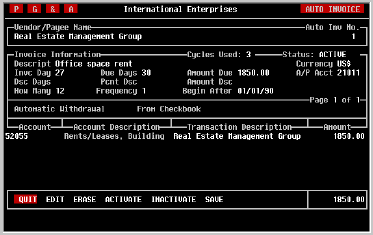
When finished entering the expense distribution, press either the TAB or
EXIT key. A one line menu will appear at the bottom of the screen as shown
in the example below.
|
| EDIT |
If you would like to return to edit the data on the
screen, use the [SPACE] or cursor [RIGHT] keys to move the highlighted bar
to EDIT and press [RETURN].
|
| ERASE |
To erase the contents of the screen, move the highlighted bar to the ERASE
option and press [RETURN]. Note however, that erasing the contents of the
screen has no affect on automatic invoices that have already been saved.
|
| ACTIVATE |
When created, each automatic invoice begins as Inactive. In
addition, an automatic invoice can be made Inactive for a
period of time during its normal life cycle. This means that an invoice
cannot be generated from it even when each of the other criteria, such as
Begin After date, are met. Use this option to change the status
to Active.
|
| INACTIVATE |
Under normal conditions, this feature may not be
used. However, from time to time it is necessary to terminate or simply
inactivate an automatic invoice for a period of time. Use this option to
change the status to Inactive.
|
| SAVE |
Unlike other screens in the TK-ACCOUNTING series,
this screen does not automatically save the data on the screen. If you
exit the screen prior to saving, the contents of the screen or the changes
you made will be lost. However, do not save a new automatic invoice unless
you are certain to need it. Once saved, automatic invoices cannot be
removed. They can only be inactivated.
|
| QUIT |
Select this option to leave the screen when finished
with your additions or changes or press EXIT.
|
Printing An
Automatic
Invoice
List |
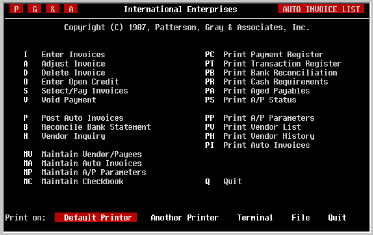
From the ACCOUNTS PAYABLE menu, select Print Auto Invoices.
The Automatic Invoice List is provided for you to produce a paper copy of
the automatic invoices you have defined, their parameters and expense
allocations. Because the status may change from month to month, it is
important to reprint this report each time automatic invoices are posted,
or additions/changes are made to automatic invoice information. A copy
should be maintained along with your other Accounts Payable reports.
|
| Device |
Select the desired output device. If your terminal
supports 132 column display, a Terminal option will also be included for
displaying the report to the screen. Refer to the discussion regarding
device selection in the Standard Reports section of this manual for further
assistance.
|
| Exiting |
At the 'Device' questions you can press the EXIT key
to return to the menu system. Once the report has begun, however, it
cannot be aborted. When it has finished you will be returned to the menu
system.
"INCLUDE DA,55
|