|
|
CHAPTER 2 |
Welcome to TK-MAIL.
If you have a few minutes, let us acquaint you with some of the more common
features of the TK-MAIL environment. We will show you how to sign into
TK-MAIL, how to navigate its menus, and provide some pointers on selecting
mail for reading, printting, filing, discarding and so forth.
|
|
Starting TK-MAIL on most systems will involve no
more than selecting it from a menu. However, if you are used to roughing
it, it can be started using the following MUMPS expression:
>DO ^TKMAIL
TK-MAIL will respond by displaying its opening screen, an open file folder
as illustrated below (comm'n, its as close as we could come!).
|
|
Because TK-MAIL is a "personal" electronic mail
system, it is important t4at it know who each user is when in the system.
It is only after a user's identification is known that TK-MAIL is able to
determine which mailbox to open.

For many users of TK-MAIL, such as those using TKGUARDIAN, Sign-in is not
necessary because their security system is able to provide TK-MAIL with
information about who they are. If this is the case on your system, you
may proceed to the next topic, TK-MAIL Menus.
When TK-MAIL is started, it will request your personal ID or password.
Carefully enter the password provided you by your system manager and then
press [RETURN].
The screen will be similar to the illustration shown above. Notice that
the characters you type while entering your password are not displayed.
This is to protect you from passers by who might be interested in gaining
access to your mailbox by learning your password. Should you make a
mistake while entering your password, simply press [RETURN] and try it
again.
|
|
Once TK-MAIL knows who you are, it will open your
mailbox, take out a folder named CURRENT MAIL
, display its contents and
take you to the first menu in the system. It will look like the one shown
below.
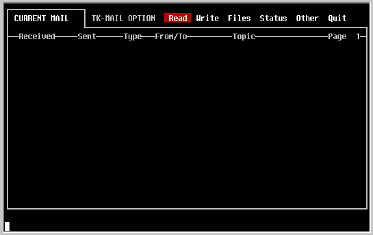
Using these menus is very easy, in part because each user can use the
approach he or she is most comfortable with. As you can see, the current
choice is always highlighted by displaying it in reverse video (dark
letters on a bright background).
|
| Cursor Keys |
One simple method of changing the current
choice
displayed in the menu is with the cursor [LEFT] and cursor [RIGHT] keys.
Pressing the cursor [RIGHT] key for example changes the current choice to
Write
and displays it appropriately in reverse video. And when the desired
choice is hightlighted, press [RETURN] to select it.
Note that in TK-MAIL menus, the [SPACE] bar performs the same job as the
cursor [RIGHT] key.
|
| Hot Keys |
Another method of selecting options from
TK-MAIL
menus is to type the first letter of the option's keyword. As soon as the
key is pressed, TK-MAIL will proceed to that option. In the example above,
then, we could select Write
options by simply pressing [W], or quit by
pressing a [Q]. This method is preferred by experienced users who have
memorized the keywords through use and want to be able to perform their
mail tasks as quickly as possible.
|
| Other Menus |
Regardless of which approach you prefer to use,
the TK-MAIL menus will look and act exactly the same. Each is labelled to
remind you where you are in the system at all times.
For example, the main menu is labelled TK-MAIL OPTIONS
. If you select the
option on this menu called Write you will find another similar menu
labelled WRITE OPTIONS
. If you Quit this menu you will find yourself back
at the original, or main, menu.
|
|
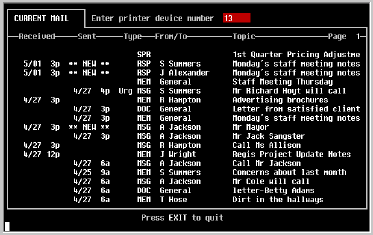
Another frequent activity in TK-MAIL is selecting
the piece of mail which is to be edited, sent, read and so on. As you can
see in the sample screen shown below, mail is displayed in a list, one page
at a time.

Many of the activities on the TK-MAIL menus also require selection of the
document on which to perform the activity. When this occurs, each of the
items on the list will be marked with an asterisk
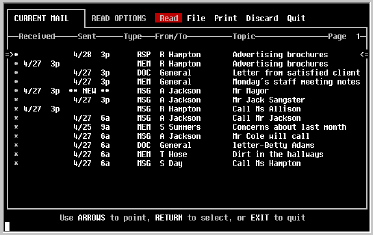
if they can be selected for the chosen activity. In addition, a pair of
pointers will appear on either side of the top item of the list.
These pointers indicate which item will be selected when [RETURN] is
pressed. They can be moved to point to other items on the list using the
cursor [UP] and cursor [DOWN] keys. In addition, the [SPACE] bar performs
like the cursor [DOWN] key.
Also notice in the sample screen above, that it is labelled Page 1.
Document lists can contain many pages of documents and moving back and
forth between them is very easy. Simply press the NEXT PAGE or PREV PAGE
(or equivalent) keys to move down or up the list respectively.
NOTE: Not all terminals supply keys for the NEXT
PAGE and PREV PAGE
functions. Check in Appendix B or with your system manager to
determine
which keys have been
assigned to these functions on your terminal.
|
|
|
CHAPTER 3 |
|
|
From the TK-MAIL OPTIONS menu, select Write.
From the WRITE OPTIONS menu, select Create.
The CREATE OPTIONS
menu will be displayed and you will notice that you can
create three basic types of mail: Phone Messages, Memoranda, and
Responses. Let's begin by creating a phone message.
|
|
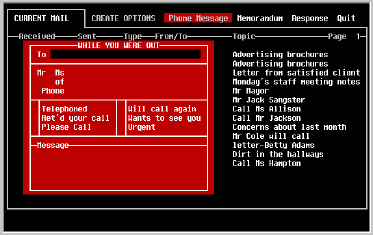
From the CREATE OPTIONS menu, select Phone Message.
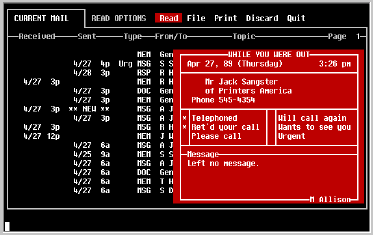
The familiar phone message format will be displayed on your screen as in
the sample shown below.
|
Step 1 - Selecting
The Addressee
|
There are three methods of selecting the person to whom a telephone
message will be sent. Fortunately TK-MAIL is able to provide as much (or
as little) help in this as you may need.
|
Method 1 |
Name search (last name first)
|
| | Examples: |
| | JONES,J |
find all names whose last name begins with "JONES" and whose
first name begins with "J"
| | JONES |
find all names whose last name begins with "JONES"
| | JO,J |
find all names whose last name begins with "JO" and whose
first name begins with "J"
| | ,JO |
find all names whose first name begins with "JO"
|
Enter as much of the addressee's name as you like and press [RETURN].
Remember to always precede first names with a comma.
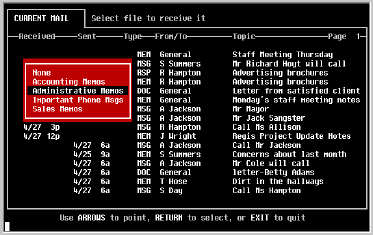
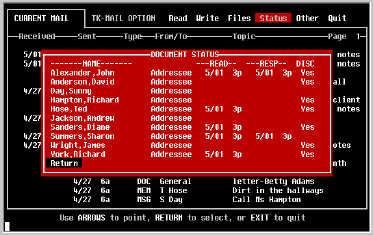
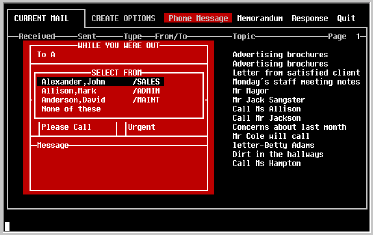
TK-MAIL will create a list of all of the names having mailboxes that match
the characters you entered and display it to you in a window as shown in
the example below. Simply move the bar to the desired name or "none of
these" and press [RETURN].
If TK-MAIL is unable to find any names that match, the field will be erased
and you will be given another opportunity to search.
|
Method 2 |
Department search
|
| | Examples: |
| | /ACCTG |
find all names belonging to the department "ACCTG"
| | /A |
find all names belonging to departments beginning with an "A"
|
Enter as much (or as little) of a department name as you would like
prefaced by a "/". TK-MAIL will create a list of all the names belonging
to the department(s) which begin with the characters you entered and
display it in a window. Then select from the list the name of the desired
person.
|
Method 3 |
Name and Department
Example: JO,J/ADMIN
Enter a name as explained in Method 1, a "/", and all or part of a
department name as explained in Method 2. TK-MAIL will create a list of
all the names which match both the name and department criteria and display
it in a window for you to select the desired person.
|
| Step 2 - Mr. or Ms. |
Select the appropriate prefix to the callers name
using the cursor [LEFT] or cursor [RIGHT] keys to position the dark box
over the appropriate prefix and press [RETURN].
|
Step 3 - Caller's
name, location and
phone number |
Enter the caller's name, company or location, and phone number in the
appropriate fields and press [RETURN] for each.
|
| Step 4 - Indicators |
Move the cursor to the appropriate boxes using the
cursor [UP] and cursor [DOWN] keys to move forward and backward as
appropriate.
Type a [Y] or [*] in each box which you would like to mark. Type a [N] or
a [SPACE] to erase marks made in error.
|
| Step 5 - Message |
Enter up to four lines of free text. Notice that
all four cursor keys are operational for editing, and that word wrap will
occur on words which extend beyond the end of the line.
|
| Step 6 - Send |
Finish the message and send the message in one step
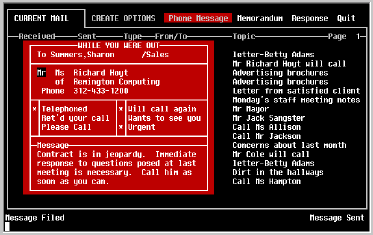
by pressing [RETURN] on the fourth line or by pressing [TAB] at any time in
the message section. As it is being sent, the completed phone message form
will look like the following example.
As soon as the message has been sent, you will be returned to the current
file folder which will show the new message item at the top. If it is not
necessary to maintain a copy of the message, it can be discarded at this
time. See section on discarding mail under READ OPTIONS.
|
|
From the CREATE OPTIONS menu, select Memorandum.
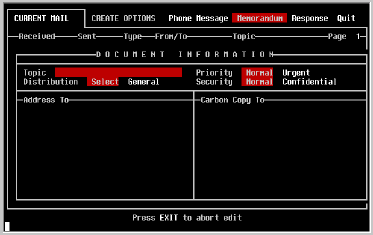
A Document Information screen, which appears like the example shown below,
will be displayed in which you will provide some preliminary information.
|
| Step 1 - Topic |
Enter the topic of the memorandum as you would like it to appear in the
file folder and press [RETURN].
|
| Step 2 - Distribution |
Select the type of distribution the memorandum will have by moving the
highlighted box to the appropriate type and pressing [RETURN].
A distribution type of Select will enable the selection of certain
individuals to receive the memo, while a distribution type of General
will automatically be sent to everyone having a mailbox.
|
| Step 3 - Priority |
Select the priority of this memorandum by moving the highlighted box to
the appropriate type and pressing [RETURN].
A priority type of Urgent will flag the memorandum as urgent to
all its recipients, while a priority type of Normal will not.
|
| Step 4 - Security |
Select the security of this memorandum by moving
the highlighted box to the desired type and pressing [RETURN].
Normal security is appropriate in most cases because only the intended
recipients are able to see or read mail. However, many sites also have
programmers and/or operators which could find and read private mail using
utilities commonly provided with the MUMPS operating system for maintenance
purposes.
If you select Confidential
for the priority setting TK-MAIL will encrypt
the text such that programmers looking through files will not be able to
decipher the document even if they can find it.
|
| Step 5 - Address To |
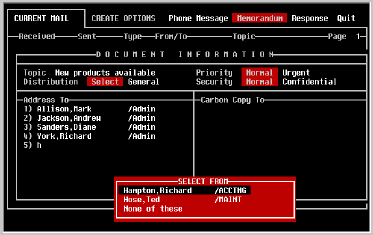
If you chose distribution type Select above, this is your
opportunity to create a list of up to fifty intended recipients.
The process of selecting is nearly identical to that discussed under the
heading Create Phone Message
, with the exception that when you select
addressees by department, all of their names are added to the list.
When searching for people's names, use the following syntax:
[Last Name] [,First Name] [/Department]
The brackets indicate that the various parts of the search criteria can be
used singly or in combinations to achieve the desired result. That is, you
can search by last name only, first name only, department only, or any
combination of these.
Note the use of the following keys while building the distribution list:
|
| | Cursor UP |
move to the previous name
| | Cursor DOWN |
move to the next name
| | TAB |
move to Carbon Copy area
| | DELETE LINE |
delete the name contained in the highlighted box
| | EXIT |
abort Create Memorandum
|
|
Step 6 - Carbon
Copy To |
Select the persons to whom carbon copies should be sent in the same
manner as you selected addressees. When finished, press [TAB] or press
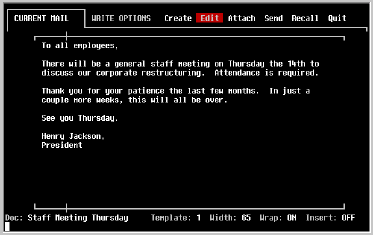
[RETURN] on an empty field. The Document Information screen will be
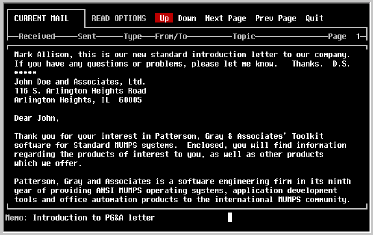
replaced by TK-MAIL's text editing window which looks like this.
|
| Step 7 - The Memo |
The TK-MAIL text editing window provides all the
functionality of a robust word processor including automatic word wrap,
full cursor key support, typeover, insert and delete line, typing
templates, tab settings and many more.
Although there are many special keys available to you at this point, the
most important key to remember is the EXIT key. Because TK-MAIL supports a
variety of different terminal types with different keyboards, it is not
possible to identify the precise key which performs the EXIT function on
your terminal. However, you may refer to Appendix B for a listing of key
assignments for several common terminal types.
For the purpose of this section, we will concentrate on the process of
creating and sending the document. Discussion of the specific editing
functions available while in the text editor are discussed in a later
section.
When the EXIT key is pressed, the process of creating a memorandum is
complete. TK-MAIL will return you to the current file folder and the new
document will be displayed as the topmost item on Page 1 as illustrated in
the following example:

Notice in the example that no date or time is displayed next to this new
item. This is because it has neither been sent, nor received. It is, for
the moment just a document in your file folder. You can change it as many
times as necessary until you're ready to either send it, or discard it.
|
|
From the CREATE OPTIONS menu, select Response.
Creating a response is essentially identical to creating a memorandum with
one exception. In order to respond to mail, you must identify the mail you
are responding to.
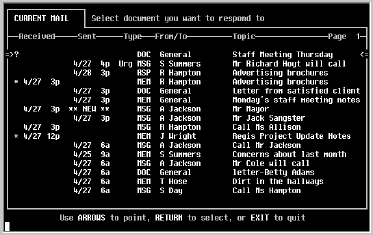
In addition, you may only respond to a document which you have received.
In the illustration shown below, only those documents or messages which
have been received are marked with an asterisk. Any other items which are
pointed to will show a "?" next to the pointer. This means that this
particular item may not be chosen for this activity.
Once the document being responded to has been selected by pointing to it
and pressing [RETURN], the Document Information screen will be displayed
just as it is in the Create Memorandum option.
However, it will already contain the topic from the original memorandum and
will have placed the name of the original sender in the Address To box.
From this point on, creating and sending a response is identical to
creating and sending a memorandum.
|
|
From the WRITE OPTIONS menu, select Edit.
Editing a memorandum or response is identical to creating one; you will
have the opportunity to review and modify your responses on the Document
Information screen as well as the document itself.
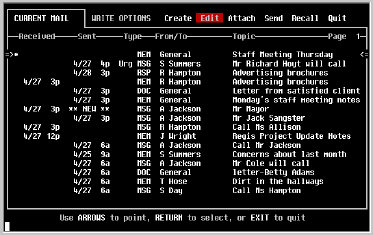
Begin by selecting the document to be edited. Notice in the example below
that only those documents which have not been sent or received are marked
with an asterisk "*" indicating that they can be edited. Phone messages
can never be edited.
Once you have chosen the document to be edited, the process is identical to
that discussed under the topic Create Memorandum. Refer to that
section for more information.
|
|
From the WRITE OPTIONS menu, select Send.
This function transmits a completed document or response, along with any
attachments it may have, to the mailboxes of its intended recipients. If
no addressees were selected in the Document Information screen, TK-MAIL
will inform you that NO ADDRESSEES were ENTERED and return you to the menu.
Select the document to be sent and press [RETURN]. TK-MAIL will request
the date and time the document is to be delivered as shown below.
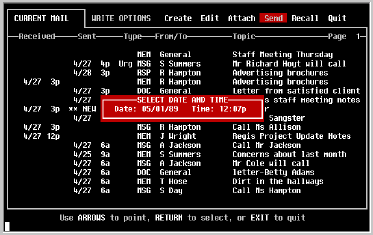
As you can see, TK-MAIL provides you with a default date and time of
delivery. This date and time is always the current date and time, implying
that the mail will be delivered immediately. Press [TAB] if you want
immediate delivery, or enter a future date and time for delivery, pressing
[RETURN] for each.
When the document has been successfully sent, you will be returned to the
current file folder. Notice that the Sent column in the file
folder now shows the date and time it was sent.
|
|
From the WRITE OPTIONS menu, select Recall.
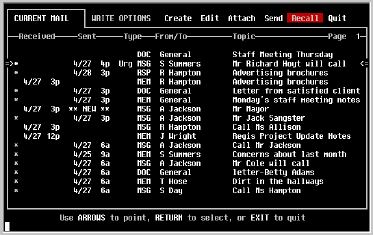
Select the document to be recalled and press [RETURN]. As long as the
document has not been read by any of those to whom it was sent, it will be
immediately removed from their mailbox.
TK-MAIL will inform you that the mail cannot be recalled if the mail has
already been read. Otherwise TK-MAIL will remove the date and time from
the Sent column for the selected item, indicating that it was successfully
recalled.
Again, notice in the illustration below, that TK-MAIL will not permit you
to even select mail that you have not sent.
|
|
From the WRITE OPTIONS menu, select Attach.
Just like a paper mail system, TK-MAIL provides the ability to attach one
or more pieces of mail to a memorandum which can then be sent as a single
item.
There are several uses for this capability, the most common being to
forward a memo you have received to someone else. Typically, a short cover
letter would be written which explains the attachment. To this cover
letter you would attach a copy of the memo you received and send them
together.
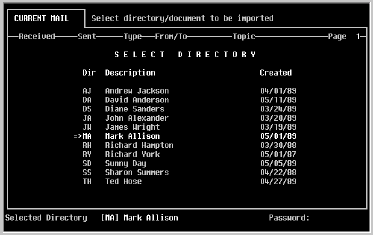
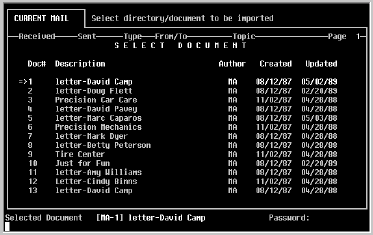
TK-MAIL uses the same approach. Any message or document which you have
sent to others, received from others, or which is in one of your file
folders can be attached to a cover memo and sent as a single piece of mail.
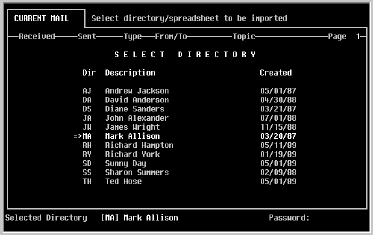
The capability takes on additional meaning when you realize that you can
also attach word processing documents imported from TK-WRITER or
spreadsheets imported from TK-CALC. This function also enables sending
non-displayable mail such as spreadsheets, MUMPS routines, globals and a
variety of other forms of data. For example, you can create a spreadsheet
in your own protected TK-CALC directory and send it to someone else along
with a brief explanation. The user who receives it can then export it back
to his own directory for personal use.
The process of attaching mail is straight forward and consists of two
steps.
|
| Step 1- Select |
In order to attach mail to a memorandum, TK-MAIL must know which
Original memorandum it will be attached to. In TK-MAIL this
document is referred to as the "Original". In order to
select one, the "Original Memo" must have been created by you and it cannot
have been already sent.
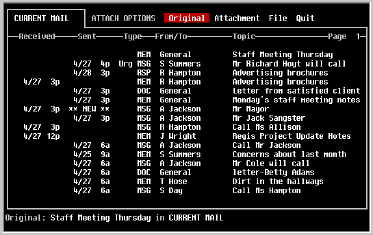
From the ATTACH OPTIONS menu, select Original.
Select the memorandum to which you will attach other pieces of mail. As
illustrated in the screen below, TK-MAIL will confirm your selection with a
message at the bottom of the screen.
|
| Step 2- Select |
Having successfully selected an original, it is time to select the piece
of Attachment mail which will be attached to it.
NOTE: It is not necessary that the documents to
be attached be in the the
same file folder as the
original which has been chosen. Use the File op-
tion to change folders before using the Attachment
option to select the
From the ATTACH OPTIONS menu, select Attachment.
The only item which cannot be selected as an attachment is the memorandum
which was chosen as the original. Point to the item to be attached and
press [RETURN]. TK-MAIL will confirm by displaying the word "Attached" in
the bottom right corner of your screen.
The process of selecting attachments can be repeated as many times as
desired, although there is a physical limit of 98. As each attachment is
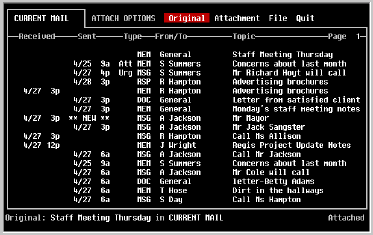
selected, it will appear under the original in the file folder labelled
"ATT" indicating that it is a copy of another document and attached to the
memorandum above it.
The following screen illustrates how attachments are displayed in the file
folder under the document to which they are attached.
As long as the original memo and its attachment still exist in your folder,
they can be sent and moved to other folders as a unit by selecting the
original. However, they may be moved independently and must be discarded
singly. |
|
|
CHAPTER 7 |
|
|
|
| Purpose: |
Repositions text on current line in the center with equal space to
the left and right.
|
| Type Of Operation: |
Editing
|
| Keystroke(s) Required: |
FORMAT LINE function key,
[C] to select CENTER
|
| How Is It Used: |
Position the cursor on the line that is to be
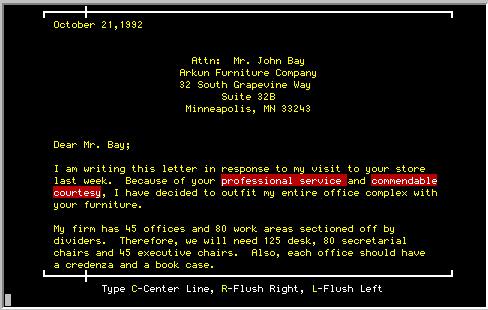
centered and press the FORMAT LINE key. Now press [C] to select the CENTER
command. The line will be centered on the screen and the cursor will drop
down one line. Pressing the letter [C] again will center the next line,
and so on. To return to Edit Mode, press [RETURN].
Centered text can be brought back to the left margin using the LEFT-JUSTIFY
command.
Centered text on the CRT screen will not always be centered on the paper
when using proportionally spaced fonts. In many cases, this can be
remedied by including a ~~B CT somewhere in the line that is to be
centered.
When using the ~~B CT function, the text does not need to be centered on
the screen to have the text centered on the printer.
|
|
|
| Purpose: |
Removes a single character at the cursor position.
|
| Type Of Operation: |
Editing
|
| Keystroke(s) Required: |
CHARACTER DELETE key
|
| How Is It Used: |
Pressing the [CHARACTER DELETE] key will cause the character at the
current cursor position to be deleted and replaced by the
character immediately to its right. All other characters on the right will
move one space to the left.
|
|
|
| Purpose: |
Inserts a space in the text at the current cursor position.
|
| Type Of Operation: |
Editing
|
| Keystroke(s) Required: |
INSERT CHARACTER key
|
| How Is It Used: |
Pressing the [INSERT CHARACTER] key causes a
single space to be inserted at the cursor position and any characters to
the right to be moved one space to the right.
If the last character on the line is pushed off of the end of the line
because of a CHARACTER INSERT operation, the entire last word will be
removed and inserted between the current line and the next. The paragraph
may be brought together using the REFORMAT PARAGRAPH command.
|
|
|
| Purpose: |
Enables one or more lines of text to be copied to
another position in the same document or any other document.
|
| Type Of Operation: |
Editing
|
| Keystroke(s) Required: |
COPY/MOVE/INSERT function key, [C] to COPY
|
| How Is It Used: |
Begin the operation with the cursor on the first
character of the text to be copied. Press the COPY/MOVE/INSERT function
key and select COPY by pressing [C].
The current screen will be redisplayed in low intensity. Highlight the
text to be copied using the cursor keys which work as follows:
|
| | Left |
Removes one word from the text to be copied, and changes it
back to low intensity.
| | Right |
Adds one word to the text to be copied and highlights it.
| | Up |
Removes a whole line from the text to be copied and changes it back to low
intensity.
| | Down |
Adds one line to the text to be copied and highlights it.
|
Notice that the [LEFT] and [RIGHT] cursor keys provide word
control, while
the [UP] and [DOWN] cursor keys provide line
control. With a little
practice, you will be able to quickly highlight a region of text using the
appropriate cursor keys.
Press [RETURN] when the text to be copied has been highlighted.
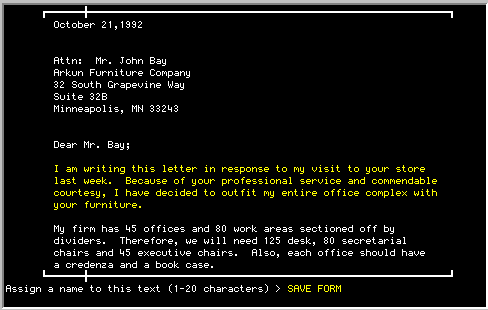
At the editor's request, assign a name to the highlighted text. Use a name
that will be easily remembered if you are likely to use this copied text
over and over again. You may use the 26 letters of the alphabet and the 10
numbers. Press [RETURN] when the name is entered.
You will then be reminded that this copied text can be inserted with the
INSERT TEXT command of the same COPY/MOVE/INSERT function key and the name
that was given to the highlighted text.
Press [RETURN] to return to the edit mode. See INSERT TEXT for information
concerning inserting the text in the current document or in another
document.
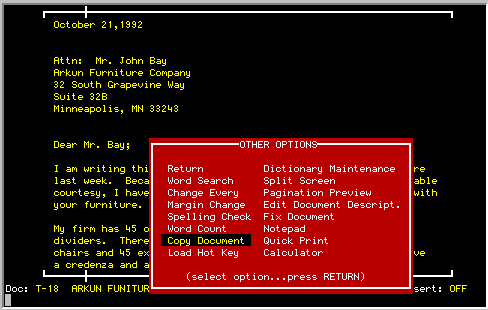
Entire documents can be copied with the Copy Document option from the
Special Options menu.
|
|
|
| Purpose: |
Permits fine movement within the document either left or right or up or
down.
|
| Type Of Operation: |
Editing
|
| Keystroke(s) Required: |
UP, DOWN, LEFT, or RIGHT cursor keys
|
| How Is It Used: |
The cursor keys permit movement of one space forward or backward, or one
line up or down.
The action taken by the cursor changes when the margins of the screen are
reached. Up and down movements at the top or bottom margins will cause a
single line scroll operation to take place. Left and right movements at
the left or right margins will cause the cursor to wrap around to the
opposite margin on either the next or preceding line.
The cursor keys take on a different meaning while in the COPY/MOVE TEXT
commands. They are used to select or deselect text.
|
|
|
| Purpose: |
Allows the user to break a line of text for the purpose of adding more
text or changing the format.
|
| Type Of Operation: |
Editing
|
| Keystroke(s) Required: |
CUT LINE function key
|
| How Is It Used: |
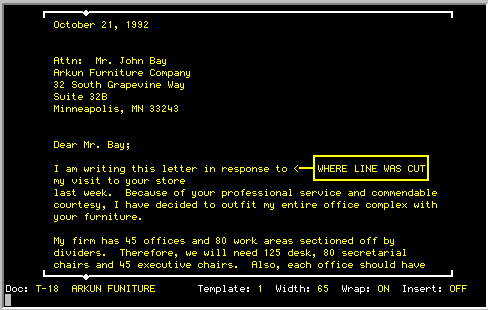
Position the cursor at the beginning of the text
to be cut from the current line and press the [CUT LINE] key. The
character under the cursor and the remainder of the line to the right of
the cursor will be moved to the next line.
|
|
|
| Purpose: |
Returns control back to the TK-WRITER Main Menu.
|
| Type Of Operation: |
Editing
|
| Keystroke(s) Required: |
EXIT function key
|
| How Is It Used: |
Use this to leave the Editor and to return to the menu.
Upon exit, any blank lines at the end of the document are removed and any
~ S, ~ N, ~ A and ~ $ print control characters are scanned to
prepare for variable data entry during print operations. You may notice a
slight delay during this process.
|
|
|
| Purpose: |
Returns the Editor to the beginning of the current document.
|
| Type Of Operation: |
Editing
|
| Keystroke(s) Required: |
FIRST SCREEN function key
|
| How Is It Used: |
Selecting this command will cause the Editor to move to the first screen
of the document.
|
|
|
| Purpose: |
Causes the Editor to move to the first screen of the document, the last
screen, the first screen of a specified page number, or the screen
containing a specified line number.
|
| Type Of Operation: |
Editing
|
| Keystroke(s) Required: |
FIND function key, and
Line Number, or
[P] and Page Number, or
[B] for Beginning, or
[E] for End
|
| How Is It Used: |
This command will enable moving to a specified screen within the document.
After pressing the [FIND] key, press [B] to move to the first screen in
the document, or [E] to move to the last screen. Finish by pressing
[RETURN].
To move to a specific page number, press [P] and type the number of the
page. Finish by pressing [RETURN].
Although the editor does not normally display line numbers, by estimating
the approximate line number and entering it after pressing the [FIND] key,
the screen containing that line will be found and displayed. Again finish
by pressing [RETURN].
|
|
|
| Purpose: |
Allows text saved by the MOVE TEXT or COPY TEXT commands to be inserted
at the current cursor position.
|
| Type Of Operation: |
Editing
|
| Keystroke(s) Required: |
COPY/MOVE/INSERT function key, and
[I] to INSERT
|
| How Is It Used: |
Position the cursor where the text is to be
inserted. The line on which the cursor resides will be pushed down to
accomodate the new text.
Press the COPY/MOVE/INSERT key and type [I] to insert. You will be asked
to enter the name of the text to be inserted, which is the name that was
assigned while using the MOVE TEXT or COPY TEXT commands.
If the COPY or MOVE operation was performed during the current editing
session, the most recently used name will be shown as the default and can
be selected by pressing [RETURN].
If there is no default, or the default does not represent the text to be
inserted, enter the appropriate name and press [RETURN]. The text will be
inserted at the cursor position.
The editor will ask whether the inserted text is to be deleted under the
name used. If you have no future need for it, answer yes with a [Y]. If
you answer no, the text will be saved for use at some later time.
To step through the list of existing text names, press the [^] key. The
name of each copied or moved text will be displayed and can be selected by
pressing [RETURN].
More than one section of text can be inserted at once by entering a list of
text names separated by a [+]. For example, if a form letter was to be
created consisting of an address, salutation and body, the following might
be used.
ADDRESS+SALUTATION+BODY
All three sections would be assembled on the screen for you. Note that you
could have any number of sections from which to choose.
|
|
|
| Purpose: |
Enables a line of text to be quickly justified to the left margin.
|
| Type Of Operation: |
Editing
|
| Keystroke(s) Required: |
CENTER/RT/LT function key,
[L] for LEFT JUSTIFY
|
| How Is It Used: |
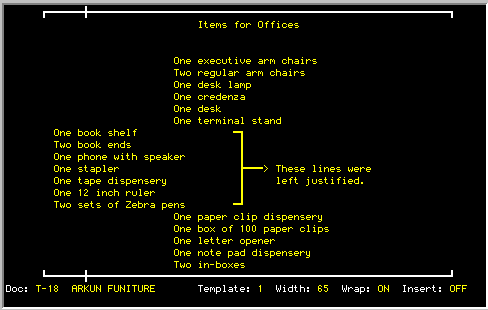
Position the cursor on the line that is to be justified and press the
[CENTER/RT/LT] key.
Pressing [L] will cause the line to be left justified with respect to the
left margin of the screen. It does not justify according to an alternate
template if it is being used. When complete, the cursor will move to the
next line. Press [L] again if the new line is also to be left justified.
Press [RETURN] to return to Edit Mode.
|
|
|
| Purpose: |
Removes an entire line from the document at the current cursor position
and moves all following lines up one line.
|
| Type Of Operation: |
Editing
|
| Keystroke(s) Required: |
DELETE LINE function key
|
| How Is It Used: |
Position the cursor on the line that is to be
removed and press [DELETE LINE] key. The line will be removed and all
subsequent lines will be moved up to take its place. The cursor remains in
the same position.
|
|
|
| Purpose: |
Inserts a new blank line at the current cursor position.
|
| Type Of Operation: |
Editing
|
| Keystroke(s) Required: |
INSERT LINE function key
|
| How Is It Used: |
Position the cursor on the line that is to be moved down and press [INSERT
LINE] key for each line to be inserted in the document.
The INSERT LINE function does not work on the last line of the screen. A
warning beep is issued if this is attempted.
|
|
|
| Purpose: |
Enables one or more lines of text to be moved to another position in the
same document or any other document.
|
| Type Of Operation: |
Editing
|
| Keystroke(s) Required: |
COPY/MOVE/INSERT function key, and
[M] for MOVE
|
| How Is It Used: |
Move the cursor to the first character to be included in the move
operation. Press the COPY/ MOVE/INSERT key and select
the MOVE TEXT command by pressing [M]. You will be asked to highlight the
text to be moved by using the cursor keys. The action taken by each cursor
key is as follows:
|
| | Left |
Removes one word from the text to be moved, and changes is
back to low intensity.
| | Right |
Adds one word to the text to be moved and highlights it.
| | Up |
Removes a whole line from the text to be moved and changes it back to
low intensity.
| | Down |
Adds one line to the text to be moved and highlights it.
|
Notice that left and right cursor keys provide word
control, while the up
and down cursor keys provide line
control. After a little practice, you
will be able to quickly highlight a region of text using the appropriate
cursor keys.
Press [RETURN] after you have highlighted the text to be moved. The text
will be removed from the document.
It is then necessary to assign a name to this highlighted text. Use a name
that will be easily remembered if you are likely to use this moved text
over and over again. You may use the 26 letters of the alphabet and the 10
numbers. Press [RETURN] when the name is entered.
You will then be reminded that you can insert the highlighted text with the
INSERT TEXT command using the name that you assigned. Press RETURN to
return to the edit mode. See INSERT TEXT to for information concerning
inserting the text in the current document or in another document.
|
|
|
| Purpose: |
Enables the cursor to be quickly moved to the first blank space at the
end of a line.
|
| Type Of Operation: |
Editing
|
| Keystroke(s) Required: |
MOVE TO END-OF-LINE function key
|
| How Is It Used: |
By pressing this function key, the cursor will jump to the first space
following the last word or character on the line. This positions the
cursor for the entry of additional text on the line.
If no space remains at the end of the line, the cursor will automatically
move to the next line.
|
|
|
| Purpose: |
Advances the display of the document forward twenty one lines.
|
| Type Of Operation: |
Editing
|
| Keystroke(s) Required: |
NEXT SCREEN key
|
| How Is It Used: |
Each time the [NEXT SCREEN] key is pressed, the next twenty one lines of
the document are displayed and the cursor is repositioned to the top of
the screen.
When the end of the document is reached, blank lines will be displayed and
added to the end of the document. Any remaining blank lines at the end of
the document will be removed when the EXIT command is issued.
|
|
|
| Purpose: |
Advances the display of the document back twenty one lines.
|
| Type Of Operation: |
Editing
|
| Keystroke(s) Required: |
PREVIOUS SCREEN key
|
| How Is It Used: |
Each time the [PREVIOUS SCREEN] key is pressed it will cause the twenty
one lines of text preceeding the current screen to be displayed.
If the beginning of the document is reached, the command is inoperative.
|
|
|
| Purpose: |
Allows a paragraph to be adjusted to fit the current margins or user
selected margins.
|
| Type Of Operation: |
Editing
|
| Keystroke(s) Required: |
REFORMAT PARAGRAPH function key
|
| How Is It Used: |
Remember that the word processor assumes the paragraphs are separated by
a blank line. This command performs an adjustment from the cursor
position to the end of the paragraph.
There are two options provided with this command. You may either select
the current margins for the outside boundaries for the new text, or you can
enter new values. Select the current margins by typing a [Y] for YES.
Type a [N] for new margins. Pressing [RETURN] without a response will
return Edit Mode without further action.
If you choose the current margins, the new text will be reformated so that
it will fill the margins of the current template.
If you choose to specify the margins, you will then be asked for the number
of spaces on the left and right. Enter the number of spaces the text is to
be indented from the left and right margins of the screen.
The reformating will take place on the screen. When completed you will be
returned to Edit Mode. If the paragraph continues on to the next screen
the remainder of the reformating will not be seen, and a Wait Message
will be displayed temporarily.
|
|
|
| Purpose: |
Provides a quick means to move the cursor to the first position of the
next line. Also is used to terminate input to a number of commands.
|
| Type Of Operation: |
Editing
|
| Keystroke(s) Required: |
RETURN key
|
| How Is It Used: |
Pressing the [RETURN] key while editing will cause the cursor key to be
positioned at the left margin of the next line. If the next line is on
the next screen, a single line scroll will take place moving the screen
up one line.
The [RETURN] key is also used to terminate the input of parameters to the
various commands. In most circumstances it will return the user to Edit
Mode if no entry is made.
|
|
|
| Purpose: |
Moves the text on the line to the right until it is flush with the right
margin.
|
| Type Of Operation: |
Editing
|
| Keystroke(s) Required: |
CENTER/RT/LT function key, and
[R] for Right Justification
|
| How Is It Used: |
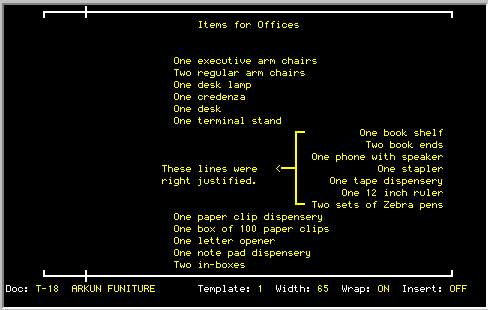
The RIGHT JUSTIFICATION command allows the user to position the line to
the far right. Dates, addresses, headings and other text that needs to be
on the right margin can be easily moved over using this function.
After the [R] key is pressed for RIGHT JUSTIFICATION, the text on the
current line will be adjusted to the right margin, and the cursor will move
move down one line. When the last line of the screen is reached, the
screen will scroll up one line. Pressing another [R] will cause the next
line to be right justified and so on. Press [RETURN] to return to the edit
mode.
|
|
|
| Purpose: |
Allows the screen to be moved down one line.
|
| Type Of Operation: |
Editing
|
| Keystroke(s) Required: |
SCROLL DOWN function key
|
| How Is It Used: |
Pressing the [SCROLL DOWN] key will cause the document to be moved down
one line in the window displayed on the screen.
|
|
|
| Purpose: |
Allows the screen to be scrolled up one line.
|
| Type Of Operation: |
Editing
|
| Keystroke(s) Required: |
SCROLL UP function key
|
| How Is It Used: |
Pressing the [SCROLL UP] function key causes the
document to be moved one line up in the window displayed on the screen.
|
|
|
| Purpose: |
Moves the cursor quickly to preset columns on the screen.
|
| Type Of Operation: |
Editing
|
| Keystroke(s) Required: |
TAB key
|
| How Is It Used: |
The [TAB] key is used in conjunction with the [TAB
SET] and [TAB CLEAR] functions to enable the rapid movement of the cursor
to preset locations. Tabs may be set for each template, so switching from
one template to another will allow the user to have a number of different
tab settings.
The default template #1 has a tab set at the fifth column. The user must
set any other tab stops as are necessary. The tab stops are indicated by a
vertical line displayed on the top and bottom margins.
Each time the [TAB] key is pressed the cursor will jump to the next tab
stop on the line. When the last tab stop is encountered, the cursor is
then returned to the left margin of the next line.
|
|
|
| Purpose: |
Removes a tab stop from the template.
|
| Type Of Operation: |
Editing
|
| Keystroke(s) Required: |
TAB SET/CLEAR function key
|
| How Is It Used: |
Move the cursor to the tab stop that is to be
removed and press the [TAB SET/CLEAR] key. The vertical lines at the top
and bottom margins will be removed and the tab stop no longer functional.
|
|
|
| Purpose: |
Sets a tab stop at the column where the cursor is currently positioned.
|
| Type Of Operation: |
Editing
|
| Keystroke(s) Required: |
TAB SET/CLEAR function key
|
| How Is It Used: |
Position the cursor where a tab stop is desired and press the [TAB
SET/CLEAR] key. Vertical lines on the top and bottom margins indicate
where the tabs are set.
|
|
|
| Purpose: |
Allows for various input formats and tab settings.
|
| Type Of Operation: |
Editing
|
| Keystroke(s) Required: |
TYPING CONTROL function key, and
[C] for Create Template, or
[1] through [9] to select a template
|
| How Is It Used: |
Typing Templates are a tool that allow the user to
vary the margins and tab setting while typing and editing the document. As
many as nine templates can be defined for each document. The default
template is number one and always contains the left and right margins
defined by the line length.
The user may create other templates (2 - 9) by using the [C] parameter.
The left and right margins are requested and are always the number of
spaces inside the the left and right margins indicated on the sides of the
screen. In other words, the user may only create formats that are equal or
shorter in line length than the original template.
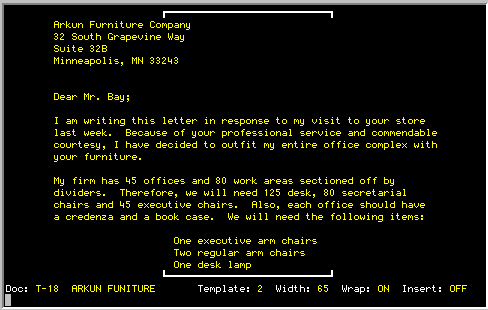
The general use for templates with different margins is for indented text
such as quotations or lists. The advantages of setting up a new template
for indented text is that the Word Wrap and Reformat Text options use the
margins of the current template. The user can therefore type in a new
format with all of the conveniences of the original template without having
to indent or tab at each line.
|