If you have several minutes we will install TKGUARDIAN and walk through an introduction to the system. By continuing into the Maintenance Functions chapter, you will find that the package is comprehensive, yet easy to use and maintain.
NOTE: If TK-GUARDIAN will be operating in an InterSystems environment, the routine ^TKGUBRK must be copied to the Manager's UCI and renamed ^%TKGUBRK before attempting initialization.
Although TK-GUARDIAN is distributed in program form, it does build and maintain several files. By convention, these files also begin with the letters TKGU . When the installation is completed, the only file that will remain is ^TKGU.
In order to begin, invoke the initialization program by executing the following instructions
DO ^TKGUINIT
NOTE: If this is the first time PG&A software has been run on your system, the program will first take you through the Toolkit Initialization which defines necessary operating system and terminal type parameters. Refer to Appendix A for more information on the initialization process.
The TK-GUARDIAN Initialization screen should now be displayed. A facsimile of the screen is shown below. As you can see, several questions must be answered during the initialization process.
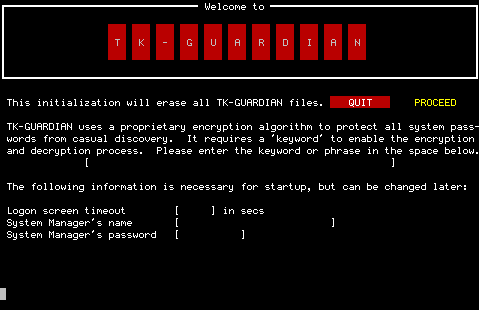
NOTE: The TK-GUARDIAN Initialization Program erases any existing information in the menu and security files when used. Proceed to initialization only if initialization has not yet been run, or you wish to begin constructing the menu and security systems again.
If you're wondering how to move the highlighted bar, you can use the [SPACEBAR], cursor [LEFT] and cursor [RIGHT] keys, or press P .
Enter a keyword or phrase in this field. Only upper case alphabetic characters, numerics, space and punctuation characters will be accepted.
Once initialization has taken place, this keyword can not be changed, and is therefore not displayed or edited anywhere else in the system.
The rest of the information required on this screen is necessary to initialize the TK-GUARDIAN database, but may be edited at a later time using Security Maintenance utilities which will be discussed later on.
This screen will remain displayed on the terminal for a period of time which you must define at this point. Valid responses range from 10 seconds to 28,800 seconds (8 hours). A timeout value is required.
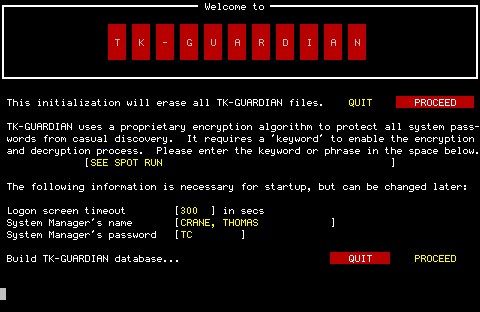
Press P and [RETURN] to build the TK-GUARDIAN database. During the process, the initialization program will display status messages which indicate its progress. The complete procedure should take no more than a minute.
As you type the password, notice that the cursor does not move, and that none of the characters that you type are displayed to the screen. TKGUARDIAN does not permit passwords to be viewed when entered. If a mistake is made during entry, press [RETURN] and try again from the beginning.
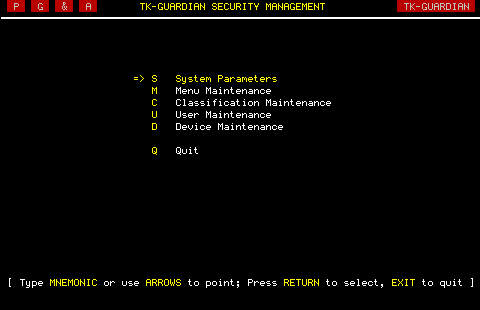
Since this is the first opportunity to use the TK-GUARDAIN menu driver, let's check it out.
Now press the [SPACE] bar. In TK-GUARDIAN menus, [SPACE] performs just like the cursor [DOWN] key.
Use either key to move the pointer to the last option on the menu and press cursor [DOWN] or [SPACE] once more. Notice that the pointer wraps back to the top. The pointer will do the same trick when going up as well (using the cursor [UP] key).
Let's try one more thing before we move on. Type an S or one of the other mnemonic characters to the left of each option. The pointer moves immediately to the option with the entered mnemonic.
NOTE: If you have configured your system to require [RETURN] in Toolkit menus, it must be pressed to complete each selection. However, if your system has been configured to not require [RETURN], choosing an option by mnemonic will immediately invoke that option.
To take a shortcut, the user simply types a slash [/] and the name assigned to any place in the menu system followed by a [RETURN]. To see a list of the currently defined shortcuts, simply type a slash [/] followed by a question mark [?] or the HELP key.
Shortcuts are user-specific if the system's user security is employed. If user identification is not required, shortcuts are common to all users.