Although TK-CALC contains an on-line tutorial program, there are a number
of useful features that are not readily learned by using the software
without the aid of this manual. Familiarize yourself with the contents of
this manual so that you can refer to it as the need arises. The sections
are:
|
The following section provides basic information to enable you to find your
way around the TK-CALC software and use the keyboard. |
Starting TK-CALC
 |
The main menu of TK-CALC is accessed by executing
the following MUMPS command:
D ^TKCALC
If your particular system has TK-CALC already built into a menu system, you
may call it up from that menu driver.
NOTE: If your terminal has not been used for
PG&A's Toolkit products
before, you may be asked
to identify the type of terminal you are using
before starting. A list of the available types
will be listed for you to
use in making a selection.
Enter the number next to your terminal type and
press "RETURN". If the menu appears but is not displayed properly,
your terminal may be incorrectly identified.
See Appendix A for more information.
|
Using The Menus
|
If your terminal has been correctly defined, you
should see the main menu of TK-CALC with the TK-CALC name at the top of the
screen, a list of options in the middle of the screen, and an instruction
line at the bottom.
You may select the desired option from the menu in two ways:
1. Move the selector pointer ( --" ) up or down to the option
with either the up and down arrows (cursor keys) and then press "RETURN" to
select the option. You can also use the SPACE bar to move the selector
down. Notice that the selector wraps around to the top when it reaches the
bottom.
2. Type the first letter of the desired option and then press
"RETURN". In some systems, the "RETURN" is not required and only the
letter need by typed. (See Appendix A for more information regarding the
use of the optional "RETURN".) |
Using The Keyboard
|
Once you have entered the text editor, you will be
able to use other keys on the keyboard besides the standard typewriter
keys. We will refer to these keys as editing keys. Since TK-CALC can be
run on a wide range of ASCII terminals, we cannot refer to specific keys
for each. But we will mention a few commonly used keys and describe them
by their function.
TK-WRITER also allows you to tailor the editing keys of your particular
terminal so that they will suit your own preferences. To do this, select
the Terminal Configuration option to see the current definition of the keys
for your terminal. It can be found under the Special
Functions option of the main menu.
The editing keys provide the following functions when entering and editing
text: |
| Cursor Left |
Moves the cursor one space to the left in the
current field. If the beginning of the field is reached, then the cursor
will remain at the first location. |
| Cursor Right |
Moves the cursor one space to the right in the
current field. If the end of the field is reached, then the cursor will
remain at the last position. |
| Cursor Up |
Moves the cursor to the beginning of the previous
field. If the cursor is currently in the the first field, then the
previous screen will be redisplayed without storing any changes to the
current screen. |
| Cursor Down |
Moves cursor down to the beginning of the next
field. If the cursor is currently in the last field of the screen, then
the screen will be stored and the next screen will be displayed. |
| Insert Character |
The character under the cursor and all of the
characters following the cursor in the same field will be moved one space
to the right. A space character will be inserted at the cursor position.
If maximum length of the field is reached, no action will be taken. |
| Delete Character |
The character under the cursor will be deleted and
the following characters in the field will be moved to the left one space.
|
| Delete or Rubout |
The cursor will move one space to the left and
erase the character at that position. No action will take place when the
beginning of the field is reached. |
Upper and Lower Case
|
You may type in upper or lower case or both. All
commands, menu selections, and text will work equally well in upper or
lower case. Generally you would enter your spreadsheet text in whatever
form that you would like to see when redisplayed or printed.
The one exception to this rule is when you are entering formulas and cell
addresses. They are required to be in upper case. |
Using The Tutorial
|
TK-CALC is distributed with an on-line tutorial
program built into the software. The tutorial will walk you through the
elementary steps of creating and using a simple spreadsheet. For your
convenience, we have also included a tutorial in the following pages.
This tutorial walks you throught the basics of the TK-CALC spreadsheet
software. You will learn how to create, edit and use spreadsheets in a
step by step approach.
The following tutorial includes some hands on exercises to assist you in
the learning process. Use the TK-CALC software as you read -- it will
help. |
What is an Electronic Spreadsheet?
|
Traditionally a spreadsheet is a ledger or oversized piece of paper made
up of columns and rows that intersect to form a pattern of boxes or
cells; each box generally
holds a numeric value. Rows and columns are often totaled across the
bottom and/or side. Since a number is often dependent upon other numbers
elsewhere on the sheet, changing one number means changing every one that
depends upon it.
Your check book might be considered to be a simple form of spreadsheet.
Normally, it contains columns for deposits, checks and current balance.
Each entry is made on a new row and the balance column is computed using
the previous balance plus any deposits and minus any checks.

An electronic spreadsheet consists of such columns and rows which are
stored in the computer. Because the computer knows the data which
has been entered, as well as the relationships between the data items, it
can automatically compute new values. In the sample shown above, the
balance column would be computed automatically because the data required to
compute it is all readily available.
This gives the electronic spreadsheet remarkable power and allows the user
to quickly generate complex relationships between numbers on the
spreadsheet.
As you move through the examples in this section you will be learning the
basics of TK-CALC, including:
Creating a new spreadsheet
Pointer movement
Values
Labels
Entering Data
Using TK-CALC commands and operators
Entering a formula
|
Creating a New Spreadsheet
|
From the main TK-CALC menu, select the CREATE
option. You will be asked to enter some basic information about the
spreadsheet to be created.
You will be given the opportunity to enter a description of up-to thirty
characters, as well as your own name as the "author". These two items will
make it easier to select this sheet from among the others when you want to
edit or print it at a later time.
You will also be given the opportunity to enter a password. This password
will prevent unauthorized access to this spreadsheet.
NOTE: It is
very important to remember each password you use, because
there is no means in TK-CALC for recalling them.
You may just press "RETURN" at the password line, and opt for no password
and no security. |
The Spreadsheet Window
|
After entering the description, author and
optional password, a blank spreadsheet will be displayed on the screen.
The sheet number is located at the top left corner along with other status
information. The top two lines of the screen are called the status
lines and will change according to the particular function being
performed.
The row numbers 1 through 20 are listed on the left edge of the screen.
The column letters A through G are listed across the screen on line 4.
These row numbers and column letters are your navigation aids for moving
about the sheet, and will change as the window is moved about on the much
larger sheet residing in the computer. Once you start
entering data into the sheet, these rows and columns will take on meaning.
The intersection of a row and a column forms a cell
. Each cell may hold
one data element and it is addressed by the column letter and the row
number. The top left cell is called "A1", the next over to the right is
"B1" and so on. Moving down the sheet from the top left is "A2", then "A3"
down to "A999". |
Moving Around the Sheet
|
You generally enter and edit data in one cell at a
time. In order to indicate which cell you are
working with, you need to point to it. The spreadsheet has a handy pointer
which may be moved to the left, right, up and down with the cursor left,
right, up and down keys.
This pointer, which is really the cell displayed in reverse video, should
be located at the top left hand corner of your screen covering cell "A1".
You may go ahead and move it around with the cursor keys if you like.
Notice that the top status line lists the cell address, and watch it change
as you move about the sheet (screen).
If you move far enough to the right, you will notice that the entire sheet
is shifted left one column. This is called scrolling
. Anytime you bump up
against the right edge of the sheet, the sheet will be scrolled one column
to the left. Generally you will loose one column on the left and gain one
on the right. If the new column is wider than average, it may force more
than one column off of the left edge.
Bumping the pointer up against the left edge will then scroll the sheet
back to the right. This will continue until column "A" is scrolled back
into view. More bumping against the left edge will not do anything since
you have reached the far left edge of the sheet.
You can do the same scrolling at the top and bottom with the sheet being
moved up and down one row at a time. |
GOTO Command
|
The cursor keys provide an easy way of moving the
pointer around the spreadsheet, but there are times when you might find it
tedious to move from one place to another of some distance. The "TAB" key
can assist us and moving more quickly. Press the "TAB" key and you will
notice that TK-CALC will ask you for the address of the cell to which you
want to move. Enter the column letter followed by the row number. Press
"RETURN" and the pointer should jump to the desired cell. If the cell is
not in the current window, the screen will be repainted with the desired
cell in the top left corner.
Pressing the "TAB" key calls the GOTO
command into action. Although it is
a simple command, we can learn some basics from it that we can apply to all
commands.
First, you will notice the GOTO command indication on the second line of
the screen. It provides additional instructions which will help you
understand the input required. In this case it asks for the address.
Second, you will notice that your address that you type in is displayed on
line three. Or at least until you press the "RETURN" key. This third line
is called the EDIT
line and it is where you type while you are interacting
with TK-CALC. You may use the delete or rubout key to erase any of your
input and enter it again until it's right. Then you press the "RETURN" key
indicating that you are satisfied with typing and that it is ready to be
acted on.
If you press "RETURN" without entering any address, the GOTO command will
be canceled and the pointer will stay where it is. If you type in an
address and then delete it with the "DELETE" or "RUBOUT" key, and then
press "RETURN", it too will cause the GOTO command to be cancelled.
NOTE: To cancel a TK-CALC command before it
executes, press the "RETURN"
key without entering any data.
If you have entered data and then decide to
cancel the command, use the "DELETE" or
"RUBOUT" to delete it before pressing "RETURN".
|
Entering Data
|
The main purpose of moving around the spreadsheet
is to enter or modify data in the cells. There are two kinds of
spreadsheet entries...
LABELS such as...
January
TOTALS
Household Expenses
% Income
Patient Days
...and NUMBERS such as...
12.56
-23
0
10000
125+25
As you would expect, NUMBERS are the most common type of data. After all,
calculations can only be accomplished with numbers. NUMBERS are defined as
any data which consists of the following characters:
0 1 2 3 4 5 6 7 8 9 . + - * / \ @ #
Notice the +-*/\@# are included in the numbers. These are numeric
operators and are used in formulas which evaluate to a single value. The
meaning of these operators are as follows:
+ addition
- subtraction
* multiplication
/ division
\ integer division (returns integer)
@ @Functions which evaluate to a number
# modulo (returns remainder of division)
LABELS are used as titles, captions, or special text of some kind and may
begin with any character other than those listed above for NUMBERS. It is
the labels that provide information about the numbers that are on the
spreadsheet and they help define rows and columns.
TK-CALC decides the type of the data on the first character entered. If it
is a number or +-*/\, then it assumes a NUMBER type. If it is a letter,
then it will assume a LABEL
type. TK-CALC needs to know the type of data
because it displays labels differently than numbers. Generally a number is
displayed right-justified in the column (meaning that it is shifted all the
way to the right) while the labels are left-justified.
Sometimes your label may begin with a number, such as:
2nd Quarter
1985
1st Installment
Since TK-CALC judges the type of data by the first character, it will
incorrectly assume these are numbers and display them right-justified
within the column. You can force them to be a LABEL data type by preceding
your entry with a " (quotation mark). TK-CALC will then assume it is a
label but will not display the quotation mark. |
Entering Labels
|
Move your pointer to A6 and let us begin our first
sheet by entering the label "Blue Cross Days". As you enter the label, you
will notice that the mode indicator on the top line will display the word
LABEL. Your entry will be displayed on the edit line.
NOTE: If
you make a mistake while entering in
the label, use the"RUBOUT"
or "DELETE" keys to remove the mistake and then
retype it.
When finished entering the label, press "RETURN". You will notice that the
label will be removed from the edit line and will be displayed in the
current cell and also on the status line. If you now notice that you made
a typing mistake, you can retype the entire label and press "RETURN". It
will replace the original data. You may change the data in a cell as many
times as you would like.
Now, move the pointer to the following cells and enter in the following
labels just as you did on the first one:
1. Enter Medicare Days
in cell A7
2. Enter Total in cell
A8
3. Enter June in cell
B4
4. Enter July in cell
C4
5. Enter August in cell
D4
6. Enter Total in cell
E4
What would have happened if the label we entered was longer than the cell.
TK-CALC permits entry of up to 55 characters, but you will notice that the
cells in column A are only 15 characters wide. Therefore, you will only
see the first 15 characters in the cell and the rest will not be displayed.
To display more of the label, increase the width of the column.
|
Changing the Column Width
|
In order to make the column wider or narrower we
will need to use a TK-CALC command called LENGTH.
First, make sure your pointer is on the column that you want to change.
First, press the "/" key to begin the command sequence. As you press it,
notice the Command Menu appear on the third line of the screen just as it
does in the following example.
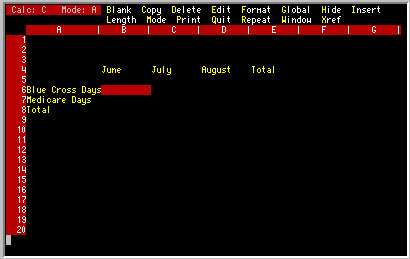
Pressing the "?" will cause the second line of commands to be shown. Once
the commands are displayed on the screen, you may select a command by
entering the first letter of the command. Select the LENGTH command by
pressing the letter "L". Pressing "RETURN" without an entry will cancel
the command mode and return you to editing mode.
After you have entered the "L", the current length of the current column
will be shown and you will be given the opportunity to accept it, or change
it as shown below:
 You have just enlarged the column by 15 characters (assuming you entered 30
as suggested) which is enough to display a fairly wide label. The width of
the other columns did not change, but you did loose the rightmost two
columns since there is no longer enough room for them. A disadvantage of
wide columns is that it limits the number of columns that can be viewed on
the screen at one time. Change the column length back to 15 if you would
like. Move the pointer to the column to be changed. Enter "/L15" followed
by a "RETURN".
You have just enlarged the column by 15 characters (assuming you entered 30
as suggested) which is enough to display a fairly wide label. The width of
the other columns did not change, but you did loose the rightmost two
columns since there is no longer enough room for them. A disadvantage of
wide columns is that it limits the number of columns that can be viewed on
the screen at one time. Change the column length back to 15 if you would
like. Move the pointer to the column to be changed. Enter "/L15" followed
by a "RETURN". |
Entering Titles
|
There are times when you want one label to be
displayed wider, but you do not want the entire column to be changed. A
title or heading of the spreadsheet is an example. To do this you have two
options.
First, you can enter parts of the label in more than one column. In other
words, the label would be spanning two or more columns. The problem with
this approach is that it takes trial and error in lining up the characters
to make the label space accross correctly. Also, if you ever change the
column width of any of the columns within the title area, your title also
changes.
A second approach is to use the TITLE option found under the
FORMAT command.
With this command we can change the format of the cell so that it
will spill over into the adjacent cells to the right. As we mentioned
before, the data is normally chopped off at the right edge of the column if
it is too long. The TITLE format tells the computer not to chop it off,
but rather to display the entire contents.
Here is what you do to enter a long title at the top of the sheet. First
move the pointer to the cell where you want the title to start. Type in
the title as you want it to appear. Press "RETURN", and the title will be
moved into the cell indicated by the pointer. Press "/" to enter the
command mode, "F" to select the FORMAT command. You will see the following
FORMAT options:
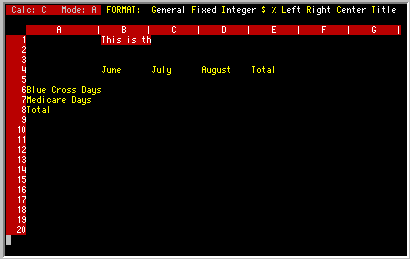
Press "T" to select the TITLE
format. The entire title that you entered
will now be displayed in as many columns as is necessary. You will also
notice that the format displayed on the Status Line has been changed to
read "Title". |
Entering Numbers
|
Now that we have entered some labels on the sheet
and have possibly typed some sort of title at the top of the sheet, we are
ready to enter the numbers.
Numbers are entered the same way as the labels. Move your pointer to the
cell where you want to enter the number, in our case the cell B6. Enter in
the value 125. Notice that the word NUMBER comes up on the second line
when you enter the first digit. That indicates that TK-CALC is assuming
the entry is going to be number and it will therefore right-justify it
within the cell by default. When you press the "RETURN" key, the value
will be transfered to the cell.
Enter the remaining values in the same way:
1. Enter 136 at C6
2. Enter 109 at D6
3. Enter 83 at B7
4. Enter 76 at C7
5. Enter 84 at D7
|
Editing Spreadsheet Data
|
As was mentioned before, if you make a mistake
when entering a data item, it can easily be edited.
Sometimes, particularly when the data item is rather long, it is more
advantageous to correct the original than to retype the entire entry. To
do this, we must first pull the item back out of the cell and place it on
the EDIT line. This manuever requires the use of the EDIT command.
First move the pointer to the cell which is to be edited. Select the
EDIT
command by entering "/E". Don't press "RETURN" yet. You will notice the
original data is displayed on the EDIT line with the cursor sitting on the
first character. You may now edit this item, and when satisfied, you may
press "RETURN" to save it away again in the cell.
You may use the following keys while editing:
Right cursor - Moves to the
right
Left cursor - Moves to the left
Insert Character - Inserts a space at the cursor position
Delete Character - Deletes character under the cursor
Printable Characters - Replaces the
current position with the character entered.
"RETURN" - Terminates EDIT and stores data in the cell.
Try editing a data item that you have entered on your spreadsheet.
|
Formulas
|
Formulas are a key element of the electronic
spreadsheet. They perform both simple and sophisticated mathematical
operations. Formulas enable you to relate cells to one another.
Formulas contain the references to individual cells (named by their cell
addresses) and to the mathematical operations to be performed on the
numbers in those cells.
Formulas are entered into the spreadsheet just as you would for any entry -
by typing it into the cell. A formula is a value and is considered a
NUMBER data type. Therefore it must begin with the NUMBER lead-in
characters such as:
0 1 2 3 4 5 6 7 8 9 0 . ( @ +
The simplest formula is a reference to another cell, say "B6" on our sample
spreadsheet. But since the cell address does not begin with the NUMBER
lead-in characters, we need to preface it with a "+". So this simple
formula would be:
+B6
Just for your sake, move your pointer over to E6 and we will see how the
formulas work. Enter the formula "+B6", and then press "RETURN". You will
see that the cell E6 now contains the same value as B6. Although you
entered a formula, the evaluation of the formula is displayed on the sheet.
But if you look up on the top status line, you will notice that your
formula is displayed as you had entered it.
NOTE: Formulas are always evaluated before they
are displayed on the screen, although the
original formula is also kept and displayed on the
status line and can be edited with the EDIT command.
Now what would happen if the value of B6 is changed. Go ahead and change
it yourself and find out. E6 will change also to reflect the new value.
Formula with cell addresses create links between data on the sheet.
To make our simple formula a little more complex, we can add some
arithmetic operators and another value. Our operators that we can choose
from are:
+ addition
- subtraction
* multiplication
/ division
\ integer division
Let's start simple and only add some addition to our first formula. Make
it
+B6+100
Now when you press "RETURN", the cell E6 will contain a value of 100 more
than the current value of B6. Instead of adding a number, we can use
another cell address such as:
+B6+C6+D6
Now we are adding the three columns B, C and D for row 6. We have just
created the total that we were looking for in E6. Let's do the same in row
7 to create our total for second line. In this case our formula in E7
would read:
+B7+C7+D7
You may find that it is a little tedious entering the longer formulas. To
help matters somewhat, TK-CALC has a number of shortcuts. One is the
abbreviated form of the cell addresses. If all of your addresses in the
formula share the same row as the cell where the formula is entered, you
may skip the row number since it will be the same. Our shortened form of
the formula would then read:
+B+C+D
This same formula would apply to E6 and E7. |
@Functions
|
Another shortcut in writing formulas is by using
the @FUNCTIONS.
These are special purpose operators which are built into the TK-CALC
system. Whenever TK-CALC sees the @ character it expects the following few
characters to be the name of one of the built-in functions and it assumes
the value of the function will have a numeric result.
The @SUM functions is an often used function that will make a good
illustration. In order to add up an entire row of values we could enter in
the following formula:
+C1+C2+C3+C4+C5+C6+C7+C8+C9+C10+C11+C12
...but by using the @SUM function, this would look like:
@SUM(C1...C18)
...and is certainly shorter to type in.
Each built in function, such as @SUM, perform some sort of calculation on a
list of values given to it. The list is enclosed in parentheses and each
value may be:
1) An expression, i.e., a series of numbers, cell references and/or
@Function references separated by arithmetic operators and/or parentheses.
2) A range of entries, i.e., a series of cell addresses that are
next to each other in a row or column such as A1, A2, A3, and A4, or D3,
E3, F3, G3 and H3. A range is specified by typing (or obtaining with the
pointer movements) the first and last entry separated by an ellipsis (3
dots in a row). For example, the ranges just mentioned would be specified
by A1...A4 and D3...H3 respectively.
3) A range of entries covering more than one row and more than one
column such as A1 through D4 which is represented by A1...D4. This range
consists of 4 rows with 4 values in each and forms a rectangular shape on
the spreadsheet such as:
A1 ~ B1 ~ C1 ~ D1
A2 ~ B2 ~ C2 ~ D2
A3 ~ B3 ~ C3 ~ D3
A4 ~ B4 ~ C4 ~ D4
In the case of the @SUM function, the list of values within the parenthesis
are added together and yields a single numeric value. Some examples of the
@SUM function would be:
@SUM(A1,C3,D20,B4) - single values
@SUM(C4...C9,C12,C15) - a column of 6 values and some
singles
@SUM(A1...D4) - a series of rows (a block)
@SUM(G3*.25+12,A3...D3) - an expression and a range
@SUM(@SUM(D4...D9),E12) - an expression with a
function
You can use any numeric result of the @Functions just as you would an
ordinary number. The function reference can occur anywhere a number or a
coordinate would appear.
The @MAX and @MIN
functions accept a list of arguments just like the @SUM
function. The result is the maximum and minimum value in the list,
respectively.
The @CNT
function accepts a list of arguments and returns the number of
non-blank items. @AVG
similarly accepts a list of arguments and returns
the arithmetic mean of the non-blank items in the list. It is equivalent
to
@SUM(list...)/@CNT(list...).
Try out a few of these functions on a clear area of the sheet. Change the
range and watch how it affects the results of the calculation. You will
see how the range capabilities of the @SUM function is far easier to type
than typing in all of the cell addresses. Additionaly, the numeric
calculations, table lookups, date conversion, and other functions performed
by these functions add to the power of the spreadsheet software. |
Copying Values
|
It will not take you too long entering data into
the spreadsheet when you will realize that it would be mice if some
formulas could be copied from one place to another. Take the following
simple spreadsheet as an example:
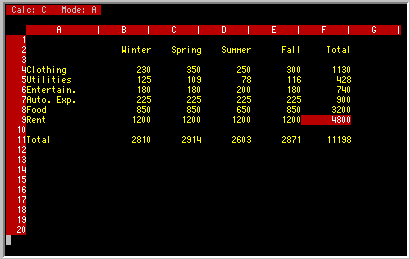
The formulas for the totals in column F would be:
@SUM(B3...E3)
@SUM(B4...E4)
@SUM(B5...E5)
@SUM(B8...E8)
...or in the shortened form they would all be:
@SUM(B...E)
Rather than typing the formula in 6 times, what would be best is to type it
in once for F3 and then copy it into F4 through F8.
This is exactly what the COPY
command allows you to do. It allows you to
copy:
1) a single cell to another location
2) a single cell to a series of row or column locations
3) a row or column to another row or column
4) a row or column to a series of rows or columns
In our example we wanted to copy a single cell, F3, into a series of
locations, F4 through F8. The following steps will illusstrate how the
COPY command is used in this example:
1) Call up the COPY command with a /C
2) Enter the Source range: F3 through F3
3) Enter the Target range: F4 through F8
Notice that the source and target areas are specified with a range. A
range is defined in TK-CALC as the starting and stopping coordinates of a
series of entries. If only one entry is to be specified, the starting and
stopping address will be the same. The starting address should always be
less than or equal to the stopping address, so you would specify the left
coordinate first on the row or the top coordinate first on a column.
You don't have to just copy formulas. You can copy numbers, labels,
titles, formats or even a blank entry. Copying a blank entry to another
portion of the spreadsheet will blank out that portion. Copying an entry
with a special format will cause the target area to also have that format.
|
Absolute and Relative Addressing
|
When copying formulas, it is important to remember that
TK-CALC changes cell addresses relative to
the target area. In this way the
formulas will make sense in their new home. When we copied the following
formula in F3:
@SUM(B3...E3)
to the location F4 it automatically became:
@SUM(B4...E4)
That is what we had intended since we wanted the total of row 4 to placed
in F4. But what if we had wanted one of the addresses to remain the same,
even if it is moved to another cell? It can be accomplished using an
absolute address.
An absolute address differs from relative addresses in that the row or
column address that is to remain unchanged is preceded by a $ (dollar
sign). If both the row and the column cannot be changed, then they are
both preceded by a $. For example:
C4
is a relative address. Both the C and the 4 can be changed in a
copy
$C4
is an absolute address where the column 'C' cannot be changed
C$4
is an absolute address where the row '4' cannot be changed
$C$4 is an absolute address where neither can be changed
Absolute addresses and relative addresses may be used together in the same
formula as shown below:
+B5+B8*$A$4
+@SUM(AB1...AB9)/$H$12
Remember that when an aabsolure address is moved elsewhere on the sheet (as
with the Copy, Move, Delete or Insert commands), it does not change.
However, all relative addresses will be changed.
|
Formats
|
We mentioned that each label was displayed
leftjustified within the cell, and the numbers were right-justified. That
is the most reasonable format for displaying data, since we usually want
our labels lined up on the left and the numbers lined up on the right.
But there may be times when you will want to modify these format rules and
perhaps change the way they are displayed. You may want numbers to have a
dollar sign and two decimal digits when you are working with dollars and
cents. Or, perhaps you want to print a copy of
the spreadsheet with only whole dollars and no cents. These changes are
accomplished by changing the formatting rules of the spreadsheet.
There are two ways to effect format changes. First, there is the
Global
Format
command, which will change all entries on the sheet. And, secondly,
there is the Format command which changes one cell at a time.
Each of these commands will allow you to define the following formats:
Dollars
Fixed decimal point
Integer (whole number only)
Left justified
Right justified Titles
The dollars and the fixed decimal formats are the same in that you may
specify the number of places to be displayed to the right of the decimal
point. The dollars format also includes a dollar sign to the left of the
number.
Integer format will enable you to remove any decimal fractions and display
all values as rounded whole numbers.
Left and Right justification formats allow you to override the default
formats for number to the right and labels to the left.
The Title format allows the label value to overflow into the adjacent cells
to the right if it is longer than the column width. You should not have
data in those cells to the right, or they may not be displayed correctly.
The Title format allows you to enter headings and titles that may span a
number of columns.
NOTE: These formats only change the visual
representation of cell entries.
Calculations will still be performed using the cell contents.
|
Printing a Spreadsheet
|
Although most of your work with TK-CALC will be
accomplished at the CRT, you will from time to time want to run off a copy
of all or a portion of the spreadsheet. This can be accomplished by using
either the Print
command while editing the spreadsheet, or by using the
Print Option from the TK-CALC main menu.
NOTE: Use the Print command "/P" when in the
spreadsheet you want
printed. However, printing
can also be accomplished from outside of the
spreadsheet.
To print a spreadsheet, you will need to provide the following minimum
information:
1) Spreadsheet number
2) Printer number or name
3) Print range (if blank it will print the entire sheet)
You may also specify the following items or accept the default values that
are displayed on the screen:
1) Printer Setup
2) Margins
3) Column and Row Titles
4) Number of Copies
5) Print Format Options
6) Header and Trailer Information
The Spreadsheet number is not an entry, but you select it from a table just
as in the edit. Move the pointer to the spreadsheet you want to print, and
then press "RETURN".
Your printer number will be the number (or name) assigned to it by your
operating system. Once you use this printer, TK-CALC will remember the
printer number and it will become a default value the next time you go to
print. |
Print Range
|
You instruct TK-CALC what portion
of the spreadsheet that you want printed by providing the top-left and
bottom-right coordinates. This is called the print range.
The rectangle
described by these two coordinates will be printed in one or more pages.
TK-CALC will print as many of the columns as possible on each page, with
continuation pages for additional columns if necessary.
If you leave the print range blank, the entire sheet will be printed.
Note that empty areas of the sheet will not be printed, skipping instead to
areas that contain data. So if there is data in rows 1 through 6 and then
have nothing until row 73, you will not have 66 blank lines in the middle.
It will print a couple blank lines, then a message indicating that it is
skipping to row 73, and then resume printing with row 73. (You can
suppress this skipping empty lines with the Empty line option in the Print
Options selection) |
Print Margins
|
The margins are particular to your own printer and
preference. You have to indicate the margins for the left and right, top
and bottom. Enter the number of spaces from the left printing position to
where you want the first text to be printed. The default is 6. Enter the
last character position that you want to type in. The default is 75.
The Top margin is the number of lines that you want the paper scrolled
before the first line is printed. The Bottom margin is the number of lines
from the top where the last line is to be printed. All of these values
depend upon the size of paper, number of characters per inch, number of
lines per inch, and your own desire for the amount of space at the edges.
|
Printer Setup
|
TK-CALC does not control the variety of special
features found on the printers today. Such options as compressed print,
variable spacing, automatic underlining and the like are not supported
except by what can be accomplished in the printer setup line. This option
allows you to enter a string of decimal values that are equivalent to the
ASCII sequences that is needed to be sent downline to the printer before
the printing begins. For an example, the line:
27,91,48,119
...is used by many ANSI compatible printers to select 10 characters per
inch, and...
27,91,52,119
...would specify 16.5 characters per inch (compressed print).
NOTE: Each of the numbers in the printer setup
option are separated by a
comma and there should be no embedded spaces.
|
Headers and Trailers
|
A header line is a single line of text at the top,
and the trailer line is a single line at the bottom. They are useful for
describing the printout, titling the spreadsheet, printing the date, and
number the pages.
If you want a header or trailor, enter your text in the fields
corresponding to the either the header or trailor. You will notice that
you can select what information will appear on the left, center and the
right by separating it by the "\" (backslash) character. The following
trailer line...
First Quarter Sales\\1985
...will be printed on the printer with "First Quarter Sales" on the left
and "1985" on the far right. The line...
\ANNUAL REPORT\page #
...will print the title "ANNUAL REPORT" centered on the paper (or on the
margins you selected since it doesn't know anything about the size of
paper. The text "page" will appear flush right along with the current page
number. TK-CALC will automatically change the page numbers for each
continuation page. |
Row and Column Titles
|
You may also choose to have a row or column
included as the top row or left-most column of the printout for a
reference. This would be particularly important if the spreadsheet is
large and will require many pages.
By selecting Title Row or Column on the top or left side you will direct
the software to print the selected row or column on each page of the
printout. In many cases, this would be column A or Row 1 which contain
headings to be repeated on subsequent pages. TK-CALC will ignore the title
row or column if it already will appear on that particular page.
|
Let It Print
|
For now, we will accept the other print options
the way they are and start printing. By tabbing down to the bottom of the
screen, you will indicate to TK-CALC that you are done editing the printer
options and are ready for the printer to begin.
The printer will print the spreadsheet and after completion you will be
questioned about printing again from that same sheet. If you answer yes,
you will be again shown the print options screen with all of your values
that you had previously entered. You may modify them as needed, and print
again.
|